 CutNow
How to Merge Videos in the Order You Choose
Join A–B–C clips in one file. Check mixed dimensions and audio, add silence for a silent clip, and choose a normalized FFmpeg merge or a matching-stream copy.
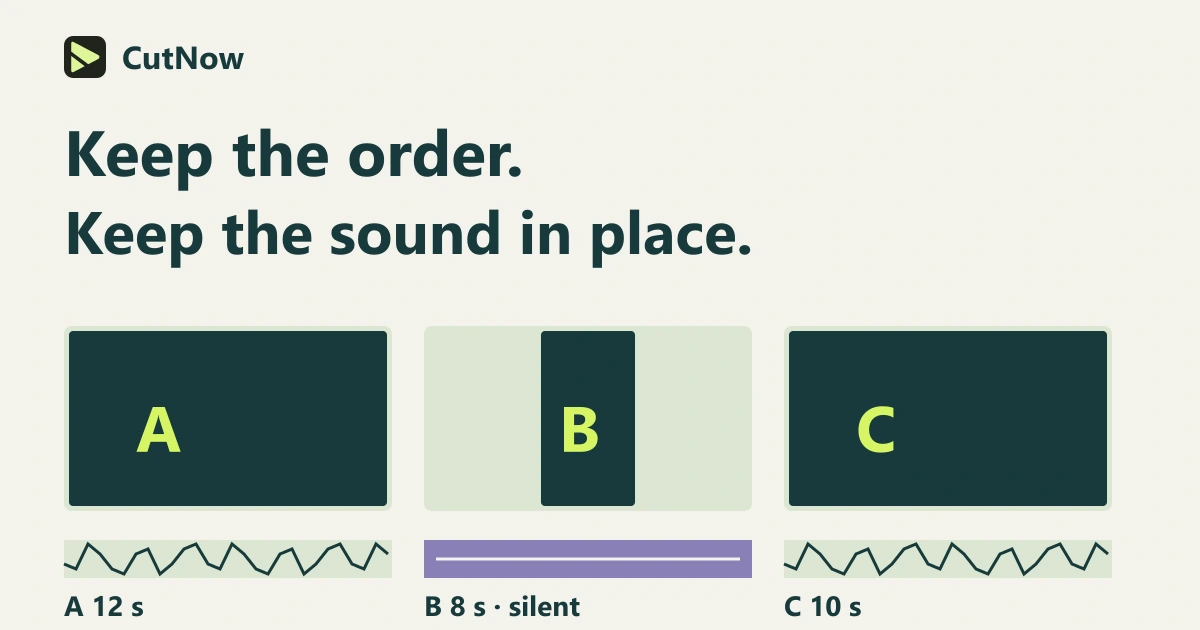
When you have chosen clip A, then B, then C, merge them by placing each after the previous clip, choosing one output frame and checking both picture and sound across the joins. Mixed recordings may need their dimensions, frame rate and audio format converted before they can share one file.
CutNow is an AI video editing product for footage you already have. Its automatic selection and first-cut organization help when you still need to choose useful moments from many recordings. A settled A–B–C sequence is a different task: preserve your chosen order and deliver it cleanly with the workflow below.
1. Write the order before importing
Make a delivery list with each filename, content and position. A file picker may sort by name or date rather than your intended story. Keep the sources and add order prefixes to working copies if useful.
Here is an original product-demo example, with three chosen intervals starting at the beginning of their respective files:
| Position | File | Content | Kept duration | Sound |
|---|---|---|---|---|
| A | 01-overview.mp4 | Introduce the product | 12 seconds | Original voice |
| B | 02-action.mov | Show the operation | 8 seconds | No audio stream |
| C | 03-result.mp4 | Show the result | 10 seconds | Original voice |
The order is A → B → C. Without speed changes or overlapping transitions, those example intervals total 30 seconds. Record the must-keep action or sentence too: the right duration cannot prove the right content survived.

2. Place complete clips consecutively
In a timeline editor, create a project and import the files. Place A on the video track, B directly after A, then C after B. Play a little of each to confirm its identity; similar thumbnails can hide a reversed action-and-result pair. Keep the selected intervals intact before making deliberate edge trims.
Use adjacent clips for consecutive playback. Putting B on a track above A can produce an overlay instead. The official adjacent-clip example illustrates the timeline arrangement; use the same principle in your existing editor.
Before a command-line merge, inspect each actual file rather than its extension:
ffprobe -v error -show_streams -show_format -of json "01-overview.mp4"Repeat for B and C. The ffprobe reference documents stream inspection. Check codec, dimensions, pixel shape, frame rate, time base, duration, audio presence, sample rate and channel layout. Also view orientation and listen to the correct language track.
3. Choose one picture shape
Set one project frame. For a landscape demo, 16:9 may retain matching landscape clips. A portrait source can fit inside it with borders, or fill it by cropping. Fit preserves the whole picture; crop can remove a hand or label. Stretching a portrait recording to fill the landscape rectangle distorts the subject.
Dimensions and encoding are separate choices: renaming MOV to MP4 does not standardize either. For mixed sources, choose a common frame and compatible encoding on export. Inspect rotated and non-square-pixel material by its displayed shape. Our aspect-ratio guide separates crop, resize and borders.
4. Inspect both joins for gaps and overlap
Zoom into A/B, then B/C. View the last picture, the next first picture and a short passage across each cut. Move adjacent clips together to close unintended timeline gaps. A black frame recorded inside a source needs a deliberate trim; moving whole files together cannot remove it.
Begin with plain cuts. A transition can obscure part of an action or overlap time, so add one only intentionally and recheck the duration. A fitted portrait image's side borders are different from an empty interval between clips.
5. Listen across the picture cuts
At a consistent playback volume, listen from A into B and B into C. Preserve complete words and action sounds. Lower a conspicuously loud recording by ear against a clear reference; equal slider percentages do not imply equal perceived loudness.
In this example B is intentionally silent for eight seconds. Keep that time on the audio timeline; do not slide C's voice earlier to fill it. If B should have sound, inspect its streams and source first. Adding silence maintains alignment but does not recover a missing recording. Keep intentional source delays and synchronization when using a timeline editor.
6. Export and check the delivered file
Use a recognizable version name such as product-demo-A-B-C-v1.mp4. Open the saved MP4 rather than trusting only the project preview. Confirm first and last clips, both joins, picture shape, voice timing and duration, then watch the complete file.
The example's 30 seconds is an arithmetic check, not a measured export. Frame rounding and source timing need verification in the actual file. Keep the sequence list and source versions together. Prepare captions against this exact edit using the subtitle-delivery guide.
A documented command-line option
For mixed inputs, the following complete teaching method uses FFmpeg with libx264/AAC and the documented file-loaded filter option. It assumes decodable ordinary SDR pictures already displaying in the intended orientation; A and C have start-aligned first video/audio streams, B has no audio. Each video must contain at least its chosen 12, 8 or 10 seconds. These choices are editable, not automatic detection.
Save this as plain text merge-filter.txt:
[0:v:0]setpts=PTS-STARTPTS,trim=duration=12,scale=1280:720:force_original_aspect_ratio=decrease:force_divisible_by=2:reset_sar=1,pad=1280:720:(ow-iw)/2:(oh-ih)/2,fps=30,format=yuv420p[v0];
[0:a:0]asetpts=PTS-STARTPTS,aresample=48000,aformat=sample_fmts=fltp:channel_layouts=stereo,apad=whole_dur=12,atrim=duration=12[a0];
[1:v:0]setpts=PTS-STARTPTS,trim=duration=8,scale=1280:720:force_original_aspect_ratio=decrease:force_divisible_by=2:reset_sar=1,pad=1280:720:(ow-iw)/2:(oh-ih)/2,fps=30,format=yuv420p[v1];
anullsrc=r=48000:cl=stereo,atrim=duration=8[a1];
[2:v:0]setpts=PTS-STARTPTS,trim=duration=10,scale=1280:720:force_original_aspect_ratio=decrease:force_divisible_by=2:reset_sar=1,pad=1280:720:(ow-iw)/2:(oh-ih)/2,fps=30,format=yuv420p[v2];
[2:a:0]asetpts=PTS-STARTPTS,aresample=48000,aformat=sample_fmts=fltp:channel_layouts=stereo,apad=whole_dur=10,atrim=duration=10[a2];
[v0][a0][v1][a1][v2][a2]concat=n=3:v=1:a=1[v][a]
Then run from the folder containing these inputs and the text file:
ffmpeg -n -i "01-overview.mp4" -i "02-action.mov" -i "03-result.mp4" -/filter_complex "merge-filter.txt" -map "[v]" -map "[a]" -c:v libx264 -preset medium -crf 20 -c:a aac -b:a 128k -movflags +faststart "product-demo-A-B-C-v1.mp4"The graph fits complete pictures inside 1280×720 with borders, makes square pixels and 30fps, and prepares 48kHz stereo audio. The audio/video pairs enter concat in A–B–C order. A/C audio is limited or padded to its chosen duration; B receives matching silence. This is re-encoding, with a quality tradeoff, not lossless packet copying. CRF 20 and 30fps are example choices. Embedded subtitle tracks and extra audio languages are not mapped.
FFmpeg's filter reference defines the zero-start, matching-stream and sizing requirements; the command reference explains loading an option from a file and -n, which refuses overwrite. Use a current build supporting these options. HDR, unusual orientation, intentional audio offsets or different required durations need appropriate adjustments; do not apply the example unchanged.
For already matching files, a shorter route may copy the existing encoded streams. It requires corresponding streams, codecs, time bases and compatible parameters, reliable durations and codecs supported by the destination MP4—not merely matching extensions. Put same-folder filenames in merge-list.txt in this exact order:
file 'A.mp4'
file 'B.mp4'
file 'C.mp4'
ffmpeg -n -f concat -i "merge-list.txt" -map 0:v:0 -map 0:a:0? -c copy "joined-copy-v1.mp4"The concat demuxer documentation explains these restrictions and possible timing gaps. If sources differ, normalize/re-encode or use the timeline method; copy cannot resize, create a missing audio stream or repair a cut. If an option is unavailable, use a compatible build or your timeline workflow rather than dropping the conversion steps blindly.
When selection is still part of the job
A folder of repeated takes asks an earlier question: which moments belong in the edit? CutNow's existing-footage workflow connects automatic selection, shot organization and a playable first cut. The raw-footage editing guide covers that stage. Once you settle the sequence, keep its version and use the same picture, sound and file checks for delivery.
Explore CutNow to choose the editing workflow that fits your footage.
Prepared by the CutNow team with AI writing assistance.