 CutNow
How to Make a Video Collage with Two Clips Playing Together
Make a two-window video collage with a shared timeline. Fit and pad whole pictures, choose one soundtrack and export/check a single MP4 with a complete FFmpeg method.
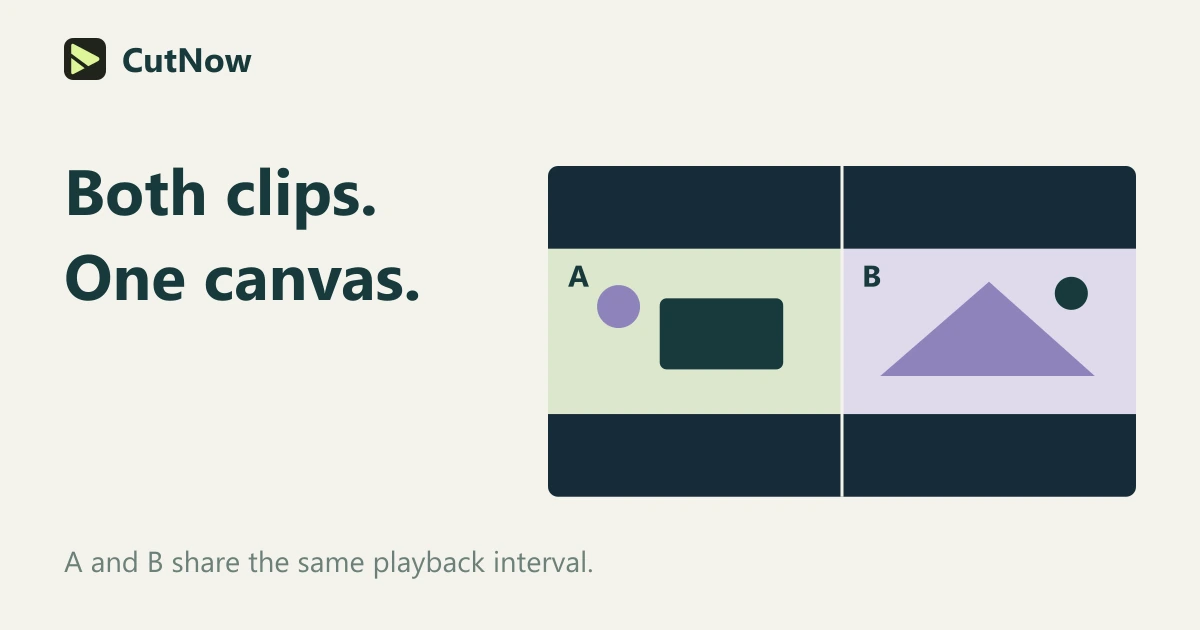
A video collage places several clips on one canvas at the same time and exports that composition as one video. Choose the relationship the viewer should see, fit each clip into its own area, give the areas a common playback interval, and decide which sound should be heard. A sequence that plays A and then B is a different edit.
CutNow is an AI video editor for footage you already have. Its workflows find useful passages or organize a first cut. That selection helps when a long recording contains the demonstration and reaction you want to show together: start with meaningful excerpts, then decide their placement and sound. This guide gives a separate, reproducible FFmpeg method for arranging two prepared clips in one MP4.
Choose what the two windows should explain
Use footage you own or have permission to process. A product overview beside a close view of the action can explain a relationship; two unrelated moving pictures can split attention without adding information. If you still need the right moments, the AI first-cut guide helps define that earlier job.
The example uses left.mp4 and right.mp4, each with at least 12 seconds of usable video from its chosen beginning. These are prepared excerpts, not two full recordings whose interesting moments are assumed to coincide. Use the timestamp trimming guide when the wanted interval is already known. For two camera angles of the same event, align the event before this step. Resetting timestamps does not discover a clap or synchronize separate recordings.
Pick a canvas and keep the whole picture
Our teaching layout is a 1280×720 landscape canvas with two 640×720 cells. Each picture is scaled to fit its cell and centered on black padding. For a square-pixel 1920×1080 source, the picture becomes 640×360, with 180 pixels of padding above and below. The full action remains in the picture; the empty area is a layout choice.
Filling a tall cell by cropping would remove part of a wide picture. Stretching the picture would change its proportions. Choose those treatments deliberately rather than letting “fill” hide a hand or label. If the destination permits a much wider canvas, two 640×360 cells could instead make 1280×360; this example keeps the specified 16:9 delivery.

Check the inputs and required filters
Use a current FFmpeg build with libx264; the optional sound step also needs AAC. The official download page links source and compiled builds. These examples assume upright, ordinary 8-bit SDR clips with square pixels. Normalize anamorphic, HDR, transparent or unusual sources through an appropriate workflow first.
Inspect each file, then confirm its orientation and usable length in playback:
ffprobe -v error -show_entries stream=index,codec_type,width,height,sample_aspect_ratio,avg_frame_rate,start_time,duration:format=duration -of json "left.mp4"
ffprobe -v error -show_entries stream=index,codec_type,width,height,sample_aspect_ratio,avg_frame_rate,start_time,duration:format=duration -of json "right.mp4"
Treat absent duration metadata as unknown, not zero or proof of 12 seconds. Check the file itself. The ffprobe manual explains these entries. With ffmpeg -filters and ffmpeg -encoders, check for setpts, fps, trim, scale, pad, setsar, format, hstack and libx264. The optional sound step uses asetpts, apad, atrim and AAC.
Export the two-window picture
Put both inputs in one folder. Copy the following as one command, replacing filenames if needed. It creates a silent composition first so that sound selection is explicit:
ffmpeg -n -i "left.mp4" -i "right.mp4" -filter_complex "[0:v:0]setpts=PTS-STARTPTS,fps=30,trim=duration=12,scale=640:720:force_original_aspect_ratio=decrease:force_divisible_by=2,pad=640:720:(ow-iw)/2:(oh-ih)/2:color=black,setsar=1,format=yuv420p[left];[1:v:0]setpts=PTS-STARTPTS,fps=30,trim=duration=12,scale=640:720:force_original_aspect_ratio=decrease:force_divisible_by=2,pad=640:720:(ow-iw)/2:(oh-ih)/2:color=black,setsar=1,format=yuv420p[right];[left][right]hstack=inputs=2:shortest=1[v]" -map "[v]" -an -c:v libx264 -preset medium -crf 23 -pix_fmt yuv420p -t 12 -map_metadata -1 -map_chapters -1 "collage-silent.mp4"The two branches begin at timestamp zero, use a 30 fps time grid and retain up to 12 seconds. Converting frame rate can duplicate or drop frames; it does not discover event alignment. The fit-and-pad stages normalize the cell sizes and pixel format before horizontal stacking. shortest=1 ends the picture when the shorter branch ends; it does not invent missing footage. If an input is short, choose another excerpt or shorten the design deliberately. The output -t 12 is an upper bound, not a promise that short sources become 12 seconds.
-n protects an existing output. CRF 23 is a starting quality setting, not a lossless or universal-quality claim. This rendering selects no audio or subtitle streams and disables automatic copying of global metadata and chapters. Captions already burned into a source remain pixels and get smaller with that picture.
Use one intentional soundtrack
Keep the silent file when silence is the intended delivery. For one speaking track, the following optional pass uses only the first audio stream from left.mp4. It assumes that the first audio sample matches the first visible moment of that prepared excerpt. If the source has an intended offset or needs event synchronization, preserve and align it in an editor rather than blindly rebasing it.
ffmpeg -n -i "collage-silent.mp4" -i "left.mp4" -map 0:v:0 -map 1:a:0 -c:v copy -af "asetpts=PTS-STARTPTS,apad=whole_dur=12,atrim=duration=12" -c:a aac -b:a 128k -t 12 -shortest -map_metadata -1 -map_chapters -1 "collage-left-audio.mp4"This copies the already-rendered video and encodes the selected sound as AAC. Audio padding adds silence at the end if necessary; it does not extend spoken words. The audio is limited to 12 seconds, and -shortest also respects an earlier end of the rendered picture. Check that padding has not concealed unexpectedly missing dialogue. If the chosen source has no audio, keep the silent version or select an appropriate existing soundtrack. Do not mix two unrelated voices automatically. Use only sound you may reuse.
Check both panels in the saved file
Inspect the actual output you chose; replace the filename below with the sound version only if you made that version:
ffprobe -v error -show_entries stream=codec_type,codec_name,width,height,pix_fmt,sample_aspect_ratio,avg_frame_rate:format=duration -of json "collage-silent.mp4"The picture should be 1280×720 with square pixels and a 30 fps rate. Play the beginning, middle and ending, then the whole file. Both panels must move together rather than one appearing after the other. Read small labels, inspect hands and faces, and listen for sync when sound is present. A source SRT belongs to its own timeline; prepare matching final subtitles if needed.
| Problem | Check next |
|---|---|
| Unknown filter, encoder or scale option | Inspect the installed build and use a current build with the required components |
| Different heights or pixel formats | Copy both complete normalization branches, not only the hstack filter |
| Output ends early | Recheck the usable duration of both video excerpts; a short branch ends the composition |
| Missing or wrong sound | Inspect the selected audio stream and its alignment; the first pass is deliberately silent |
| Existing-output error | Choose a new filename; do not remove -n just to overwrite an unreviewed file |
Keep the sources, layout choice and output version together. For A–B–C playback instead, use the sequential merging guide. Explore CutNow to find and organize useful moments before deciding how those moments should share the screen.
Prepared by the CutNow team with AI writing assistance. Illustrations show the planned layout and shared playback interval.