 CutNow
How to convert MOV to MP4 for a reliable video handoff
Convert MOV to MP4 by inspecting codecs, choosing stream copy or H.264/AAC SDR encoding, then checking audio, orientation and color at the destination.
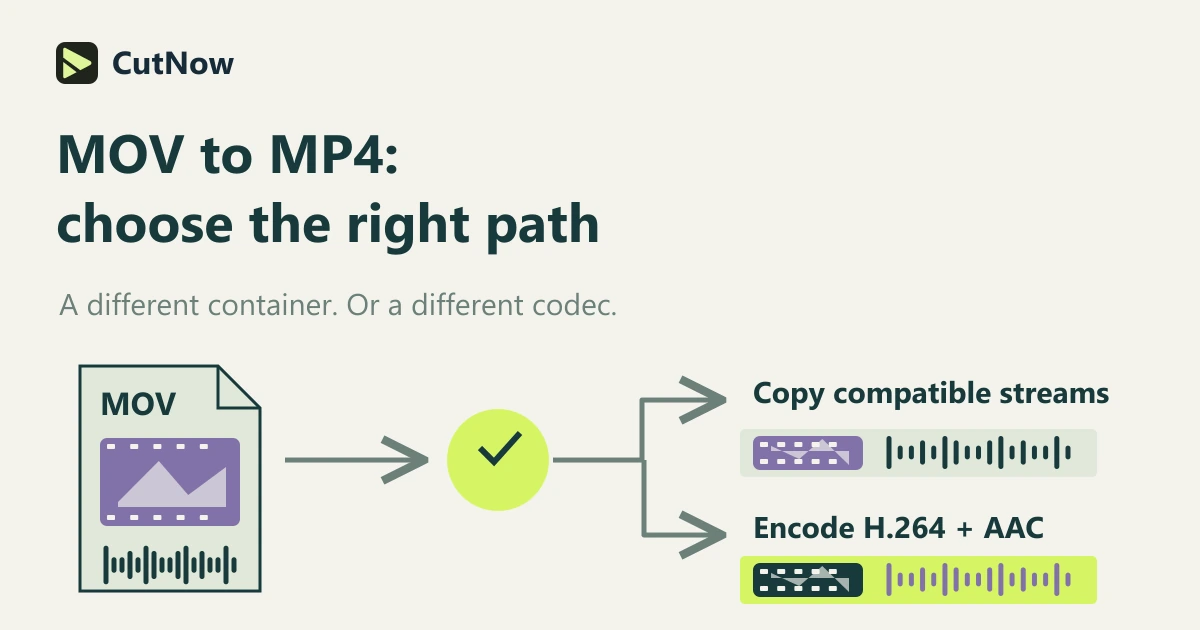
To convert MOV to MP4, check the video and audio codecs first. If the destination accepts the existing streams, put them into an MP4 container without re-encoding. If it needs a different codec, create a compatible delivery copy. Changing .mov to .mp4 in the filename does neither.
CutNow is an AI editor for existing footage: it finds relevant passages and builds a first cut, helping creators move from a long recording to a focused video. Format conversion solves a different part of that workflow—getting footage into the next editing or delivery step. Keep the camera original, and make a separate compatible copy when the receiving app or reviewer needs one.
Decide what the MP4 needs to do
Ask where the file will play: an editor, a browser, a presentation computer or a client's phone. “MP4 required” is incomplete guidance; ask about accepted codecs, resolution and frame rate too. MOV and MP4 are containers. The video and audio inside have their own codecs, and playback depends on that combination. MDN's container reference explains the distinction.
For an ordinary SDR review copy, H.264 video with AAC audio is a practical compatibility choice. It still needs checking on the destination. A MOV with HEVC video remains HEVC after a simple container change. Apple also notes that HEVC support on older devices depends on factors including resolution and frame rate. Apple's HEVC guidance
| What you have | What to choose |
|---|---|
| Existing codecs are accepted in MP4 by the destination | Try remuxing the selected streams |
| Destination rejects the video or audio codec | Encode a compatible delivery copy |
| HDR, transparency or several audio tracks matter | Establish those requirements before converting |
Inspect the MOV before choosing a path
With FFmpeg and FFprobe installed, open a terminal in the file's folder. Replace source.mov with your filename; keep the quotes if it contains spaces. This inspection command prints information and does not convert the video:
ffprobe -v error -show_streams -show_format -of json "source.mov"Find the video and audio codec_name values, picture dimensions, duration, color information and any rotation side data. Note which audio track contains the intended language or microphone. Missing color metadata does not establish that the footage is SDR. FFprobe's official documentation describes its stream and container reports.
The diagram shows a teaching example, not a measurement of your file. Both routes produce an MP4 package; only one changes the selected streams' encoding.

Path A: copy compatible streams into MP4
For example, if inspection shows H.264 video and AAC audio that the receiving app accepts, try:
ffmpeg -n -i "source.mov" -map "0:v:0" -map "0:a:0?" -c copy -movflags +faststart "delivery-copy.mp4"This selects the first video and, if present, the first audio stream. Stream copy avoids re-encoding those streams; it does not promise preservation of every track or metadata item. The optional audio mapping permits a source with no audio. -n stops if that output filename already exists. These behaviors are documented in the FFmpeg manual.
+faststart moves MP4 playback metadata toward the beginning of the file. It does not repair an unsupported codec or improve picture quality. FFmpeg's MOV/MP4 documentation
Do not add every stream indiscriminately to silence a missing-track warning. For a multilingual recording, deliberately select the required audio track; keep the original for the other languages and production metadata.
Path B: encode a compatible SDR copy
For an ordinary SDR source that needs H.264/AAC, this is a starting configuration:
ffmpeg -n -i "source.mov" -map "0:v:0" -map "0:a:0?" -c:v libx264 -preset medium -crf 20 -pix_fmt yuv420p -c:a aac -b:a 160k -movflags +faststart "delivery-h264.mp4"Here libx264 encodes the picture and aac encodes the audio. CRF 20 is an example quality setting, not a promise of a particular size or identical pixels. medium selects an encoding preset; yuv420p requests an 8-bit pixel format. Your FFmpeg build needs the selected encoders. Official codec options
Use separate output names while comparing settings. Review fine text, faces and movement before settling on a delivery version. Repeatedly converting each intermediate file makes it harder to know which version was approved. For a CutNow editing project, keep the original footage and the chosen first cut clearly named; use conversion for a specific compatibility need rather than replacing the editing decision.
Protect orientation and HDR color
Phone footage may use a rotation tag instead of storing upright pixels. FFmpeg normally applies that orientation when transcoding; copying streams does not bake the turn into the pixels. Check the result in the receiving player before applying an extra rotation. FFmpeg rotation options
For HDR footage, decide whether to preserve HDR or deliver SDR. Simply requesting an 8-bit pixel format is not an HDR-to-SDR tone-mapping workflow. Color metadata and the receiving display matter; Apple's HDR metadata reference illustrates why the container label alone is insufficient. Use a verified color-managed export for SDR, or an HDR delivery specification agreed with the recipient.
Check the file where it will be used
Open the new MP4 in the actual destination. Compare its duration and intended audio track with the source. Watch the beginning, a middle section and the ending; include a visible speaking moment to check synchronization. Confirm upright framing, expected color and readable on-screen text.
If conversion stops, keep the error message. An unsupported stream can call for transcoding; a missing libx264 encoder calls for an appropriate FFmpeg build. A silent output calls for checking the source and selected track. Rename the output when -n reports an existing file. Avoid changing several unrelated settings before finding the cause.
Now continue the editing task: use timestamp trimming for a known interval, or see CutNow's AI first-cut workflow when the passage still needs finding. Explore CutNow.
Prepared by the CutNow team with AI-assisted writing and editorial review. Commands are instructional examples; settings should be chosen for your source and destination.