 CutNow
Crop or resize a video: change the frame without stretching the subject
Crop, resize or fit a selected video without stretching the subject. Check rotation and pixel shape, use specific FFmpeg layouts, and protect action and captions.
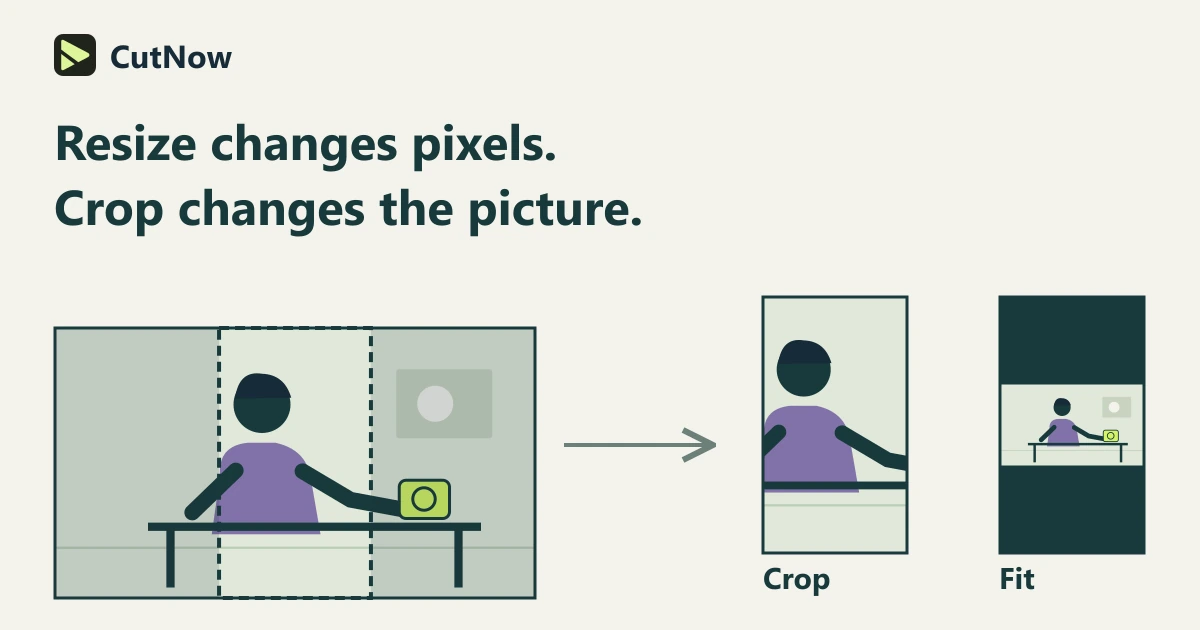
To change a video's aspect ratio, first decide whether to remove part of the picture or keep the whole scene inside a new canvas. To resize a video, choose new pixel dimensions while keeping its proportions. A landscape interview can become a portrait clip either way, but the face, gesture and subtitles will occupy very different amounts of the screen.
CutNow is an AI editor for footage you already have. It finds relevant passages and organizes a first cut, so a creator can start the framing decision from a chosen answer or demonstration. This guide takes that selected clip and prepares its framing and dimensions for delivery.
Define the version you need to deliver
Write the requirement as a viewing task: “Keep the speaker and the object being demonstrated readable on a phone.” Then specify the canvas and dimensions. These are example delivery sizes, not universal platform requirements:
| Shape | Example dimensions | Useful distinction |
|---|---|---|
| Landscape 16:9 | 1920 × 1080 | Wide action or a full demonstration |
| Square 1:1 | 1080 × 1080 | A square composition still needs a framing choice |
| Portrait 9:16 | 1080 × 1920 | A tall canvas; it does not require cropping |
YouTube currently classifies square or vertical uploads of up to three minutes as Shorts under its stated channel/date conditions. That does not make every short-video placement identical. Check the destination's current requirements and preview. YouTube's Shorts guidance
Check dimensions, rotation and pixel shape
With FFmpeg and FFprobe available, inspect your source before choosing settings:
ffprobe -v error -show_streams -show_format -of json "selected-clip.mp4"Read width, height, sample_aspect_ratio, display_aspect_ratio, rotation side data and the audio streams. These are inspection fields, not a fabricated result for your file. FFprobe documentation
SAR describes pixel shape. A stored width-to-height ratio alone can be misleading for non-square pixels. A circle should remain circular after export. Do not fix a stretched face merely by changing a display-ratio label. Phone footage may also carry a rotation instruction; FFmpeg normally applies it during transcoding, so avoid adding a second turn blindly. FFmpeg video options
Choose cropping, resizing or a full-picture layout
Cropping removes content outside a selected rectangle. Proportional resizing changes the number of pixels used to represent the picture. Fitting keeps the whole picture within the destination canvas, leaving space around it; filling enlarges it to cover the canvas and crops the overflow.
Use a crop when one relevant subject fits the window. Fit the whole scene when hands, two people or a wide diagram carry the meaning. A fixed-size canvas is not a reason to stretch the picture. A moving crop is a separate editorial choice: an editor with position keyframes can follow a meaningful change of focus, but a static crop command does not track a person.
As a geometric illustration, a same-height 16:9-to-9:16 crop retains about 31.64% of the original width. This describes picture area, not attention or video quality. The teaching diagram uses the same presenter and demonstration object to show what changes.

Apply the layout you chose
The examples below use FFmpeg to create separate H.264/AAC SDR copies. They are alternative operations, not three conversion passes. Replace the filenames, retain the original and use a build with the requested encoders. -n protects existing outputs. HDR needs an appropriate color-managed export; these examples do not perform HDR-to-SDR tone mapping.
For a 1920 × 1080 landscape source, resize proportionally to 1280 pixels wide:
ffmpeg -n -i "selected-clip.mp4" -map "0:v:0" -map "0:a:0?" -vf "scale=1280:-2:reset_sar=1" -c:v libx264 -crf 20 -pix_fmt yuv420p -c:a aac -b:a 160k "clip-1280-wide.mp4"For a portrait canvas filled by a central crop:
ffmpeg -n -i "selected-clip.mp4" -map "0:v:0" -map "0:a:0?" -vf "scale=1080:1920:force_original_aspect_ratio=increase:force_divisible_by=2:reset_sar=1,crop=1080:1920" -c:v libx264 -crf 20 -pix_fmt yuv420p -c:a aac -b:a 160k "clip-portrait-fill.mp4"To keep the complete picture inside that portrait canvas:
ffmpeg -n -i "selected-clip.mp4" -map "0:v:0" -map "0:a:0?" -vf "scale=1080:1920:force_original_aspect_ratio=decrease:force_divisible_by=2:reset_sar=1,pad=1080:1920:(ow-iw)/2:(oh-ih)/2:color=black" -c:v libx264 -crf 20 -pix_fmt yuv420p -c:a aac -b:a 160k "clip-portrait-fit.mp4"The current FFmpeg filter documentation describes proportional scaling, square-pixel output and even-dimension rounding. If a build reports that reset_sar is unknown, obtain a build supporting that option rather than deleting it blindly for non-square-pixel material. The optional audio mapping permits a source without sound; with several tracks, deliberately select the intended one. The quality setting is an example, not a measured size or quality guarantee. Encoding options
For a deliberate rectangular crop, define width, height and its top-left position. On an upright, square-pixel 1920 × 1080 source, crop=w=800:h=800:x=560:y=140 selects an 800-pixel square; use that filter in place of the layout filter above. Keep the rectangle inside the source and choose even coordinates/dimensions for common subsampled formats. Check the object across the entire passage before settling on coordinates. Crop filter
Select the passage before deciding its crop
A long interview can switch between close-ups, two-person views and demonstrations. First choose a complete answer or action, then frame that passage. CutNow's automatic finding and first cuts provide that earlier starting point: the editor works from a selected clip with a topic and ending rather than searching the whole recording merely to position a portrait window. The long-video-to-shorts guide covers selection.
Keep the action connected to the person
Watch the speaker lean, gesture and reach for an object. If the hand or result explains the words, a large face alone is insufficient. Check the start and finish of each demonstration; reframe at meaningful changes or choose the wider fitted view. Constant drifting can make the viewer search for the subject. Check existing name labels and diagrams as well.
Place captions after the final frame is chosen
Reflow editable captions for the final canvas and keep them clear of faces, hands and the demonstrated result. Captions already burned into the source are picture pixels: cropping can remove them, and resizing alone cannot reflow their words. Use a fitted view or rebuild the caption layout from its text source when needed. Preview the destination's actual overlays rather than relying on a universal pixel margin. See the subtitle guide for wording and timing against the same edit.
Export and check the complete version
Play the export through. Confirm dimensions, upright orientation, natural proportions, the intended audio and readable captions. Keep the master and name each ratio/version separately. File-size compression is another delivery decision; more pixels do not recreate missing detail.
Designed canvas backgrounds and player-supplied padding are different. YouTube adapts its player to the video and advises against baking unnecessary bars into uploads. Use a fitted portrait composition only when that fixed canvas is the delivery you need, and check its small details at phone size.
Watch an example and choose your next step
Watch How Lawsuits Can Silence People, a 1:47 selected and reframed CutNow excerpt from a Wikimedia Foundation recording. Its source recording is published under CC BY-SA 4.0. Compare the retained idea and viewing shape; this example illustrates a chosen passage, not a claim of automatic person tracking.
For a complete publishing edit, continue with editing YouTube videos from existing footage. Explore CutNow for the AI finding and first-cut work before that delivery.
Prepared by the CutNow team with AI-assisted writing and editorial review.