 CutNow
How to Convert an Animated GIF to MP4 with the Right Timing and Background
Convert an animated GIF to a finite MP4 with FFmpeg. Set play count, composite transparency over white, handle odd dimensions and check the saved video’s timing.
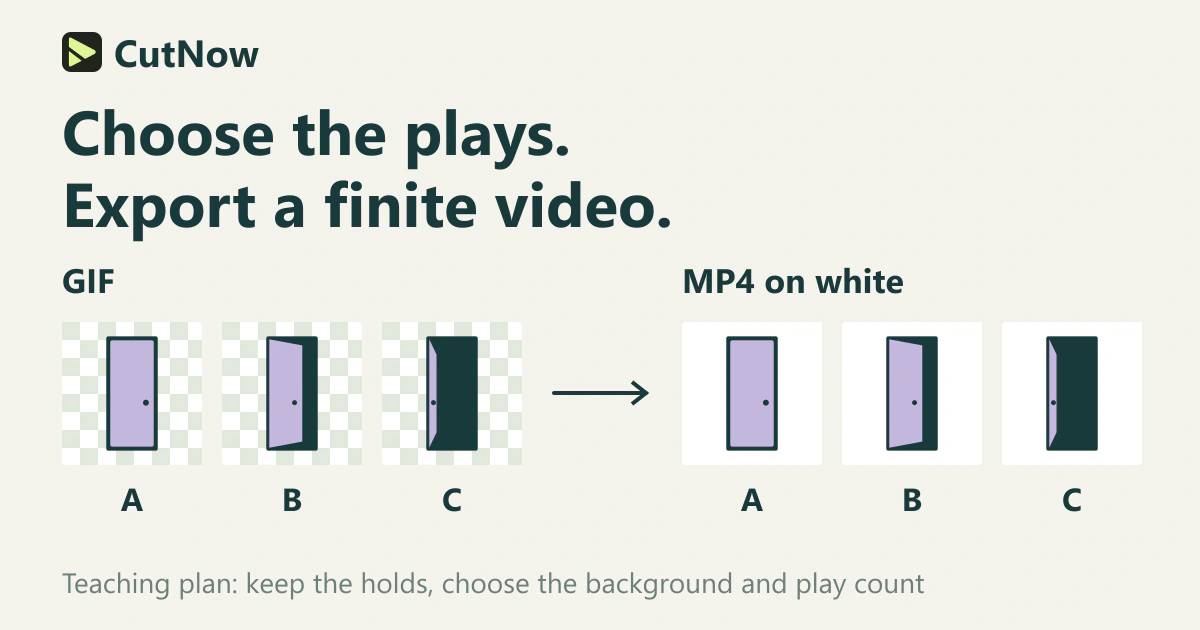
To convert a GIF to MP4, decode its animation, choose how many times it should play, place any transparent areas over an intentional background, and encode a new video. Decide its duration before exporting: an animation that repeats forever in a browser should not become an endless conversion job.
CutNow is an AI video editor for existing footage: it finds relevant moments and organizes first cuts. When a useful animation is part of that material, preparing it as a normal video file helps it join the edit with a clear duration and background. This conversion prepares an asset; it does not decide which moment belongs in the story.
Check the animation, dimensions and frame delays
Keep the original GIF and open it to confirm that it actually animates. A one-picture GIF has no missing movement for a converter to recover. If you need a still image held for a specified time, define that as a still-image video job instead.
FFmpeg provides a free, open-source local method. Use a build with the filters and libx264 encoder in this guide. First inspect the file:
ffprobe -v error -ignore_loop 1 -show_streams -show_format -of json "animation.gif"
ffprobe -v error -ignore_loop 1 -select_streams v:0 -show_packets -show_entries packet=pts_time,duration_time -of json "animation.gif"
Note the width, height and full one-pass duration D, including the last picture’s hold. The packet inspection lists timestamps and durations: for a normal zero-start GIF, the last packet’s pts_time + duration_time gives its end, not its start. Cross-check that against the stream/format duration. If delays are missing or disagree, resolve them before choosing D; do not use the last timestamp alone. A GIF can give different pictures different delays. The GIF demuxer documentation explains both those delays and ignore_loop: setting it to 1 ignores the file's repeat instruction and reads one pass. The decoder also has minimum/default-delay rules, so malformed or very short delays may not match every browser's interpretation.
This teaching example uses a 640×360 GIF with three displayed states: A holds for 0.3 seconds, B for 0.5 and C for 1.2. One pass is two seconds; three passes plan six seconds. These are illustrative values, not an existing conversion result.
Choose a finite duration, background and sound
| Choice | What to decide before conversion |
|---|---|
| One pass | Let the animation finish once and export that finite video |
| Several passes | Choose a total play count; inspect the C-to-A join each time |
| Transparent regions | Composite over white, another solid color or the actual destination background |
| Sound | A standard GIF has no audio track; add permitted sound separately when the edit needs it |
The H.264/yuv420p MP4 below does not retain transparency. A checkerboard in an image editor usually represents transparent space; it should not become an unwanted pattern in the video. If the original already contains a drawn checkerboard, those squares are picture pixels and compositing will not remove them.

Export one white-background MP4
For the teaching source, D is 2 seconds: C starts at 0.8 and holds until 2. Use a matching white video canvas with that finite duration:
ffmpeg -n -ignore_loop 1 -i "animation.gif" -f lavfi -i "color=c=white:s=640x360:r=30:d=2" -filter_complex "[0:v:0]format=rgba,setpts=PTS-STARTPTS[gif];[1:v:0][gif]overlay=eof_action=repeat:repeatlast=1:shortest=0:format=auto,format=yuv420p[v]" -map "[v]" -t 2 -an -c:v libx264 -preset medium -crf 18 -r 30 -fps_mode:v cfr -movflags +faststart "animation-once-white.mp4"Replace 640x360 with your canvas and both d=2 and -t 2 with your verified D in seconds. The color source creates the background. In overlay, the first input is the background and the second the foreground. The color source’s d limits the background; output -t caps the saved duration. The framesync settings keep the last foreground picture available until that background ends. This preserves its remaining hold instead of treating the last picture’s arrival as the animation’s end. Do not use the shorter foreground EOF as the end condition.
format=rgba preserves transparency for the compositing step; converting the composite to yuv420p then makes the compatible opaque picture. -an produces no audio. -n refuses an already existing output name. CRF 18 is a starting quality setting, not a file-size or lossless guarantee; these frames must be encoded, not copied into MP4 by changing a filename.
Export three passes instead of relying on player repeat
Use the same method with an explicit input repeat count and a six-second background/output limit:
ffmpeg -n -stream_loop 2 -ignore_loop 1 -i "animation.gif" -f lavfi -i "color=c=white:s=640x360:r=30:d=6" -filter_complex "[0:v:0]format=rgba,setpts=PTS-STARTPTS[gif];[1:v:0][gif]overlay=eof_action=repeat:repeatlast=1:shortest=0:format=auto,format=yuv420p[v]" -map "[v]" -t 6 -an -c:v libx264 -preset medium -crf 18 -r 30 -fps_mode:v cfr -movflags +faststart "animation-three-passes-white.mp4"The input stream_loop option counts additional repeats: 2 means the original pass plus two repeats, three plays total. ignore_loop 1 keeps an embedded infinite-loop instruction from overriding the intended finite work. This creates repeated pictures inside the saved file; toggling repeat in a media player does not.
For this teaching animation, replace both d=6 and -t 6 with 3 × your verified D. The final C remains visible through the finite ending. Check the saved file rather than assuming every GIF has this cycle length; frame-clock rounding can affect the reported duration. Avoid an unbounded repeat setting.
Keep the picture shape and meaningful pauses
The white canvas must fit the entire animation. For an odd source such as 641×359, a 642×360 canvas with the GIF at the default top-left position adds only a right and bottom margin. It avoids stretching or cutting pixels and supplies the even dimensions used by this H.264/yuv420p recipe. Do not choose a smaller canvas and silently crop the animation. For a different delivery shape, use the resizing and framing guide.
The example exports at 30 fps. It samples the animation's existing timing on a constant video clock; it does not make every GIF picture equally long. Some pictures are repeated to hold them, and very fast changes can be rounded or omitted. Raising fps does not invent intermediate movement or recover colors already lost in the GIF palette.
Inspect letters, outlines and transparent edges on the chosen background. A white fringe from the original artwork may become visible against dark surroundings. Changing CRF alone cannot restore a missing edge or remove a background already drawn into the source.
Check the saved file and hand off one version
Probe and play the exported MP4 outside the conversion command:
ffprobe -v error -show_streams -show_format -of json "animation-three-passes-white.mp4"Confirm the intended dimensions, H.264 picture, finite duration and lack of audio. Watch the first pass, every repeat join and the last frame with player repeat turned off. A frozen first image suggests a still input or a decoding problem; unexpectedly equal pacing suggests the original delays were replaced; a file that will not finish suggests an unbounded loop or missing graph end condition.
Keep the GIF master and name the delivery with its background and play count. Import the saved MP4 into the actual receiving editor and check the whole picture and ending. If the larger task is assembling raw footage, treat this file as one prepared asset in that edit. Explore CutNow for finding and organizing existing material into a first cut.