 CutNow
How to Loop a Video into One Finite MP4
Repeat a selected video into one MP4. Set total plays or a target duration, handle the final partial cycle, and check original sound and picture joins.
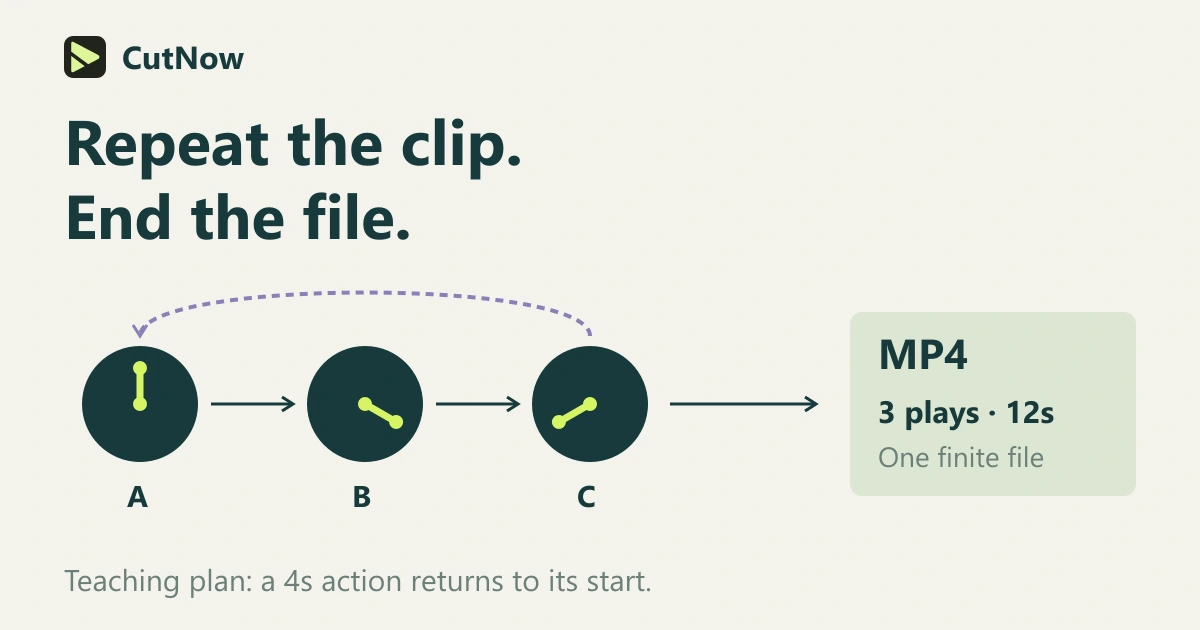
To deliver a looped video, repeat a chosen clip inside a new file and decide where that file ends. Choose either a total number of plays or a target duration. A player's repeat button changes playback; it does not create the repeated MP4 your recipient needs.
CutNow is an AI video editor for footage you already have: it finds useful passages and organizes first cuts. With a longer demonstration, start from the relevant action rather than repeating an arbitrary excerpt. Once that passage is chosen, the job here is a finite video file, including a deliberate decision about its original sound.
Choose a clip that can return to its beginning
Compare the end with the beginning: the object's position, direction, speed, lighting and background state. A rotating marker can return to its starting pose; a hand that enters and leaves a shot may produce an obvious jump. Move the selection boundaries together or choose another shot if the return does not make sense.
Listen across the same join. A repeated word, chopped instruction or sudden change in room sound can be more distracting than the picture. Prefer a complete action with a useful pause, or plan a silent version. Do not repeat an incomplete safety condition as though it were a complete instruction.
If you need a passage from a longer recording, first trim the selected range and keep its source reference. Repeating that one unit differs from merging different clips.
Choose total plays or a target duration
Use the actual playable length of the selected unit, not the camera's starting timecode. The following is an original teaching plan for a four-second clip; it is not a measured output.
| Request | Planned content | Important consequence |
|---|---|---|
| Three total plays | 4 + 4 + 4 = 12 seconds | Two extra repetitions after the first play |
| A ten-second file | 4 + 4 + 2 = 10 seconds | The third play stops halfway through |
| Repeat in a player | The original file stays four seconds | No new repeated file is delivered |
A target duration does not promise a complete final action or sentence. If the last two seconds cut something important, change the unit or agree a different delivery length. A transition that overlaps clips also changes the arithmetic; three four-second copies with overlaps are not automatically twelve seconds.

Export a finite number of plays
The FFmpeg examples use cycle.mp4: a seekable, decodable SDR clip with even dimensions and normal timestamps. Its selected picture and any intended audio begin together, stay synchronized and cover the same cycle. Use a build with libx264 and AAC. Keep the original and use a new output name.
Inspect the selected file first:
ffprobe -v error -show_streams -show_format -of json "cycle.mp4"Check the moving video, intended audio, start times and durations using the ffprobe reference. The container's duration alone cannot tell you whether sound covers the whole picture.
For three total plays, request two additional input loops:
ffmpeg -n -stream_loop 2 -i "cycle.mp4" -map 0:V:0 -map 0:a:0? -c:v libx264 -preset medium -crf 20 -pix_fmt yuv420p -c:a aac -b:a 192k -movflags +faststart "cycle_3-plays_v1.mp4"The official CLI documentation defines zero loops as no repetition and minus one as infinite repetition. Thus 2 adds two plays to the first; it does not mean two plays total. Uppercase V excludes attached cover pictures. The optional audio map permits a silent input; for multiple languages, select the intended audio track instead of assuming the first is correct.
This method re-encodes picture and audio. CRF 20 is an example quality choice, not lossless compression or a size promise. HDR needs an appropriate color workflow. Encoding successfully does not establish a smooth join.
Export to a fixed duration and inspect the last partial play
For a ten-second target, keep the output limit in the same command as the looping input:
ffmpeg -n -stream_loop -1 -i "cycle.mp4" -t 10 -map 0:V:0 -map 0:a:0? -c:v libx264 -preset medium -crf 20 -pix_fmt yuv420p -c:a aac -b:a 192k -movflags +faststart "cycle_target-10s_v1.mp4"Here -stream_loop -1 is an unbounded input, while output-side -t 10 bounds the saved video. Do not remove the output limit and leave an unintended endless export. With the four-second teaching unit, the plan is two full plays and two seconds of a third. Actual encoded frame and audio timing must still be checked; an arbitrary fractional duration is not a guarantee of a frame at that exact instant.
Keep sound and picture on the same cycle clock
Do not blindly repeat a container whose audio continues beyond the picture or finishes early. First choose which picture duration defines one cycle. For the next example only, the picture lasts at least four seconds and the intended audio already starts with it at time zero. Pad a shorter audio tail with silence or trim an overlong tail, then make a four-second base:
ffmpeg -n -i "cycle.mp4" -t 4 -map 0:V:0 -map 0:a:0 -vf "trim=duration=4,setpts=PTS-STARTPTS" -af "apad=whole_dur=4,atrim=duration=4,asetpts=PTS-STARTPTS" -c:v libx264 -preset medium -crf 20 -pix_fmt yuv420p -c:a aac -b:a 192k "cycle_balanced-4s_v1.mp4"Use that saved base in place of cycle.mp4 in the loop command. apad, atrim and timestamp filters support this tail treatment; they do not repair a misplaced sound. This branch requires an audio stream. For a silent source, skip the audio filter branch.
If the source has a nonzero start, an intentional audio delay or discontinuous timestamps, first export a synchronized selected unit on one shared editing timeline. Preserve its intended silence and offsets. Independently resetting both tracks can remove a real delay; do not use the example above to “fix” such a source. Recheck the exported unit before repeating it.
For a silent result, remove the audio map and audio encoder options from either loop command and add -an. See the mute-video guide. If retaining sound, audition every return. A short fade can soften a click but changes the sound; overlapping a crossfade changes cycle length. Neither guarantees a seamless visual loop.
Verify the saved file with player repeat turned off
Open the actual MP4 independently. Turn off player repeat, count the plays and confirm it stops. Check the source-to-source joins around seconds four and eight in the teaching plan, then the final cutoff. Look for held or missing frames, a jump in action, clipped syllables, a click, silence that moved or drifting synchronization.
Check direction, displayed proportions and sound in the receiving player. The repeated file should remain one MP4; a timeline screenshot or a GIF loop setting is a different delivery. Keep the original unit, source-range note, count or duration setting and versioned output together.
When the original selection does not support a convincing return, choose a better passage before adding more repeats. Explore CutNow for the earlier work of finding and shaping useful material into a first cut.
Prepared by the CutNow team with AI writing assistance.