 CutNow
Rotate or flip a video, then export the direction you intended
Rotate90 or180 degrees, or mirror a video without confusing stored pixels and display metadata. Use explicit FFmpeg methods, then check geometry, writing and audio.
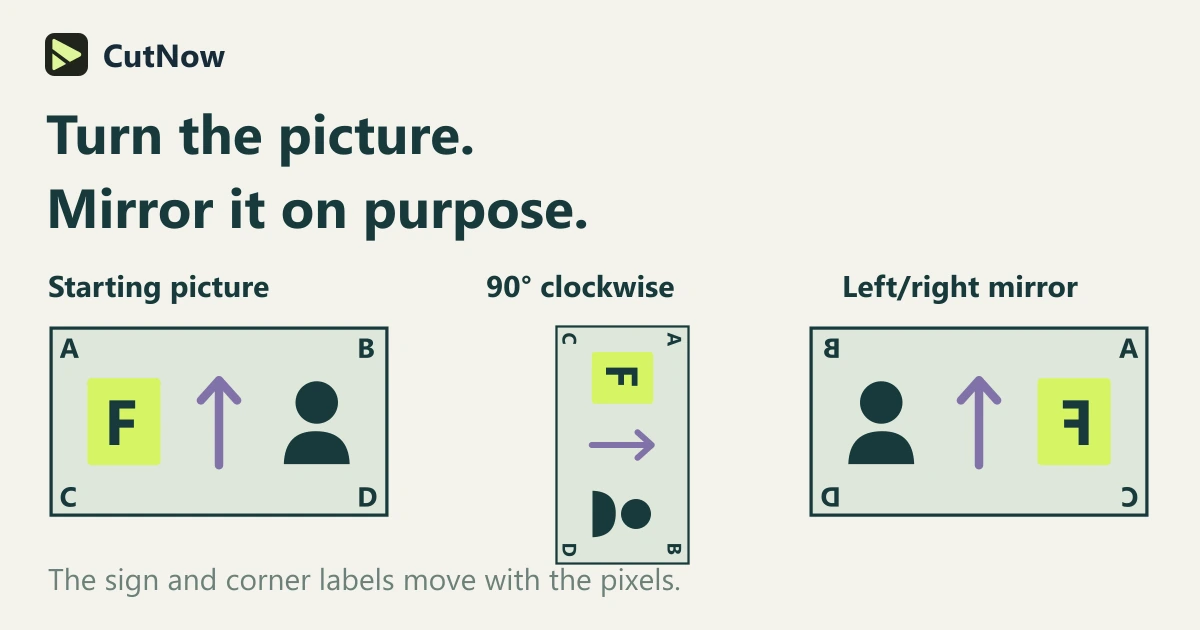
Rotate a video when the picture is sideways or upside down. Flip it horizontally when left and right need exchanging. These operations change different relationships: a quarter-turn swaps the picture's width and height; a mirror also reverses writing inside the picture. Neither is the same as cropping a landscape shot into a vertical composition.
CutNow is an AI video editor for existing footage, helping find relevant moments and organize a first cut. Once the useful shot is chosen, correct its direction for the receiving edit. The goal is a saved file that displays consistently, rather than a preview that looks upright in only one player.
Choose a turn or a reflection
Use an asymmetric detail to decide: a sign, a person's raised hand or a recognizable control. The following choices describe changes to a clearly identified starting picture.
| Intended change | FFmpeg video filter | What changes |
|---|---|---|
| Turn 90° clockwise | transpose=clock | The top edge moves to the right |
| Turn 90° counterclockwise | transpose=cclock | The top edge moves to the left |
| Turn 180° | hflip,vflip | Both top/bottom and left/right swap |
| Mirror left/right | hflip | The top remains at the top; writing reverses |
| Mirror top/bottom | vflip | The left remains at the left |
These are spatial changes. Playing the action backward is a reverse-video task. Reframing the subject for a platform belongs in the aspect-ratio guide.

Separate stored pixels from display instructions
A phone file may store a landscape-shaped pixel array and tell the player to rotate it for display. That instruction is metadata, often a display matrix. Another player can interpret it differently. Do not add a manual turn simply because the stored dimensions look wide.
With a current FFmpeg build, inspect the streams first:
ffprobe -v error -show_streams -show_format -of json "source.mp4"Look at video dimensions, sample aspect ratio, rotation/display side data, audio language and color information. For the method below, identify the stored picture independently of the player's automatic orientation. This optional one-frame reference disables automatic rotation and overrides the input display rotation to zero:
ffmpeg -n -noautorotate -display_rotation:v 0 -i "source.mp4" -map 0:V:0 -frames:v 1 "source-stored-pixels.png"Use the reference for direction, not as proof of HDR color. Choose the required operation from it, not as an extra turn on the already rotated player image. The CLI documentation distinguishes automatic rotation from display-metadata overrides. If the build does not recognize display_rotation, use a supported build instead of silently removing that part of the method.
Export a clockwise quarter-turn as pixels
For an ordinary SDR source with square pixels and even dimensions whose stored picture needs a clockwise quarter-turn, use:
ffmpeg -n -noautorotate -display_rotation:v 0 -i "source.mp4" -map 0:V:0 -map "0:a:0?" -vf "transpose=clock" -c:v libx264 -preset medium -crf 20 -pix_fmt yuv420p -fps_mode:v passthrough -c:a aac -b:a 160k -movflags +faststart "turned-clockwise.mp4"Replace filenames and keep the source. Transpose turns the decoded picture, so the video must be encoded again. A teaching 1920×1080 source becomes 1080×1920; the command does not crop it into a different framing. CRF 20 is a quality starting point, not a lossless or size guarantee.
The input override neutralizes the previous display transform, while noautorotate keeps an automatic turn from being added before the chosen filter. This is one explicit coordinate policy. Do not mix it with a separate automatic-orientation pass. A metadata angle reported by a tool is also not automatically the clockwise filter you need: FFmpeg describes display-rotation angles counterclockwise, while clock is clockwise.
Mirror the right picture, in the right order
If the stored picture is already upright and the intended change is only left/right reflection, use the same export settings with hflip:
ffmpeg -n -noautorotate -display_rotation:v 0 -i "source.mp4" -map 0:V:0 -map "0:a:0?" -vf "hflip" -c:v libx264 -preset medium -crf 20 -pix_fmt yuv420p -fps_mode:v passthrough -c:a aac -b:a 160k -movflags +faststart "mirrored-left-right.mp4"If the stored image also needs the clockwise correction, use transpose=clock,hflip instead: first turn upright, then mirror that result. Swapping those filters can produce a different orientation. Use the selection table for the other direction or 180°; do not chain operations by guesswork. The official hflip and vflip references define their axes.
Selfie preview conventions are not a reason to mirror every recording. Check the saved source: readable writing or a real-world left/right relationship may already be correct.
Protect proportions, words and sound
The recipes select the first non-cover video and, if present, the first audio stream. Multilingual or multi-camera files require the correct stream choice. The audio is encoded to AAC for this MP4 handoff; copying it is an alternative only after checking codec and receiving-container compatibility. No trimming or speed change is requested, but check speech and action synchronization in the saved file.
Non-square pixels, odd dimensions and HDR need an appropriate export plan, not an unexamined square-pixel, eight-bit conversion. A quarter-turn changes orientation; it does not justify stretching faces or arbitrarily resetting the sample aspect ratio. Use display-aware scaling or padding when needed. The SDR recipe is not HDR tone mapping.
Burned-in captions, logos and signs are picture pixels and will turn or mirror with them. To keep new captions readable, compose them after the final orientation. Separate subtitle tracks are not selected by these commands; preserve or reapply them deliberately. A reflected or otherwise unusual source matrix also needs its full transform understood before using a simple quarter-turn recipe.
Check the downloaded file outside the preview
Run the same ffprobe inspection on the output, then open it in the intended editor and a second player. Check the beginning, middle and end: direction, handedness, writing, full frame, voice language and lip/action sync. Confirm the expected dimensions and sample aspect ratio, and inspect any remaining rotation/display matrix. The baked result should not ask a second player to rotate it again; zero/identity or absent display rotation is the intended result of this method.
A CSS preview transform or a changed legacy rotate tag alone does not demonstrate that outcome. Keep the approved filename and source together. In a CutNow edit, bring the direction-correct version into the chosen sequence so framing and captions refer to the same picture. Explore CutNow.