 CutNow
Video to Text with Timestamps: Keep the Transcript and Subtitle Jobs Clear
Transcribe video into checked reading text and an editable timed subtitle file. Keep source IDs, cue timing and the final edit clock distinct; save the matching files.
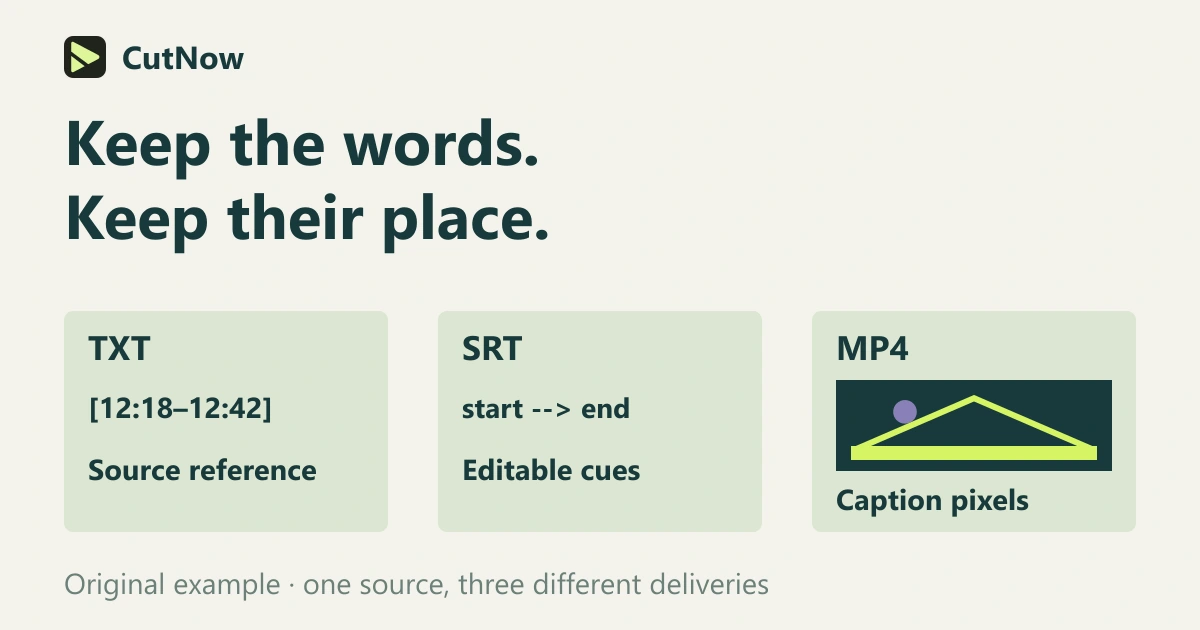
To transcribe a video for editing, first get a speech draft, check it against the recording, and save text that still points to the right source. Choose whether the recipient needs a readable transcript, an editable timed subtitle file or a video with captions already visible. Those are three different deliveries.
CutNow is an AI video editor for existing footage: it finds relevant passages and organizes first cuts. In speech-led work, recognized words provide clues to an answer, while the original picture and sound supply its context. Automatic transcription gives you a draft to review instead of starting from a blank page; it does not turn a neat sentence into a complete, correctly attributed video passage by itself.
Decide which kind of text you need
| Delivery | Keep in it | What it does not establish |
|---|---|---|
| Readable TXT transcript | Original wording, source filename, useful time references and checked speaker notes | Paragraph times are not precise caption cues |
| Editable SRT or VTT | Text plus a start and end for each cue | A timed file is not captions permanently drawn on the picture |
| Captioned MP4 | Text rendered into the video image | Burned-in pixels do not provide an editable transcript file |
Plain text is not automatically timestamped just because its filename ends in .txt. Some exports contain words only. Keep the timed companion file, or add a clearly labelled source/time index to the reading copy. A summary or polished reading version should remain separate from verbatim wording; a new narration script is another writing task.
For on-screen caption styling and a captioned video, use the subtitle guide. This guide concentrates on speech text that can be found again and handed off.
Get a timed reference using a documented method
For a recording you already manage in YouTube Studio, open Subtitles, choose the video and the spoken language, and open its caption track. In Options, choose Download subtitles and keep the downloaded timed file unchanged as your source copy. Open a separate copy in a plain-text editor; check the words and cue start/end times against the recording, save it as a reviewed version, then reopen that saved file to confirm the corrections and timestamps are present. This follows YouTube's download-and-edit instructions.
Keep the downloaded format. For SRT, use a supported SRT export or save the reviewed cues in the SRT structure shown below; renaming another format is not conversion.
Use only a recording you are permitted to process in that service. Automatic tracks can take time to appear; language, background noise and overlapping speech affect them. Review against the sound rather than treating the draft as a quotation authority. YouTube's automatic caption guidance explains those limits. If no usable timed track exists, its caption creation options provide another route; typing a transcript still requires timing alignment.
For a video you are researching rather than managing, Show transcript can let you click a line to revisit its passage. YouTube's transcript help describes that viewing function. It does not establish permission or an owner download option for every viewer.
Keep timestamps attached to the source version
Give the recording and transcript the same source ID, such as camera-interview-source-v01.mp4. State that the clock runs from the beginning of that file. Each recording needs its own identifier; “12:18” cannot identify a quote across three files. Confirm the intended language/audio track before transcription.
A readable transcript can mark the beginning of each thought or speaker turn. A quote shortlist needs both ends of the passage. A subtitle needs more detailed cue timing. Keep those levels distinct, and retain the timed file when making a cleaner reading copy.
An original teaching example uses a source passage at 12:18–12:42. One sentence within it has illustrative cue times 12:18.400–12:22.400. If a straight, unchanged-speed clip begins at source 12:18, that cue belongs at 00:00.400–00:04.400 in the clip. That subtraction applies only to this uninterrupted selection. Reordering, deleting a gap or changing speed requires a new mapping against the final edit, not one global shift.
Check the words that change the meaning
Listen around each candidate quote. Check names, roles, product terms, numbers, dates, units and conditions such as “not,” “before” and “only.” Mark genuinely unclear words for review. Keep a useful hesitation or self-correction if removing it would misrepresent what was said.
Assign a speaker name only after identifying the voice or picture. A recognition segment is not automatically a verified speaker turn, and two people talking together may need separate notes. Do not invent speaker labels to make the transcript look complete.
In a demonstration, “lock this” may depend on a hand pointing to a particular joint. Watch that action with the words. CutNow's passage selection and first-cut organization concern the usable material together; a transcript is one speech reference, not a mandatory manual preparation step for every editing scene.
Turn a passage into an editing handoff
Here is a readable reference for the original teaching interview, not a real ASR result:
Source: camera-interview-source-v01.mp4
Clock: original file
[00:12:18–00:12:42] Speaker A (checked in this example)
Um, lower the camera before you lock the arm.
The broad interval locates a candidate answer. It should not become one twenty-four-second caption. For the example sentence, an independently timed SRT cue could be:
1
00:12:18,400 --> 00:12:22,400
Um, lower the camera
before you lock the arm.
SRT cue numbers, time ranges, text and blank separation serve the subtitle job. Save a .srt as plain UTF-8 and reopen it to check characters and timing. YouTube's supported-format guidance illustrates basic SRT and its limited style support. VTT has its own header/timestamp syntax; use a proper export rather than just renaming a TXT or SRT. W3C's WebVTT specification describes the timed-text format.
Keep a separate readable note, such as “Lower the camera before locking the arm.” It is not the quotation. Include the reason to retain the height-adjustment shot and ask the next editor to review the surrounding answer for conditions. Source IDs, checked wording, time ranges and versions make this handoff actionable.

Use the transcript to make a video decision
For a searchable written reference, finish with checked text, clear source/time notes and the timed companion file. For subtitles, import the SRT against its matching video, inspect cue entrances and exits, then check beginning, middle and end. For a captioned MP4, retain the editable text and verify the rendered result separately.
Name paired files consistently: source-v01_reviewed.txt, source-v01_reviewed.srt, and a separate final-edit version when its clock changes. Update a corrected speaker or word in the relevant reference files; do not silently rewrite a verified quotation when polishing a summary.
If the next delivery is a finished short, continue with the long-video-to-shorts guide. Use the text to find a promising answer, then judge its speech, action and continuity together. Explore CutNow to turn relevant existing footage into an organized first cut.
Prepared by the CutNow team with AI writing assistance. The interview wording and times are original teaching examples.