 CutNow
How to Split a Video into Separate Files at Chosen Times
Turn known cut points into separate video files. Compare accurate range encoding with keyframe-based batch copying, then check sound, local clocks and the final tail.
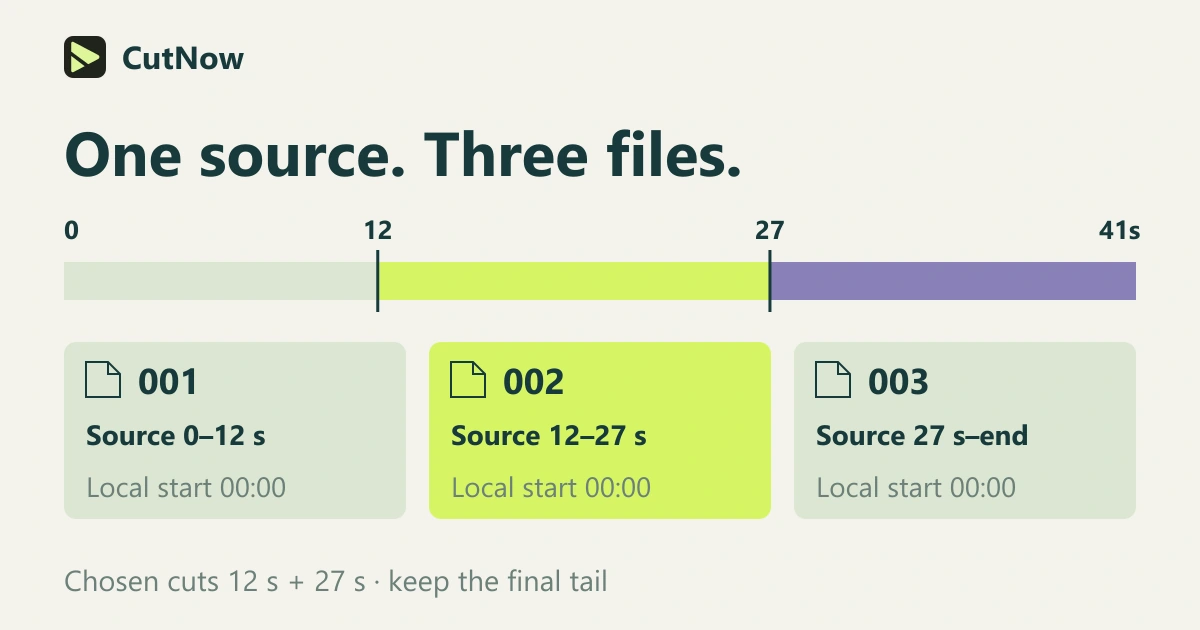
To split one video into several files, write the cut points against the source, turn them into consecutive ranges and export each range as its own numbered file. Decide whether the boundaries must follow particular words or actions, or whether a nearby keyframe is acceptable. Those choices affect whether to re-encode or copy the encoded streams.
CutNow is an AI video editor for footage you already have: it finds useful moments and organizes first cuts. If you still need to choose the ideas, that is the earlier selection task. This guide starts with cut points you have already decided and delivers separate files, keeping their source references and sound together.
Plan every part, including the tail
Keep the original and identify the exact source version. Use positions within that file, not a camera timecode printed on screen or a different edit's timeline. In an original teaching example, a 41-second demonstration is split at seconds 12 and 27:
| Output | Source range | Planned length | Purpose |
|---|---|---|---|
| Part 001 | 0–12 seconds | 12 seconds | Introduction |
| Part 002 | 12–27 seconds | 15 seconds | Operation |
| Part 003 | 27 seconds to the end | About 14 seconds in this example | Result and ending |
The planned lengths add to 41 seconds. The end of one range is the start of the next; do not subtract a second to avoid duplication and accidentally create a gap. If you intend to discard an opening or ending, record that explicitly. A 41-second source is only the teaching example; keep the actual final range to the actual end.
This produces three files, not a single compilation containing three cuts. A known-range trim keeps one passage; merging combines selected material into one file. Neither delivery replaces a set of independently playable parts.

Check the boundaries and intended tracks
Listen across each cut before exporting. If a word, safety condition or visible action crosses it, decide whether the brief allows moving the cut. Update both neighboring ranges together. A fixed equal-length requirement may split a sentence; label those files as consecutive parts rather than claiming each is a complete standalone lesson.
Inspect the source's moving video, duration, frame rate, orientation and audio tracks:
ffprobe -v error -show_streams -show_format -of json "demo-master.mp4"The ffprobe reference describes these fields. Select the intended language and preserve its timing with the picture. A file without audio can remain silent. Do not move a later sound earlier just to fill a quiet interval.
If the real task is choosing distinct complete answers from a long recording, use the long-video-to-shorts workflow instead. AI selection and a supplied cut-point list have different jobs.
Export known ranges when the content boundary matters
The following FFmpeg method uses a decodable ordinary SDR source with even picture dimensions, a normal source clock and synchronized sound, plus a build containing libx264 and AAC. Work from the same master for every part. The first two outputs use start plus duration; the last keeps everything from second 27 to the end:
ffmpeg -n -ss 0 -i "demo-master.mp4" -t 12 -map 0:V:0 -map 0:a:0? -c:v libx264 -preset medium -crf 20 -pix_fmt yuv420p -c:a aac -b:a 192k "demo_001_0000-0012_v1.mp4"
ffmpeg -n -ss 12 -i "demo-master.mp4" -t 15 -map 0:V:0 -map 0:a:0? -c:v libx264 -preset medium -crf 20 -pix_fmt yuv420p -c:a aac -b:a 192k "demo_002_0012-0027_v1.mp4"
ffmpeg -n -ss 27 -i "demo-master.mp4" -map 0:V:0 -map 0:a:0? -c:v libx264 -preset medium -crf 20 -pix_fmt yuv420p -c:a aac -b:a 192k "demo_003_0027-end_v1.mp4"
The FFmpeg command documentation explains that input seeking during transcoding uses accurate seeking by default: material before the requested position is decoded and discarded. This differs from stream-copy seeking. A time between captured frames still has to resolve to actual frames; inspect each exported edge rather than promising an arbitrary fractional-frame boundary.
Uppercase V excludes attached cover pictures. The optional first audio map allows a source without sound; with multiple languages, choose the right track. These commands encode new picture and audio, so they have a quality cost. CRF 20 is an illustrative starting setting, not a lossless or size guarantee. HDR and unusual pixel formats need an appropriate export workflow.
-n refuses an existing output name for these individual files. Keep a completed part if a later command fails, record the failed range and retry it with a new version name; do not silently deliver an incomplete set.
Use keyframe-based batch splitting only when its tradeoff fits
For an input whose encoded streams fit MP4, the segment muxer can copy them into numbered files without picture re-encoding. Create a new, empty folder named split-run-v1 first; use a different empty folder for another run. Do not rely on -n alone to protect every generated child file or list from a reused numbered destination.
ffmpeg -n -i "demo-master.mp4" -map 0:V:0 -map 0:a:0? -c copy -f segment -segment_times 12,27 -segment_start_number 1 -reset_timestamps 1 -segment_list "split-run-v1/parts.csv" "split-run-v1/part-%03d.mp4"The official segment documentation states that video segments start on reference-stream keyframes. If the requested split has no matching keyframe, a new segment starts at the next suitable one. A requested second 12 is therefore not proof that one file ends and the next starts exactly there. The muxer works best with a single constant-frame-rate video; codec, GOP and container behavior still need checking in the actual outputs.
reset_timestamps=1 aims for near-zero segment clocks; the documentation notes that some codec/container combinations may not work as expected. Keep the generated CSV, but treat its times as segmenter records, not a substitute for watching the boundary content and keeping your original plan.
For equal intervals, use -segment_time 15 in place of -segment_times 12,27; the last file may be shorter and keyframe alignment still applies. If exact content boundaries are required, return to the range-based re-encoding method. Enabling break_non_keyframes is not a universal way to obtain accurate, independently decodable files. Forcing new keyframes requires encoding and attention to frame/time-base rounding; it is not something copy adds.
Give every file a local clock and a source reference
Keep a delivery list linking output name, source filename, requested range, actual checked boundary, language and version. Do not number files from a download window's incidental order.
Part 002 may begin at source second 12, but its own viewing clock should begin near zero. Captions from the full source need to be split and shifted to each part's local clock. Check cues that cross a cut; do not attach the original full-length SRT unchanged to every part. Burned-in captions are picture pixels and remain in the selected frames.
Keep media and caption versions paired, for example demo_002_0012-0027_v1.mp4 with its matching caption file. The subtitle guide covers that handoff. The commands select one video and optional first audio; they do not automatically preserve every language, embedded subtitle or metadata item.
Check each independent file and the complete set
Open each saved MP4 on its own. Confirm first and last content, sound, synchronization, orientation and playback through the whole part. Then compare neighboring files around the planned source cut: is any required action missing, unintentionally repeated or shifted? Check the actual final part includes the ending.
Compare the delivery list with the actual file count and order. Planned durations are useful arithmetic, but frame boundaries, audio priming and container timing mean their displayed sum is not the only proof of full coverage. A generated CSV, a timeline screenshot or a combined preview does not replace the requested playable files.
Keep the master, cut-point list and accepted outputs together. Explore CutNow for the earlier work of finding and shaping useful material when the cut points have not yet been chosen.
Prepared by the CutNow team with AI writing assistance.