 CutNow
Separate vocals from a video: deliver a voice track and an accompaniment track
Separate voice and accompaniment from authorized mixed video or audio. Follow documented service or local-model methods, listen for residue, and keep the stems aligned.
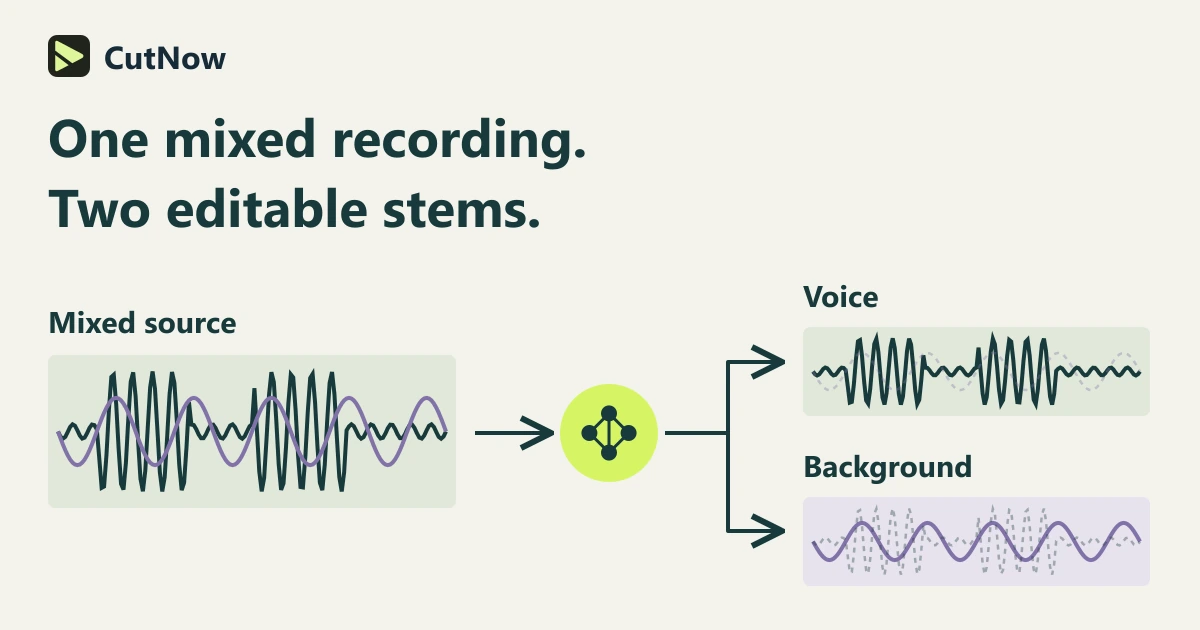
A vocal remover estimates separate sound sources from a mixed recording. Start with the video or audio you are allowed to process, request a voice stem and an accompaniment or background stem, then listen to both against the same source. You do not need to have those stems already: producing them is the separation task.
CutNow is an AI editor for footage you already have. It finds useful passages and organizes a first cut. Once the passage is chosen, separate sound deliveries can help an editor rebalance a voice, replace music or prepare a new explanation while keeping the chosen pictures and timing together.
Define the two files you need
For a music performance, “vocals” and “accompaniment” are useful labels. For an interview with music, “voice” and “background” describe the intended split more clearly. A background estimate can contain room sound or effects as well as music; do not assume it is a studio instrumental master.
| Task | Intended result |
|---|---|
| Separate a mixed recording | Independently editable voice and remaining sound |
| Extract an existing audio track | A copy or encode of the whole mixed soundtrack |
| Remove all audio | Pictures without any audio streams |
| Reduce background noise | Process sound while retaining the wanted speech |
If the production already has clean isolated tracks, ask for them first. Selecting a language track or splitting left and right channels does not separate sources that are mixed together. EQ changes frequency balance; it cannot, by itself, identify every voice and instrument that shares those frequencies.
The illustration is a teaching plan: two outputs retain the source's time reference. Its faint secondary marks mean “listen for residual sound,” not measured separation quality.

Submit the original video with a documented service method
AI MediaKit documents direct video or audio input, so this route does not require manually separating or extracting the soundtrack beforehand. Its Audio and Music scenes return voice and background files; other scenes can return three components. Choose the scene to match the deliverable. Account access, service terms and charges are separate from CutNow. Official separation guide
For a two-stem music example, save the following plain UTF-8 file as separate-request.json. Replace the example URL with a service-readable URL for your authorized video. For audio input, replace video_url with audio_url.
{
  "video_url": "https://your-domain.example/owned-clip.mp4",
  "scene": "Music",
  "output_format": "wav"
}
With a MediaKit account and its key privately configured as MEDIAKIT_API_KEY, this Windows PowerShell example submits the request. The key belongs in your local credentials setup, not in the article or shared project file:
curl.exe --fail-with-body -X POST "https://mediakit.cn-beijing.volces.com/api/v1/tools/separate-voice" -H "Authorization: Bearer $env:MEDIAKIT_API_KEY" -H "Content-Type: application/json" --data-binary "@separate-request.json"Save the returned task ID. A successful submission means queued work, not finished stems. Replace TASK_ID below with that ID to inspect progress:
curl.exe --fail-with-body "https://mediakit.cn-beijing.volces.com/api/v1/tasks/TASK_ID" -H "Authorization: Bearer $env:MEDIAKIT_API_KEY"Wait for completed; investigate failed rather than submitting the same job repeatedly. For Audio or Music, save both result.voice_audio_url and result.background_audio_url outputs in a new version folder. The official API reference specifies the input, scene, WAV format, task response and result fields. Keep both files, even if you intend to use only the accompaniment: the voice file helps evaluate what the split retained.
Use a local model when its setup and terms fit
Demucs offers a documented local two-stem alternative. Follow the author's installation and Windows instructions for uv and the supported environment. If starting with video, FFmpeg can prepare one complete selected audio stream as part of this method:
ffmpeg -n -i "owned-clip.mp4" -map "0:a:0" -vn -c:a pcm_s16le "owned-audio.wav"
uvx demucs --two-stems=vocals -n htdemucs -d cpu -o "stems-v01" "owned-audio.wav"
For an existing audio file, use it directly instead of the extraction line. Choose a fresh output folder for each run. The outputs for this example are under stems-v01/htdemucs/owned-audio/, with vocals.wav and no_vocals.wav. The model download and computation need a suitable environment; this is not an instant-processing promise. The author's CLI source defines the two-stem mode and output layout.
Before production use, distinguish permission for your media from permission for the selected model. The author's current README explicitly leaves pretrained-weight licensing unclear; an MIT code licence does not resolve that question. Select a method and model whose terms cover your intended use. This local example explains the workflow, not commercial clearance or CutNow's implementation.
Listen to each stem for the sounds that matter
Compare the same passage in the mixture, voice stem and accompaniment. In the voice, listen for consonants, breaths, reverberant endings and missing syllables. In the accompaniment, listen for remaining words, damaged percussion, hollow instruments or shifting stereo sound. Include overlapping voice and music, a quiet moment and a phrase ending.
Judge the stem in its intended edit as well as alone. A faint voice remnant can matter greatly in an exposed music bed. Louder playback is not proof of cleaner separation. Keep the original; repeated lossy exports or arbitrary EQ can make comparison harder without solving the source split.
Keep the two stems aligned with the picture
Import both files from the same separation job at the same original position. Do not independently trim their leading silence or stretch one to make displayed durations match. Check a visible spoken word or a distinct musical event near the start and later in the clip.
For file inspection, run this for each saved stem:
ffprobe -v error -show_streams -show_format -of json "voice.wav"Use the actual filename for the other stem. Check sample rate, channels, start and duration; the FFprobe manual describes those reports. Codec delay and rounding can affect displayed duration, so confirm content timing too. Some separation exports rescale individual stems to avoid clipping; do not assume adding them at default gain perfectly recreates the original mix. Demucs output notes
Hand off a named pair from the same edit
Deliver the original reference and the two clearly named stems, with the source revision, selected interval, separation method and review notes. State which stem will accompany the picture and what still needs checking. Do not label a dialogue-plus-room-sound estimate “music only.”
A CutNow local model validation produced two 14-second WAV files from an interview-and-music mixture, each with the same sample count. That supports a concrete paired-file handoff; listening and fitting those files to the actual edit remain separate decisions. It is not a claim of a public free remover or a quality guarantee for every song.
Use the audio-extraction guide when you only need the existing soundtrack. For selecting the pictures and building the edit first, see CutNow's AI first-cut workflow. Explore CutNow.
Prepared by the CutNow team with AI-assisted writing and editorial review. Commands are instructional; no new separation was run for this article.