 CutNow
How to Add Background Music to a Video and Keep Dialogue Clear
Add authorized music beneath dialogue without shortening the video. Plan entry, fades and loops, follow a complete FFmpeg mix, and check the actual MP4.
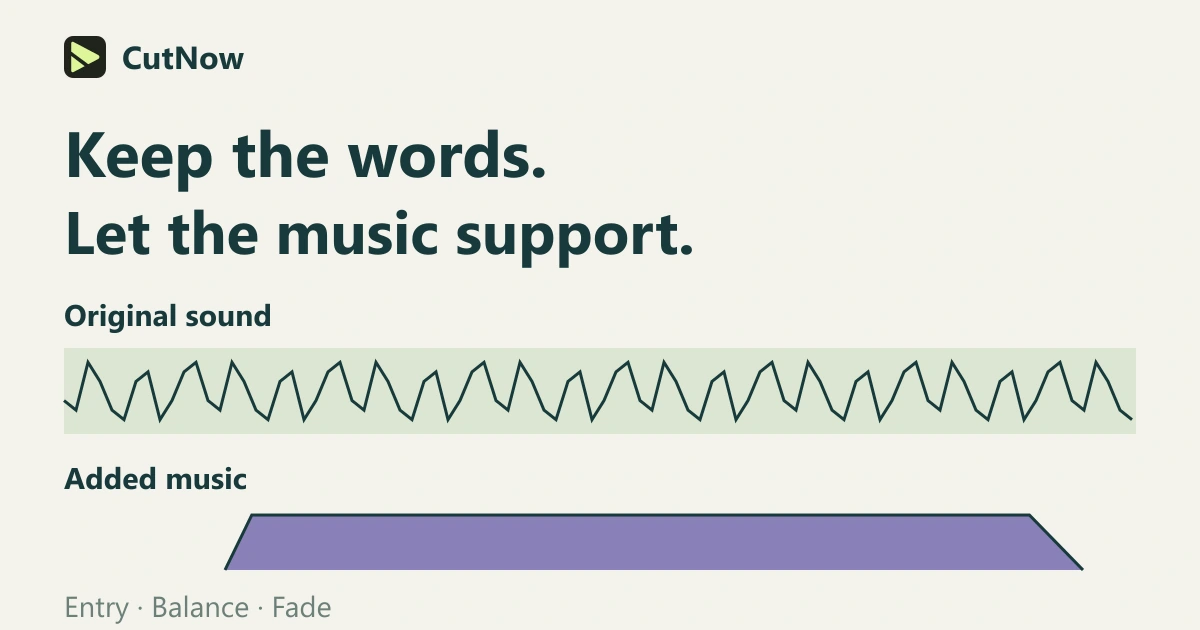
To add background music to a video, keep the original sound on its own track, place a music excerpt at the intended moment, lower it beneath the dialogue and fade its edges. Export one mixed file and listen to the actual result. Adding a song should not shorten the video or replace a voice you meant to keep.
CutNow is an AI video editor for footage you already have: it finds useful moments and organizes first cuts. Fix the chosen edit before matching music to it. A changed cut can move the sentence, reveal or ending that the music was supporting. This guide covers the next delivery task with your own authorized audio, rather than choosing a different story for you.
Start with the approved edit and the right audio
Keep a clean master without the added music and use a working copy. Choose a recording you can use for this publication, retaining its source and permission information with the project. A downloaded song or an upload control does not provide that permission by itself.
Check whether the video has dialogue, important action sounds or intentional silence. Listen to the actual audio track; similar filenames can contain different language versions. If music is already mixed into the only available recording, adding another track will layer over it, not separate it out.
The original teaching example below uses a 40-second approved video. The opening sentence stays unaccompanied. A 32-second excerpt from the music's source seconds 2–34 plays at video seconds 6–38. It fades in over one second and out over two seconds, leaving the last two seconds without added music. These are planning choices, not a measured mix.
Place the music against the video's clock
In your timeline editor, keep the original video and sound aligned. Add the music on another audio track. Trim the desired excerpt, then move its start to the chosen video position. Do not shift the dialogue to meet the song.
Distinguish two clocks: music-source seconds 2–34 identify the excerpt; video seconds 6–38 identify its placement. If you later remove two seconds from the video, revisit that placement against the new edit instead of reusing the old numbers blindly.

Decide what happens when the music is too short
Choose deliberately: use a shorter music window, select a longer excerpt, or repeat a suitable section. Leaving part of the video without music can be the right result. Extending a music track by repeating it does not automatically make the return musically seamless.
For a repeat, listen through the last-to-first join. A beat, chord or room tail may jump. Pick a better cycle or edit the join before making the delivery. Crossfading a loop is a separate edit, not something a repeat switch guarantees.
Keep the video's intended end fixed. Do not let a short audio file determine when the entire export stops. The command-line example below pads the audio layout to the video duration instead.
Balance speech first, then soften the edges
At a consistent listening level, start with the dialogue, add music quietly and replay the softest sentence. Can you understand the words without reading captions? Check important clicks or demonstration sounds too. Music with vocals or a dense midrange may compete even when a volume slider looks low.
Lower music beneath speech; raise it in a deliberate pause only if that supports the edit. Matching slider percentages across recordings does not establish a consistent balance. Listen on headphones and a small speaker at the intended viewing level, then confirm the complete export.
Apply a short fade at the music's entry and exit. In the example, its local time is 0–32 seconds: the one-second fade-in is 0–1, and the two-second fade-out is 30–32. After placement, those become video times 6–7 and 36–38. Fades soften entry and exit; they do not automatically lower music whenever someone speaks.
Make the mix with a documented FFmpeg method
This method assumes a decodable 40-second MP4 whose picture starts at zero, with synchronized first audio and MP4-compatible video. The music file must contain at least 34 seconds. Use a current FFmpeg build with AAC and support for the documented filters and file-loaded options. For different timing, change the planned durations and placement together.
Save this as plain text mix-filter.txt:
[0:a:0]asetpts=PTS-STARTPTS,aresample=48000,aformat=sample_fmts=fltp:channel_layouts=stereo,apad=whole_dur=40,atrim=duration=40[voice];
[1:a:0]asetpts=PTS-STARTPTS,atrim=start=2:end=34,asetpts=PTS-STARTPTS,aresample=48000,aformat=sample_fmts=fltp:channel_layouts=stereo,volume=0.12,afade=t=in:st=0:d=1,afade=t=out:st=30:d=2,adelay=6000:all=1,apad=whole_dur=40,atrim=duration=40[music];
[voice][music]amix=inputs=2:duration=first:dropout_transition=0:normalize=1[mix]
Then run from the folder containing the files:
ffmpeg -n -i "approved-cut.mp4" -i "authorized-music.wav" -/filter_complex "mix-filter.txt" -map 0:v:0 -map "[mix]" -c:v copy -c:a aac -b:a 192k -t 40 "cut-with-music-v1.mp4"The official filter reference documents trimming, zeroing timestamps, gain, fades, delay, padding and mixing. Here the music starts after 6,000 milliseconds of silence; both audio layouts extend to 40 seconds. volume=0.12 is an illustrative gain multiplier, not a recommended loudness for every recording. normalize=1 scales the mixed inputs, so the final dialogue level can change. It is not speech-aware ducking; still judge the words and the complete mix by listening.
The FFmpeg command reference explains -/ for loading an option from a text file, explicit stream mapping and -n to refuse overwriting. The command copies the compatible video packets but encodes a new AAC mix. It does not automatically carry embedded subtitles, extra language tracks or every item of source metadata. Keep matching caption files separately when required.
If the video cannot be copied into MP4, use a suitable video export instead. For ordinary SDR material, replacing -c:v copy with -c:v libx264 -pix_fmt yuv420p is a re-encoding route when that encoder is available; it changes picture encoding and needs visual review. HDR and unusual formats need an appropriate workflow.
Adapt the method for a repeated bed or a silent video
For a short, repeatable audio cycle, copy the filter file to mix-loop-filter.txt. Replace atrim=start=2:end=34 with atrim=duration=32, leaving the fades, placement and 40-second layout intact. Repeat the actual music input before trimming it:
ffmpeg -n -i "approved-cut.mp4" -stream_loop -1 -i "authorized-cycle.wav" -/filter_complex "mix-loop-filter.txt" -map 0:v:0 -map "[mix]" -c:v copy -c:a aac -b:a 192k -t 40 "cut-with-loop-v1.mp4"The input-loop option repeats that input; the finite trim and output duration bound this example. It does not repair a bad musical join. Do not add -shortest blindly to a different arrangement: a shorter audio stream can end the requested delivery early.
If the video genuinely has no audio stream, copy the main filter file and replace its entire first line with:
anullsrc=r=48000:cl=stereo,atrim=duration=40[voice];Keep the remaining lines and use the new filter filename in the main command. This supplies silence for the absent original track; it cannot recover missing dialogue. With no dialogue to balance, adjust music gain by listening rather than assuming the quiet example setting suits a music-led clip. A final optional audio map cannot supply a missing input referenced inside a filter graph.
Check the delivered file, not only the preview
Open the saved MP4. Check the opening words, music entry, loop joins if used, quietest speech, final fade and last frame. Confirm the duration, correct language and synchronization. If music begins early, recheck its timestamp reset and delay; if speech disappears, recheck the selected source track and mix mapping. If the result distorts, reduce levels and inspect the source rather than repeatedly exporting the same overload.
Keep the clean master, chosen music, placement note and final version together. CutNow's long-video-to-shorts workflow addresses finding and shaping independent clips before this finishing step. When the edit changes, rematch music and captions to that version; the subtitle guide covers the caption handoff.
Explore CutNow for turning existing footage into a focused edit that is ready to finish and deliver.
Prepared by the CutNow team with AI writing assistance.