 CutNow
How to remove audio from a video and keep the picture
Remove every audio track while keeping the selected video. Choose stream copy or a compatible encode, then inspect the saved file and check picture orientation.
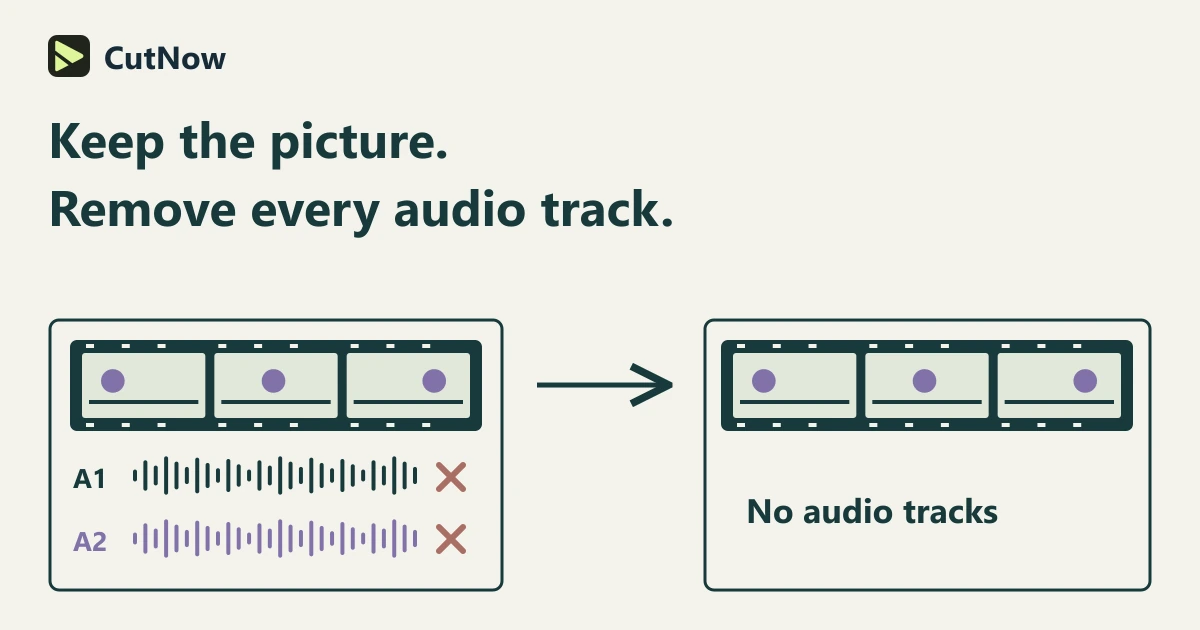
To remove audio from a video, export the chosen video stream without any audio streams. Muting a player does not change the file. Lowering an editor's volume to zero may produce silent audio, which is a different delivery from a file containing no audio track.
For an MP4 whose existing video codec is suitable for the destination, this FFmpeg example keeps the first ordinary video stream and excludes sound:
ffmpeg -n -i "source.mp4" -map "0:V:0" -c:v copy -an "picture-only.mp4"Replace the filenames and retain the original. CutNow is an AI editor for footage you already have: it finds relevant moments and organizes a first cut. When you want selected demonstration shots to accompany a new explanation, choose those shots first, then prepare a clearly named picture-only version for the next editing step.
Choose which sound task you actually need
| Your delivery | What changes |
|---|---|
| Video with no sound track | Exclude every audio stream from the output |
| A quiet preview | Change player monitoring; the file can still contain sound |
| Silent audio in a file | Encode or mix silence; an audio stream can still exist |
| Voice removed but music retained | Separate components of a mixed recording; not this task |
| Clearer dialogue with less noise | Process the audio; do not remove the whole soundtrack |
An audio-only listening copy is also different: extracting audio produces a separate sound file. It does not, by itself, remove that sound from the video.
The illustration shows a teaching example with two audio tracks. Both are excluded from the picture-only delivery. A flat line would describe silence in a track, not the absence of that track.

Inspect the source before selecting streams
With FFmpeg and FFprobe installed, inspect the file in its folder:
ffprobe -v error -show_streams -show_format -of json "source.mp4"Identify the actual moving-picture stream, its codec and dimensions, rotation information, duration and all audio tracks. Record which picture version you want to keep. FFprobe distinguishes stream information from container information; its official manual describes these reports.
In the opening command, uppercase V selects video excluding attached covers and thumbnails; 0 chooses its first match. If a file has several actual video angles, choose the intended one deliberately. The output -an prevents audio output, including additional languages or commentary. The selected stream is copied without a video encode; -n refuses to overwrite an existing output. FFmpeg stream and audio options
Keep the picture in a compatible container
Use stream copy when the video can stay in the destination container and its codec is accepted by the recipient. A new MP4 filename cannot make an unsupported video codec playable. If another source format cannot be copied into MP4, choose a container that supports that video or encode a compatible copy. FFmpeg's format reference
For an ordinary SDR source needing H.264, an alternative is:
ffmpeg -n -i "source.mp4" -map "0:V:0" -c:v libx264 -preset medium -crf 20 -pix_fmt yuv420p -an "picture-only-h264.mp4"This requires a build with libx264 and re-encodes the picture. CRF 20 is a starting setting, not a promise of identical pixels or a particular file size. The encoder documentation describes the quality and preset options. For HDR, keep a suitable HDR workflow or choose a verified color-managed SDR export; requesting an 8-bit pixel format does not perform tone mapping.
Do not add a trim or speed change merely to remove sound. If the source audio continues after the final picture, removing it can change the container's displayed duration. Compare the video sequence and its ending rather than requiring an identical overall duration number.
Check orientation, captions and metadata choices
Phone recordings can depend on rotation metadata. Stream copy does not bake that orientation into the pixels, so check the output in the intended player. A transcode normally applies FFmpeg's default autorotation; avoid applying the turn a second time. FFmpeg video options
The examples select one video stream. Separate subtitles, additional video angles and data tracks are not selected; captions burned into the picture remain visible. Keep a matching subtitle file separately if the next editor needs it. Global metadata and chapters can still be copied by default. Removing audio is not a promise that every title, location tag or chapter has been removed; inspect what the actual deliverable contains. Do not indiscriminately strip orientation information to solve a sound task. Metadata mapping
Confirm that no audio stream remains
Inspect the saved output, not the original:
ffprobe -v error -select_streams a -show_entries stream=index,codec_name -of json "picture-only.mp4"For the requested delivery, the audio-stream list should be empty. An unreadable file or probe error is not evidence of successful removal. FFprobe's stream-selection options let you inspect every audio stream, rather than listening only to a default language.
Then open the output in the receiving editor or player. Confirm that the expected picture is present, the direction and proportions are correct, and the full intended action remains. Watch the beginning, middle and ending, then the complete clip when it matters. A muted player or a successful export notification cannot replace these checks.
If audio streams remain, confirm you inspected the new path and did not use a volume-only export or map extra tracks. If V:0 matches nothing, check that the source contains moving video rather than just audio with cover art.
Hand off the same selected edit
Use a name such as demo-v03-picture-only.mp4. State that it contains the chosen picture edit with no audio streams, and identify the matching source revision. Keep the original soundtrack with the master if it is needed later; do not overwrite the only source.
For CutNow editing work, the useful sequence is to find the passage or shots, establish the first cut, and decide which sound belongs in the final expression. A picture-only handoff is appropriate when the next stage will supply new narration or deliberately show a silent demonstration. See editing existing footage for the selection task, or the subtitle guide for text matched to that edit. Explore CutNow.
Prepared by the CutNow team with AI-assisted writing and editorial review. Commands illustrate a documented method; they are not conversion measurements.