 CutNow
Convert MKV to MP4 Without Losing Track of the Right Sound and Subtitles
Convert MKV to MP4 with explicit video and audio choices. Copy compatible streams or encode only what is needed, and hand over subtitles, fonts and chapters deliberately.
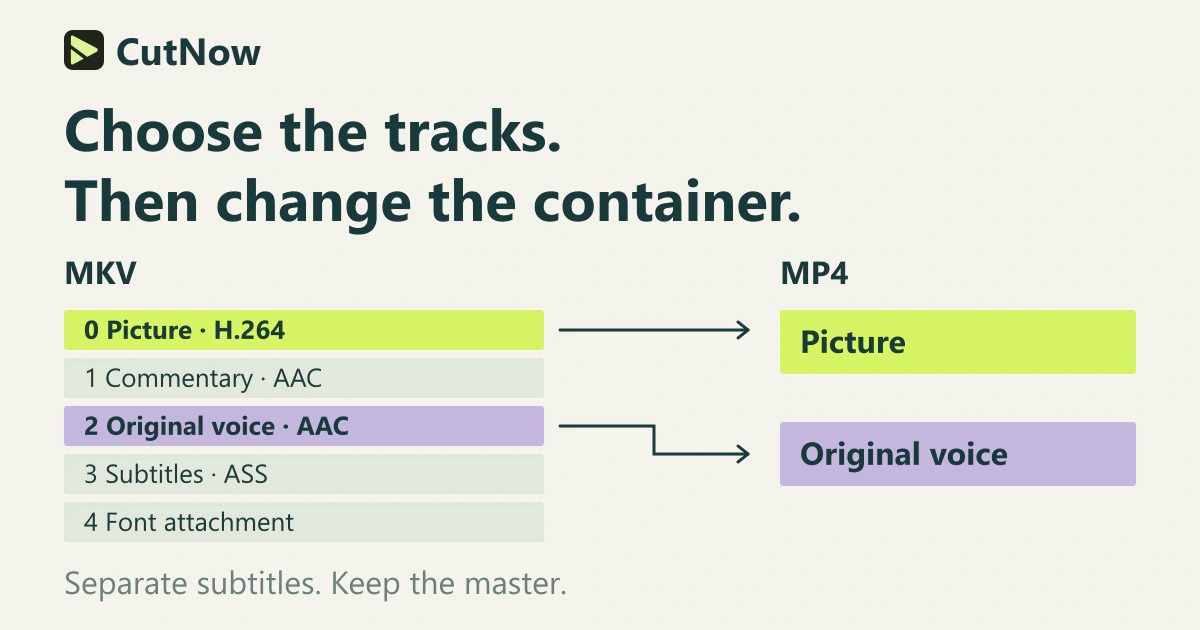
To convert MKV to MP4, inspect the streams, choose the picture and sound the recipient needs, then copy compatible streams or encode a compatible delivery. An MKV can contain several voices, subtitles and attachments; a successful conversion is only useful if the MP4 carries the intended programme.
CutNow is an AI video editor for existing footage: it finds relevant passages and organizes first cuts. A clear source package helps keep that edit connected to the original speech and matching subtitles. Prepare the right delivery copy, keep the MKV master, and record what belongs with it before moving the material into a larger edit.
Make a track inventory before converting
Use your own or authorized recording. Ask whether the next editor needs a viewing copy, original-language sound, editable subtitles or more than one language. An MP4 extension alone does not specify the codecs that a device accepts. See the container and codec distinction.
With FFmpeg and ffprobe available, inspect the file without changing it:
ffprobe -v error -show_streams -show_chapters -show_format -of json "recording.mkv"Read each stream's index, type, codec and available language/title tags, plus dimensions, pixel format, color and rotation information. Listen to the audio to confirm its identity; a tag is not proof. The ffprobe manual documents these reports.
Here is an original teaching inventory. It is not the stream list or result of a tested recording.
| Overall index | Example content | This handoff |
|---|---|---|
| 0 | Main H.264 picture | Put in the MP4 |
| 1 | AAC commentary | Keep in the master |
| 2 | AAC original-language sound | Put in the MP4 |
| 3 | ASS subtitles | Export separately for editing |
| 4 | Font attachment | Retain with the master and check reuse rights |
Overall index 2 is the second audio stream in this example: 0:2 and 0:a:1 select the same input sound. They are not interchangeable in an arbitrary file. Replace all example indices after inspecting yours. These are input indices; output stream numbers can change. A recording with no matching stream should prompt a new choice, not a guessed substitute.

Copy the selected streams when they are compatible
For the teaching H.264/AAC combination, and a destination that accepts their actual profiles, try a separate MP4:
ffmpeg -n -i "recording.mkv" -map 0:0 -map 0:2 -c copy -map_chapters -1 -movflags +faststart "review-original-audio.mp4"Explicit stream mapping selects only the two requested streams. This excludes the commentary, subtitle and attachment from this MP4. -n protects an existing output. Chapter copying is deliberately disabled for this simple review delivery; chapter needs are handled below.
Stream copy changes the container without re-encoding these selected streams. It does not guarantee preservation of the entire MKV package or make an unsupported profile playable. +faststart arranges MP4 metadata for progressive access; it does not repair its codecs. Official MP4 muxer documentation
Do not replace the two mappings with -map 0 just to include everything. The destination container and app may not support every source stream. Record exclusions instead of letting them disappear unnoticed.
Change only the codecs the destination needs
If the selected picture is acceptable but the sound needs AAC, keep the picture and encode the chosen audio:
ffmpeg -n -i "recording.mkv" -map 0:0 -map 0:2 -c:v copy -c:a aac -b:a 160k -map_chapters -1 -movflags +faststart "review-aac.mp4"Use this route only when audio conversion is necessary. It is not a reason to re-encode the teaching source's already acceptable AAC. The bitrate is an example setting, not a measured quality or size result.
If an ordinary SDR picture also needs H.264, one starting recipe is:
ffmpeg -n -i "recording.mkv" -map 0:0 -map 0:2 -c:v libx264 -preset medium -crf 20 -pix_fmt yuv420p -c:a aac -b:a 160k -map_chapters -1 -movflags +faststart "review-h264-aac.mp4"This requires the listed encoders and an appropriate even-size picture for the yuv420p recipe. The official encoder options describe these H.264 controls. CRF is a quality control, not a file-size guarantee. Keep the dimensions and timing deliberate; use the framing guide if padding or resizing is needed.
This 8-bit SDR recipe is not an HDR conversion plan. Inspect the source's color requirements, rotation and pixel shape before using it; a codec name alone does not establish those properties. Keep the master for a delivery needing HDR, another profile or different tracks. The MOV-to-MP4 guide covers the related camera-file handoff.
Give subtitles, fonts and chapters their own decision
For the example ASS subtitle, export its selected stream without changing its subtitle codec:
ffmpeg -n -i "recording.mkv" -map 0:3 -c:s copy "recording-subtitles.ass"This is an ASS-to-ASS example, not an automatic conversion of every subtitle type. Matroska's subtitle specification describes several text and image-based formats. An image subtitle does not become editable text by changing its suffix. Simplifying styled subtitles to plain text can lose positioning and appearance; retaining an ASS file does not install its fonts.
Matroska attachments may include fonts or other files. Keep the MKV master and list the required assets and permissions for the receiving editor. The selected MP4 above does not carry those attachments. If the recipient only wants visible captions, arrange a separate captioned delivery against the correct edit; see the subtitle guide.
Chapters also need a decision. The commands deliberately use -map_chapters -1. When simple chapters are required, -map_chapters 0 requests entries from the first input instead; verify the destination's display. Do not assume complex Matroska editions or linked/ordered chapters survive as equivalent MP4 behaviour. Matroska chapter structures
Check the MP4 and hand over a named package
ffprobe -v error -show_streams -show_chapters -show_format -of json "review-original-audio.mp4"Check the actual exported file in the receiving app. Listen at the beginning, a distinctive dialogue moment and the end; confirm the original voice, complete programme, picture orientation and sound sync. Verify any separate subtitle against that same video version. A successful exit code does not confirm these choices.
Name the deliverables and state their contents: review-original-audio.mp4 contains picture plus original speech; recording-subtitles.ass is separate; recording.mkv is the retained master. If the next task is organizing raw footage, carry that version note into the edit. Explore CutNow to turn useful existing material into a focused first cut.