 CutNow
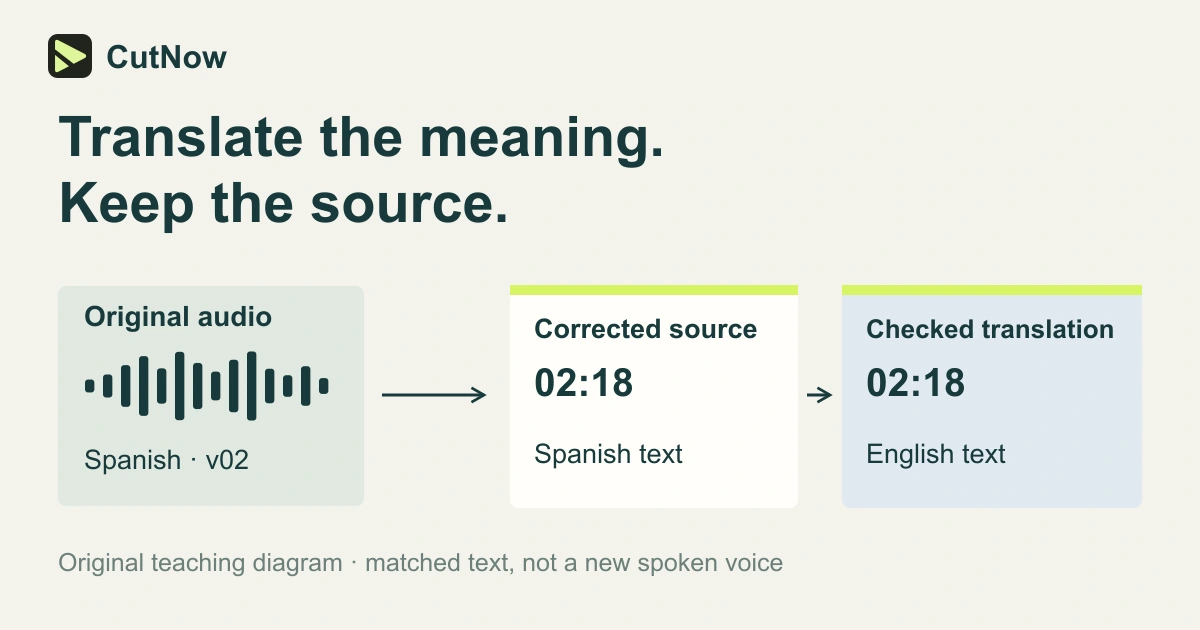
To translate a prerecorded audio file for someone to read, make a transcript in the spoken language, correct it against the recording, then translate that corrected text. Deliver the target-language text together with its source version and listening references. Decide on this output before uploading: a readable translation, a new spoken voice and a live conversation require different workflows.
CutNow is an AI video editor for footage you already have. Its video-localization workflow connects translated speech, matching subtitles and the existing picture edit. The same editorial decision matters here: what should the audience receive? For a voice memo or audio-only recording that needs a readable translation, the practical handoff is a checked pair of texts. For a picture-led release, use the video translation workflow to coordinate meaning, voice and video timing.
Choose reading text before choosing a translator
Write the request as “Translate this recorded Spanish explanation into English reading text, with references to the original audio.” That defines both languages and the deliverable.
| Starting point | Needed output | What the workflow must provide |
|---|---|---|
| A saved audio file | Text in another language | Source transcription, correction, translation and text export |
| A saved audio file | New speech in another language | Approved translation plus a separate speech-generation or recording and audio-export process |
| A conversation happening now | Live interpreted speech or text | A live input and interpretation workflow |
This guide completes the first route. TXT and DOCX are reading documents. SRT is timed text; none of these files is a playable translated voice. A summary is also a different request: it can omit details that a full translation should retain.
Preserve the recording and separate the two languages
Use a recording you have permission to process. Keep its original file unchanged, and confirm that the chosen service accepts its actual format and spoken language. HappyScribe's audio translation page lists MP3, WAV and M4A as example inputs. Check the file by playing its beginning, a middle section and its ending before submitting it.
Consider an original teaching example: parts-handoff-v02-es.m4a, an 8-minute-40-second Spanish explanation of a parts order. An English-speaking colleague needs to read the instructions. This example illustrates a review method; it is not a processed recording or a translation test.
Record the source filename, version, actual spoken language, target language, speaker names and terms such as the order identifier. Here Spanish is the recognition language; English is the translation language. Selecting English as the source would ask the recognizer to interpret Spanish speech through the wrong language setting. The language of a website's buttons does not settle either choice.
Create and correct the source transcript while listening
HappyScribe provides one documented file-based route. In an account with the necessary access, open the dashboard, choose + Create, then Transcript, and select the local file. Set Speakers' language to the spoken language. For this staged review, leave Add translations unselected initially, choose the transcription service you intend to use and check the displayed charge before creating the transcript. These controls are described in its official upload instructions.
Open the resulting source transcript and play the audio alongside it. Correct words in the text, identify speakers and use the playback clock to locate doubtful phrases. The editor guide documents text correction, speaker labels and the saved-state indicator. Wait for the cloud check before leaving the editor.
Check names, quantities, units, negatives and conditions particularly carefully. In the teaching example, a note at 02:18 in the unchanged source recording reads:
No envíes las doce piezas hasta que Lucía confirme el pedido B-17.
The intended English meaning is “Do not send the twelve parts until Lucía confirms order B-17.” The instruction is conditional. Dropping “not,” changing twelve to twenty or turning “until” into “after we already shipped” changes the action someone might take.
At an unclear price, write a review note such as [unclear unit price, source 03:06] rather than guessing a number. Resolve it with someone who understands the source speech before relying on the instruction. If you cannot review the language yourself, arrange a qualified reviewer; fluent-looking text is not confirmation of what was said.

Translate the corrected version, then compare the meaning
Once the source text is settled, use Translate in the editor, select Machine-Generated, choose the target language and confirm Translate. The official translation instructions say translated versions appear as separate dashboard files with a language code. Open the target version deliberately, keeping the corrected source available beside it.
Transcription and translation can consume separate credits. Check the current account allowance and order cost before confirming; this is not an unlimited free workflow. The current pricing comparison distinguishes uploaded-file minutes and export entitlements. Do not assume that an old plan name or a sign-up offer covers your whole recording and every target language.
Review the target text against the corrected source, returning to the audio for disputed passages. For the example, preserve Lucía, B-17, twelve parts, the prohibition on sending and the confirmation condition. Keep the source position with the paragraph. A reference such as 02:18 helps a reader replay the statement; it is not an SRT cue with a display start and end.
If the source is corrected again, identify the affected translated paragraphs and revise them from that same source version. Do not combine an old translated paragraph with a newly changed instruction simply because both files have the right language code.
Export, reopen and hand over a matched pair
In the corrected source file, choose Export, select an available text format and use Export file. Repeat from the reviewed target file. TXT is a simple reading-text choice; use DOCX when that format is available and useful for the recipient. The official export guide describes these steps and format-dependent timecode and speaker-label options. Confirm the formats actually shown in your current account.
Keep source references in both reading copies. If the selected format does not offer the timecode or speaker style you need, add clearly labeled paragraph references to the unchanged original recording in your saved review copies. Do not invent word timings. Reopen those copies after saving to ensure the labels and accented names survived export.
For the teaching case, an explicit delivery convention would be:
parts-handoff-v02-es.m4a: the unchanged recording.parts-handoff-v02-es-reviewed-v1.txt: corrected Spanish text, labeled with source positions.parts-handoff-v02-en-reviewed-v1.txt: English reading text matched to that corrected source.
Use “reviewed” only after the review has happened. Include a short handoff note naming both languages, the source filename and any unresolved items. Open the actual downloaded files, read the critical instructions and replay their source positions. A document title on a dashboard is not the delivered file.
If the next request is timed video captions, continue with subtitle translation against the picture. If it is a new voice, agree on a speech and playable-audio delivery process. CutNow's video-localization example shows a different package: matching video, dubbed audio and subtitles around an existing edit. Keep that package distinct from this audio-to-reading-text handoff. Explore CutNow for preparing and localizing existing video footage.