 CutNow
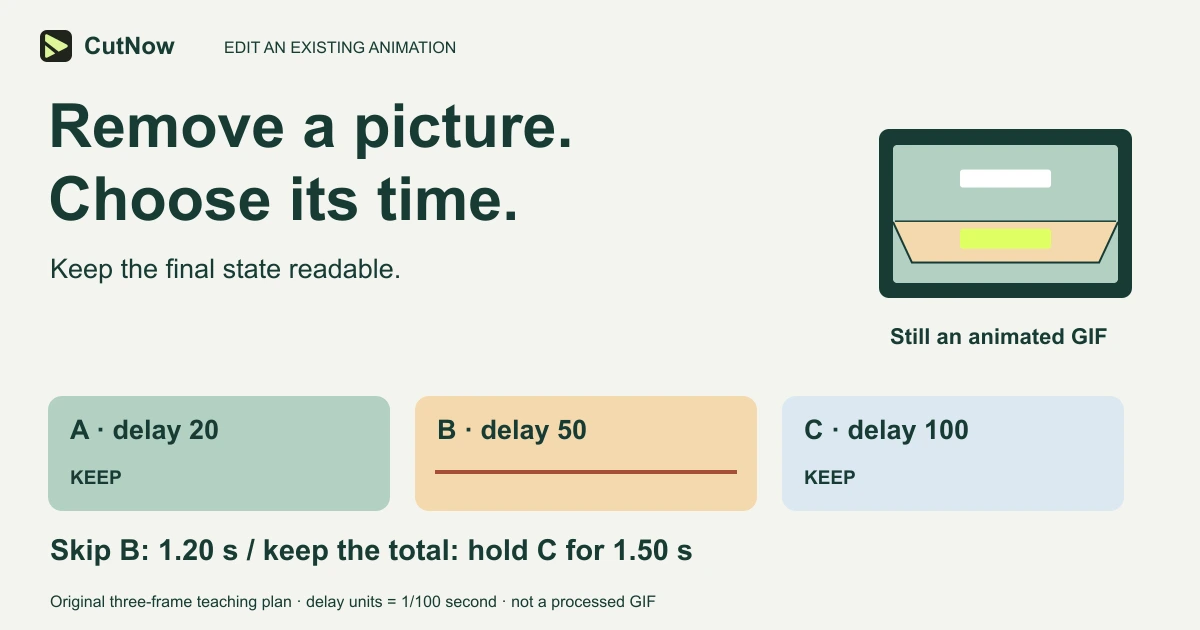
To edit an animated GIF, decide which visible state should change and whether its time should change too. Deleting an unwanted picture and keeping a deliberate reading pause are different edits. The deliverable is a new GIF that still animates, with the intended sequence, holds, background, and restart.
CutNow finds useful moments in existing video and organizes a first cut. That is relevant when choosing the filmed passage behind a visual asset. Revising an already animated GIF is a separate frame-and-timing job; this guide uses documented GIF tools for that work rather than treating video selection as proof of GIF editing support.
Keep the original and describe one visible change
Save an untouched copy before editing. Open it in an animation-capable viewer and watch a complete pass, including the ending and restart. A thumbnail can show only one image. Write a short edit note that identifies the unwanted state, the states that must remain, and the intended placement.
For a teaching example, imagine a small drawer-label GIF: it begins with the drawer closed, briefly shows a hand blocking the label, then holds on the readable label. The requested change is to remove that blocked view while keeping enough time to read the result. This is an original fictional example, not a GIF processed or generated for this article.
Do not add a resize, recolor, new transition, and speed change just because the editor offers them. Make the chosen content edit first, review it, then make any separately requested layout change. Keeping the original lets you distinguish an intentional change from a new artifact.
Read each hold before changing the sequence
The Ezgif analyzer can inspect a GIF’s canvas, frame count, loop information, frame delays, offsets, and disposal methods. Use those details when the animation’s construction is unclear. Record what your actual file reports; a displayed state may span several stored frames.
In this simplified example, A, B, and C each correspond to exactly one frame:
| Frame | Fictional visible state | Delay value | Planned hold |
|---|---|---|---|
| A | Drawer closed | 20 | 0.20 seconds |
| B | Hand blocks the label | 50 | 0.50 seconds |
| C | Readable final label | 100 | 1.00 second |
GIF delay values use hundredths of a second, as defined in the GIF89a specification. One pass here is (20 + 50 + 100) ÷ 100 = 1.70 seconds, including C’s final hold. It is not “three frames divided by a guessed fps.” Playback software can also handle very short delays differently, so inspect the intended destination rather than promising identical playback everywhere.
Deleting B and keeping A20/C100 gives 1.20 seconds. If the requested delivery should retain the planned 1.70-second duration, give C a delay of 150: A20/C150. You have moved the removed half-second onto the readable result, not preserved every original timing decision. That redistribution should be explicit in the edit note.

Edit the existing animation in the frame editor
Open Ezgif GIF Maker, choose the existing GIF, and upload or open it. Its official documentation describes splitting an imported animation into frames while retaining its order and delays. Use a file you have permission to process, and check the current file conditions shown by the service.
Inspect the imported frames before making changes. Skip the unwanted frame using the frame controls. Drag a frame only if its position should change. Note the editor’s displayed identifier beside your description of the image; do not assume its numbering matches a command-line index.
For the shorter example, leave the retained individual delays at 20 and 100. For the same-total example, change C’s individual Delay to 150. Avoid the global Delay time field: changing it resets all frame delays and would replace the differing holds in this example. The goal is a chosen state-and-pause pattern, not simply a uniformly faster animation.
Leave crossfading off unless new intermediate pictures are part of the request. Generate with Make a GIF, inspect the result, then use Save to retrieve a new file. If a change causes missing pixels or trails, resolve the frame dependencies below before accepting that export.
Reconstruct dependent frames before structural edits
An optimized GIF need not store every image as a complete canvas. A small frame can update only part of an earlier image, and its disposal setting controls what remains for the next frame. Removing or moving that stored patch may remove pixels that a later displayed state depends on. A transparent pixel also does not mean “paint a new transparent hole”; the GIF specification says its corresponding display pixel is not modified.
If the label disappears, old hand pixels remain, or the background flashes after editing, return to the untouched source. Do not assume that the maker’s frame thumbnails prove that dependencies were reconstructed. Changing its frame-clearing option without understanding the source can also produce a different picture.
For a local alternative, ImageMagick7 documents -coalesce, which reconstructs complete displayed canvases using disposal information. If ImageMagick7 is already available, this complete command demonstrates removing the middle frame of the confirmed three-frame example:
magick "drawer-original.gif" -coalesce -delete 1 -loop 0 -layers Optimize "drawer-skip-B-v01.gif"Check that the destination filename does not already exist before running it. ImageMagick can overwrite an output; using a different name from the original alone does not protect an older revision. The command is documentation-derived and was not executed for this article.
Here, coalescing happens before deletion. -delete 1 removes zero-based index 1, the second frame; it is not a universal instruction to remove whichever image a browser editor calls “frame 1.” -loop 0 requests endless repetition. -layers Optimize re-optimizes the result without promising a smaller file. It does not redistribute B’s deleted hold onto C, so the example plans 1.20 seconds. For a different source, establish the actual frame indices first; do not copy this deletion blindly.
Reopen that saved GIF and check the pictures and delays. Reconstructing the source sequence is a defined method for dependency problems, not a guarantee that every source, palette, or target viewer will behave identically. Continue with the frame editor if you still need the separate C150 timing edit, then check the regenerated file again.
Choose the loop, size, and background deliberately
For an intentionally endless loop, the maker documents leaving Loop count empty; ImageMagick’s -loop documents 0 for infinite repetition. If a finite repeat is required, set the relevant control and watch the actual stop in the receiving application. Do not assume every tool’s count means the same total number of plays.
Watch C return to A. Repetition does not make two mismatched end states seamless. For this drawer example, a visible return to the closed drawer may be appropriate; an unwanted flash or a fragment of the removed hand is not. Keep the final reading hold when judging that restart.
Check the canvas dimensions against the destination. A resize scales the content; a crop removes part of it. If width is the only requirement, the resizer permits a width with height left automatic. Inspect the resulting proportions and animation. If cropping is necessary, select the area containing the action and readable label, apply the crop, and check every displayed state. A label that fits C but gets cut off in A is not an accepted layout.
Review transparent edges on the background where the GIF will appear. GIF’s indexed transparency does not preserve arbitrary soft alpha. Its color tables contain at most 256 entries each, with a local table able to replace the global one for a frame. The whole animation need not use one identical palette throughout. Rebuilding or resizing can expose banding, jagged edges, or color flicker; inspect those effects rather than promising unchanged photographic color. These format constraints are separate from whether the frames are in the right order.
Save another animated GIF and verify that exact file
Use a versioned name such as drawer-label-edit-v02.gif. Open the downloaded file outside the editor and in its intended placement. Confirm the retained states and order, the first hold, the final hold, the restart or finite stop, and the intended background. Check dimensions and file size, then use the analyzer again if the timing or construction needs confirmation.
A frame ZIP, one PNG, an MP4, or a stale browser preview is not the revised animated GIF requested. Renaming another format to .gif does not create that delivery. If an optimization combines equivalent images, the stored frame count may change; judge the visible states and timing instead of demanding the old count regardless of content.
Send the new GIF with the edit note: original version, removed or moved images, delay changes, loop policy, dimensions, and the filename actually reviewed. Keep the untouched source for later revisions. The illustrative 1.20/1.70-second values become actual acceptance values only after the real file has been checked.
If you are instead starting from filmed material, video-to-GIF creation is a different route; GIF-to-MP4 conversion changes the requested output format. CutNow’s existing-video selection and first-cut role belongs before those asset decisions. Explore CutNow to plan the video workflow, while using the frame-editing steps above for an existing animation.