 CutNow
Convert MP4 to MOV for an editing handoff
Convert MP4 to MOV by checking the recipient’s codecs, choosing stream copy or a specified ProRes/PCM editing copy, then verifying tracks, color and orientation.
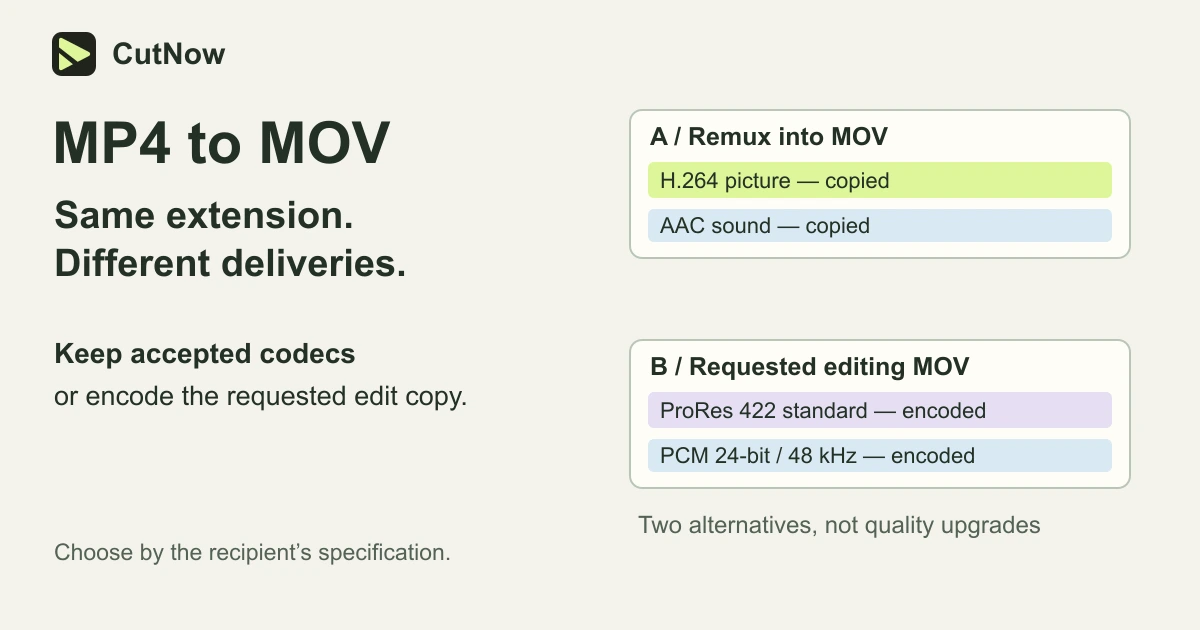
To convert MP4 to MOV, first establish what the receiving editor needs inside the MOV. If it accepts your existing video and audio codecs, remux the selected streams. If it requires a specified editing codec, such as ProRes 422 with PCM audio, transcode to that specification. Renaming the extension does neither.
CutNow is an AI editor for existing footage: it finds relevant passages and builds a first cut. A format handoff supports the next stage of that work. For example, once the story and selected shots are settled, an editor may request a MOV copy for finishing. Preserve the original recording and the approved edit; make the requested delivery from the correct version.
1. Get a delivery specification, not just an extension
“Please send a MOV” leaves an important question open: is MOV simply the required container, or does the editor need a particular codec and track arrangement? MP4 and MOV are containers; the encoded picture and sound inside them are separate choices. MDN's container reference explains that distinction.
Ask for the video codec and profile, dimensions, frame rate, color requirements, audio format, and required tracks. Also ask which application and version will receive the file. A supported extension alone does not establish that the application can decode every stream within it.
For this guide's teaching example, imagine a 90-second, progressive, opaque SDR video called workshop-v04.mp4, with H.264 picture and one stereo AAC track. There are two alternative deliveries:
| Recipient's actual requirement | Appropriate path |
|---|---|
| MOV containing the existing H.264 and AAC streams is accepted | Copy those streams into MOV |
| ProRes 422 standard, 10-bit 4:2:2, with 24-bit PCM at 48 kHz is explicitly requested | Encode the agreed editing copy |
These are example requirements, not universal defaults. ProRes HQ, LT, proxy, and 4444 are different profiles. Do not substitute one just because its name sounds better. The higher bit depth or different chroma format of an output cannot recover detail missing from the source.

2. Inspect the actual MP4 and your FFmpeg build
The commands below run locally with FFmpeg and FFprobe already installed and available in your terminal. Put a working copy in a folder, open the terminal there, and replace the quoted filenames with yours. The examples use one-line commands suitable for a terminal; no online upload is involved.
ffprobe -v error -show_format -show_streams -of json "workshop-v04.mp4"Read each stream's type and codec, picture dimensions, pixel format, frame-rate fields, audio channels, sample rate, duration, and available color and rotation information. Stream reports may also include subtitles, timecode, or other data. Missing color tags are a reason to check the source's provenance, not proof that it is ordinary SDR. FFprobe's documentation describes these reports.
Before selecting the encoding branch, inspect the capabilities in your own installation:
ffmpeg -hide_banner -h muxer=mov
ffmpeg -hide_banner -decoders
ffmpeg -hide_banner -h encoder=prores_ks
ffmpeg -hide_banner -h encoder=pcm_s24le
Confirm the MOV muxer and the required encoders exist, and that your build can decode the source codecs for transcoding or verification. If a required component is unavailable, use an appropriate installed build or an editor with the agreed export format. Do not interpret an unknown-encoder error as evidence that renaming the file will work. These inspection options are defined in the FFmpeg manual.
3. Remux when the recipient accepts the existing codecs
For an inspected source whose first video and first audio stream are the ones you intend to deliver, and whose codecs are accepted in MOV by the recipient:
ffmpeg -n -i "workshop-v04.mp4" -map "0:v:0" -map "0:a:0?" -c copy -f mov "workshop-v04-remux.mov"This selects the first video stream and, when present, the first audio stream. The question mark allows a genuinely silent source; it does not generate sound. -c copy avoids decoding and re-encoding the selected streams, while -f mov selects the output container. -n refuses to overwrite an existing output. Copying H.264 and AAC leaves them H.264 and AAC; it does not make ProRes or PCM. FFmpeg documents stream copy and its limits.
The muxer can still reject a codec or information in the source. Even a completed remux needs a destination check. If the error concerns an unsupported audio codec, first identify what the recipient accepts; you may need to encode that audio rather than changing the video unnecessarily.
4. Encode ProRes only when that is the requested delivery
For the example's confirmed progressive SDR source, use this branch only when the recipient has requested ProRes 422 standard and 24-bit PCM at 48 kHz:
ffmpeg -n -i "workshop-v04.mp4" -map "0:v:0" -map "0:a:0?" -c:v prores_ks -profile:v standard -pix_fmt yuv422p10le -c:a pcm_s24le -ar 48000 -f mov "workshop-v04-prores422-pcm24.mov"The video is decoded and encoded again. standard selects the ProRes profile; yuv422p10le requests 10-bit 4:2:2 pixels. The audio is decoded to signed 24-bit PCM and resampled to 48 kHz if necessary. The command does not force stereo or combine separate microphones. If the source has no audio, the optional mapping leaves the output silent. FFmpeg's ProRes options and its encoder implementation document the profile names and supported pixel formats.
This is a new editing copy, not a lossless recovery of the camera original. Converting lossy AAC to PCM does not undo the earlier audio compression. Expect storage requirements to change, and inspect the actual output rather than promising a fixed size. The example does not set a new frame rate or resolution. If the delivery requires constant frame rate, resizing, interlacing, or a different ProRes profile, agree and handle those changes explicitly.
5. Keep the right tracks, framing, and color
The commands above do not retain every stream. With explicit mapping, only the selected video and audio are included. If the source has two independent audio tracks, first determine which is dialogue, commentary, or an alternate language. A stereo track's left and right channels are not the same thing as two independently selectable audio streams.
If the recipient requests all audio streams, and each is suitable for MOV and accepted by the destination, this remux variant includes them alongside the first video:
ffmpeg -n -i "workshop-v04.mp4" -map "0:v:0" -map "0:a?" -c copy -f mov "workshop-v04-all-audio.mov"Check the resulting audio count, order, labels, and channel layouts. Mapping all audio does not mix it down or guarantee the receiving application exposes each track correctly. To select only a different audio stream, change the audio-relative selector after inspection; 0:a:1 means the second audio stream. FFmpeg's mapping rules describe explicit and optional selection.
Subtitles, camera data, chapter behavior, and timecode need separate delivery decisions; none of these commands is a promise to preserve an entire production package or an editable project. Keep a required SRT alongside the matching video version and verify its timing separately.
Phone footage may store an orientation transform. Transcoding normally applies FFmpeg's automatic rotation; stream copy does not rotate the encoded pixels. Check the actual displayed orientation before adding a further turn. HDR, log footage, alpha transparency, and uncertain color interpretation also require a suitable export workflow. Requesting yuv422p10le alone does not tone-map HDR to SDR, restore highlights, or preserve alpha. Use a color-managed delivery agreed with the editor for those cases. FFmpeg's video options explain rotation handling.
6. Verify the MOV, then hand over the correct version
Choose the output you actually created. For the ProRes example:
ffprobe -v error -show_format -show_streams -of json "workshop-v04-prores422-pcm24.mov"Check the actual video codec and profile, pixel format, dimensions, timing, audio codec, sample rate, channels, and track count against the agreed requirements. A format report may identify a shared MOV/MP4 family of demuxers; the extension or that family label alone is not a codec check. FFmpeg's format reference describes the related containers.
An additional full decode check can report errors without writing another media file:
ffmpeg -v error -xerror -i "workshop-v04-prores422-pcm24.mov" -map "0:v:0" -map "0:a?" -f null -Let it finish and check the exit status. The null output discards decoded output; a successful run is not proof of correct color, sync, or application compatibility. The manual's error-handling options define -xerror.
Finally, import the MOV into the actual receiving application. Watch the start, a middle section, and the end; use a visible speaking moment to check sync. Check upright framing, color, the intended audio tracks, and the full program length. If complete integrity is required, review the entire file. Preserve both the source and the delivered version, and note the codec/profile and required sidecars in the handoff.
When the unresolved work is choosing passages and assembling a story, that is where CutNow's automatic selection and first-cut workflow fits. When the shots are already approved and the remaining issue is a delivery specification, make and verify that copy without changing the editorial decisions.
Related guides: MOV to MP4 for a playback handoff · Extract the intended audio track