 CutNow
Choose podcast editing software for a full episode or short clips
Choose a podcast editing workflow by your audio, video or clip delivery. Follow Audacity 4 full-episode export steps and keep grouped video edits aligned.
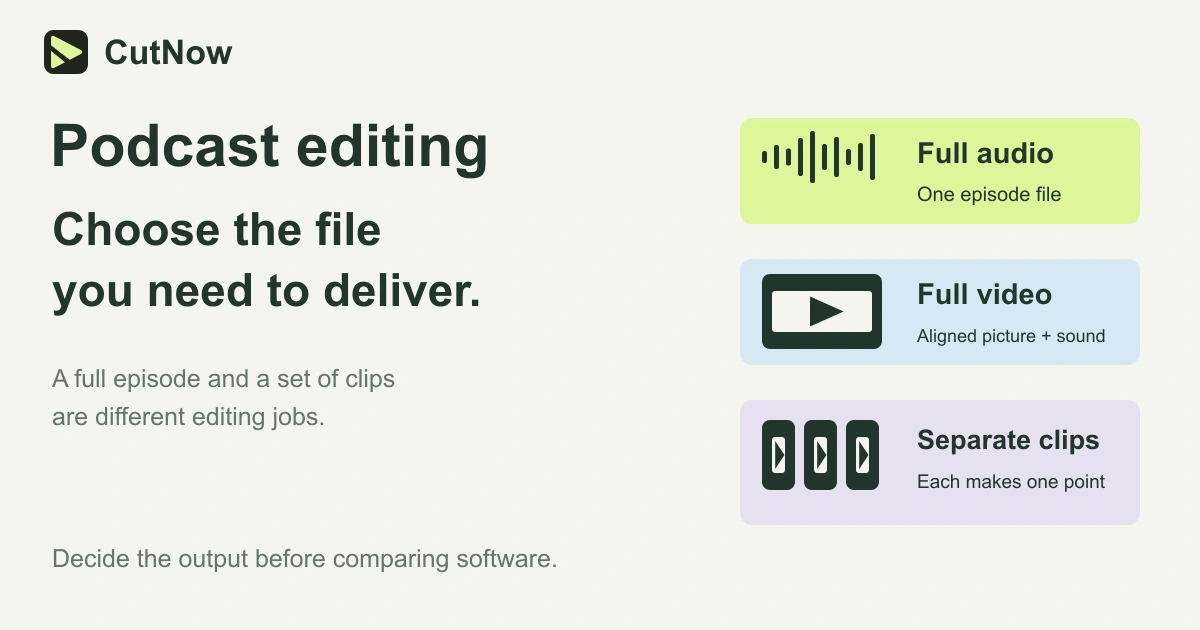
Choose podcast editing software by the file you need to deliver. A complete audio episode needs sound editing and a playable audio export. A full video episode also needs its pictures and microphones to stay aligned. Promotional clips are separate excerpts, with their own beginnings and endings. Those jobs can share recordings without sharing the same editing workflow.
CutNow is an AI video editing product for footage you already have. It finds useful passages and organizes first cuts, including separate clips from a long video. That helps when the editorial work is finding moments worth using. For a complete podcast episode, also choose an editor that can assemble the whole program and export the required audio or video file.
Start with an episode delivery brief
Imagine a 28-minute conversation about growing food on a balcony. The producer wants the complete discussion, with an 18-second recording setup and a 12-second false start removed. The agreed delivery is one stereo MP3 at 48 kHz and 192 kbit/s. That is an illustrative production brief, not a measured editing test or a recommended specification for every podcast. Its planned duration is 27:30, subject to the final editorial boundaries.
Write the brief before comparing apps: source filenames, required speakers, sections to keep, corrections to make, destination format, and who approves the result. If the same recording also has camera footage, decide whether a complete video episode is required. “Make three clips” is an additional deliverable, not another name for finishing the full episode.
| Delivery | Input to inspect | Editing control to look for | File to verify |
|---|---|---|---|
| Complete audio episode | One mixed recording, or separately recorded microphones | Waveform/time-range editing, track levels and deliberate mixdown | One complete MP3, WAV or other agreed audio file |
| Complete video episode | Camera files, microphones and their timing relationship | Aligned media, grouped edits, picture layout and video export | One complete video with the intended sound |
| Independent promotional clips | A long conversation or approved episode video | Finding relevant passages and building distinct first cuts | Separate videos that each communicate one point |
This is a task matrix, not a quality ranking. Choose only the controls your source and delivery actually require.
Inventory the recordings before choosing controls
Keep the original recordings. Note whether the sound is already mixed into one file, stored as separate tracks, or recorded on another device. A left/right stereo pair is not automatically two independently selectable microphones. Listen to identify what each file or track contains.
The audio example below uses one already-aligned stereo WAV containing both speakers. It needs no new synchronization step. If you have a camera recording and a separate microphone, check their alignment before editing the conversation. Compare a recognizable spoken moment or clap near the beginning, then check later positions for drift. Moving everything by one offset will not necessarily correct a recording whose timing drifts over the episode.
For grouped transcript editing, Descript documents a sequence that holds related media together. Its sync workflow distinguishes adjusting individual tracks from editing the grouped sequence. Already-aligned recordings should stay aligned; a late-started recorder needs attention before the grouped edit begins.
Match software to the work you need to control
Audacity is a concrete audio-only path when you want to select a time range, hear the join, adjust sound, and produce a finished mix. The walkthrough below uses its Audacity 4 interface. Its official download page listed version 4.0.2 when checked on 20 November 2026; check your installed version before following menu labels.
Descript provides a different control model: arrange related files in a sequence and edit that sequence from the script. It is a candidate when changing the spoken structure should move synchronized recordings together. Check that its supported inputs, export choices and current account limits match your brief. Transcript corrections and an actual deletion of recorded words are different decisions; listen to the media after either kind of change.
CutNow's long-video-to-shorts workflow addresses the third row: finding passages and creating initial separate video clips. A retained interview check delivered five independent MP4s, as described in the podcast clip guide. That is evidence of one delivery shape, rather than a promised number of clips from every episode. Choose a full-episode editor for the episode master, and use the selection workflow for the excerpts you want to promote.

Finish the audio episode in Audacity 4
For the teaching brief, work from the stereo WAV and keep its original untouched. This is a documented desktop procedure, not a report of a run on that recording.
- Bring in the recording. Drag the WAV into Audacity's tracks area or use File → Import. Audacity's import reference explains that importing adds audio to the current project. Open an existing project as a project instead. Some other input formats need an additional FFmpeg library, so check compatibility before committing to an editor.
- Save the editable work. Save a local project with a clear episode/version name. Audacity 4 uses
.aup4; saving keeps the editable state, while export creates the listening file. Its project-saving guide explains that distinction. - Remove the setup without changing the words. In the waveform, select the opening setup range. Play the selection and its edges before deleting. Use the behavior that closes the gap if the program should become shorter. Audacity 4 distinguishes leaving silence from ripple deletion; its editing guide explains that choice. On this single mixed track, closing the gap moves both speakers' recorded sound together.
- Review the false start at its new position. Removing the opening shifts later project times. Locate the false start by the words and the source notes, rather than blindly using its old project position. Select only the repetition, retain the complete sentence and a natural response, and listen across the new join. Undo and adjust the boundaries if a word or breath is cut awkwardly.
- Check the whole conversation. Hear both speakers, the opening and ending, and every changed boundary. Check track levels and any effects in the intended mix. If you later add separate microphones or a music bed, review how deletions affect those tracks; the single-track shortcut no longer describes the whole job. Save the revised project.
Keep the cut list attached to the source version. A project timeline is the time of the edited program, while a note against the original remains a source reference.
Export the entire episode, then open the saved file
In Audacity 4, choose File → Export audio. In Type, choose Export full project audio for the complete episode. A selected range or loop region is a different export scope. Set the destination folder and a versioned filename such as balcony-episode-v03.mp3, choose MP3, and apply the example brief's stereo, 48 kHz and 192 kbit/s settings. Use the recipient's actual requirements for your own episode. The current export guide documents the full-project, selected-audio and loop-region choices.
Check the audible mix before exporting, including any muted or soloed material. Confirm that all required speakers and sections are present. Complete the export rather than stopping it partway, then open the file from its saved location in a normal player. Verify the actual start, both sides of every edit, the middle and the final sentence; listen through when checking completeness. Compare the result with the delivery brief, not just a duration display.
The .aup4 project lets you change the edit later. The exported MP3 is the playable episode. Keep both, together with the original WAV and the approved cut notes. If a producer requests a WAV instead, export the agreed PCM specification from the project rather than repeatedly converting the listening MP3.
Keep video edits grouped through the final export
For a full video episode with separate camera and microphone files, Descript's sequence creation instructions provide an actionable starting point: add the files to the project, select the related files in the Project panel, and create a sequence. Open the Sequence Editor to align tracks when necessary. Add the aligned sequence to the script so subsequent script cuts apply to the related tracks together.
After editing, check the composition's picture layout and intended audio, including the first and last speaker and every changed join. For a saved video file, Descript documents Export → Video → Local export. Choose Current composition for the complete composition, rather than a selected text range or individual scenes, and check the permitted resolution and other export settings. The local video export reference specifies MP4 delivery. If the Video options are missing, check whether the composition is audio-only.
Open that MP4 outside the editor. Check lip sync near the start, middle and end, framing, sound, subtitles if required, and the complete episode's ending. An aligned sequence in the project is useful working structure; the saved MP4 still needs this delivery check.
Make the promotional clips as a separate delivery
Once the episode structure is approved, write a separate brief for its promotional clips and continue with the podcast clip guide. That guide covers choosing a complete viewpoint and retaining its necessary context, rather than assembling the full episode again.
When a visual insert needs its own source-shot selection, CutNow's original-sound first-cut workflow is another relevant task: organize existing footage around the point that insert should communicate. Keep the chosen insert, episode master and promotional clips clearly named as different outputs. Explore CutNow for editing work that begins with footage you already have.