 CutNow
How to Speed Up or Slow Down a Video and Export the Result
Change a selected video’s speed with FFmpeg: match picture timing and audio tempo, choose a silent export, and check duration, motion, captions and the delivered file.
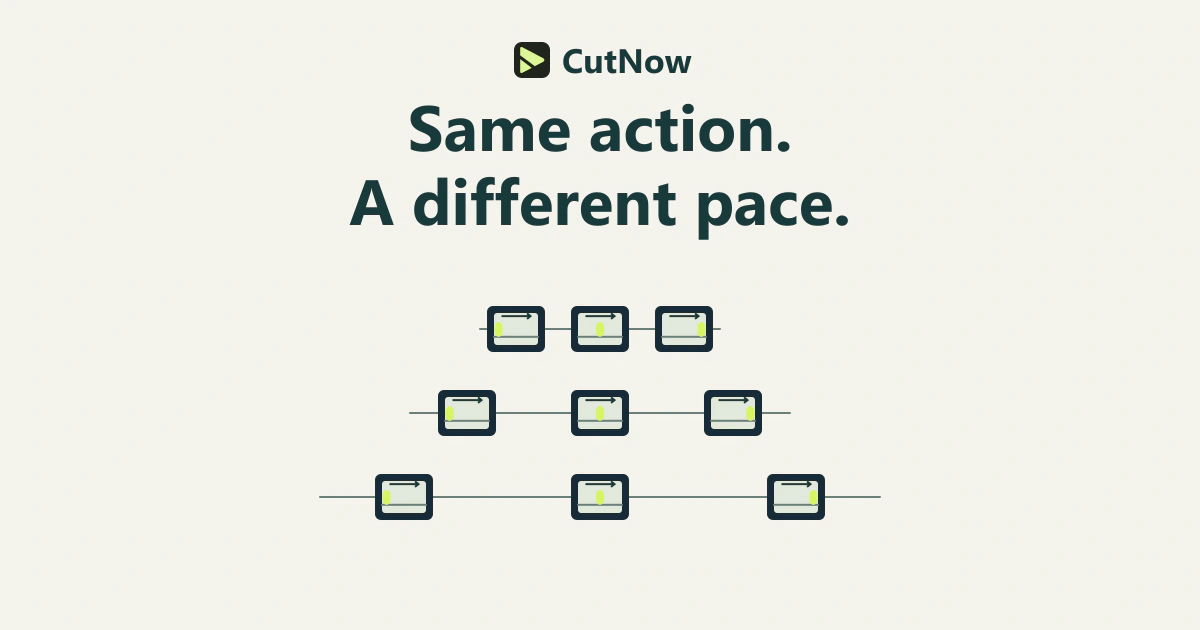
To change a video's speed, choose the passage and the playback rate, then retime its picture and decide what should happen to the sound. A player set to 2× changes that viewing session; a speed-adjusted export carries the change into the delivered file.
CutNow is an AI video editing product for footage you already have: it finds useful passages and organizes first cuts. Once the right answer or action has been selected, changing its speed is a separate finishing decision. This guide gives a documented FFmpeg method for faster, slower and silent versions of an existing clip.
Choose the passage and its new pace
Decide why the viewer needs a different pace. A repeated setup action may suit a faster version; a short demonstration may need more viewing time. Preserve speech that establishes a condition and the action that shows the result. Speed cannot replace the decision about which content belongs.
If only part of the recording should change, first export that selected passage using the timestamp-cutting guide. The commands here apply one constant rate to that whole selected file. A speed ramp within a longer edit is a different operation.
For a rate r, planned duration is source duration divided by r. This original teaching table starts from a ten-second action; it is arithmetic, not measured file timing.
| Rate | Meaning | Planned duration from 10 seconds |
|---|---|---|
| 2× | Twice as fast | About 5 seconds |
| 1× | Original pace | About 10 seconds |
| 0.5× | Half speed | About 20 seconds |

Decide whether the original sound should follow
For speech, change the audio tempo along with the picture and listen to the entire sentence. For a visual demonstration whose source sound is unnecessary, a silent export may communicate the movement better. Keep an unchanged master either way.
A pitch-preserving tempo adjustment aims to avoid the obvious pitch shift of simply changing the audio's sample-rate interpretation. It does not guarantee an unchanged voice texture. Large changes can make speech or music sound unnatural, and even a recognizable voice can become difficult to understand when rushed.
The examples below use FFmpeg with libx264 and AAC support, on a decodable ordinary SDR clip. The voiced examples require an intended first audio stream already synchronized with the picture. Use the silent version when there is no audio or you want to remove it. Official download information links to source and available builds.
Export a faster version with matching audio
For a 2× version:
ffmpeg -n -i "selected-clip.mp4" -filter_complex "[0:v:0]setpts=(PTS-STARTPTS)/2[v];[0:a:0]atempo=2,asetpts=PTS-STARTPTS[a]" -map "[v]" -map "[a]" -fps_mode:v vfr -c:v libx264 -pix_fmt yuv420p -c:a aac "clip-2x-v1.mp4"The FFmpeg filter documentation explains changing picture presentation timestamps. Dividing the elapsed timestamps by two brings the action closer together in time. atempo=2 changes audio tempo by the corresponding factor; the audio clock is then based at zero.
-n protects an existing output. Use a new filename when adjusting the rate. These are encoding commands, not stream-copy commands: they create a separate delivery version while keeping the source intact.
Export a slower version with matching audio
For a 0.5× version, give the pictures twice as much time and use half audio tempo:
ffmpeg -n -i "selected-clip.mp4" -filter_complex "[0:v:0]setpts=2*(PTS-STARTPTS)[v];[0:a:0]atempo=0.5,asetpts=PTS-STARTPTS[a]" -map "[v]" -map "[a]" -fps_mode:v vfr -c:v libx264 -pix_fmt yuv420p -c:a aac "clip-half-speed-v1.mp4"Changing timestamps does not create newly captured motion detail. A low-frame-rate source can look stepped when its existing pictures remain on screen longer. If smooth slow motion is essential, assess the source capture and any separately verified interpolation workflow instead of assuming a slower export supplies missing intermediate action.
For another constant rate, the video timing factor is 1/r and the audio tempo factor is r. FFmpeg's atempo documentation allows individual factors from 0.5 to 100 and notes sample skipping above 2. Factors can be chained: a 4× audio change can use atempo=2,atempo=2, with video timestamps divided by four. A mathematically valid combination still needs a listening pass.
Export without the original sound
This complete 2× command uses only the video stream, so it also works with a source that contains no audio:
ffmpeg -n -i "selected-clip.mp4" -map "0:v:0" -vf "setpts=(PTS-STARTPTS)/2" -an -fps_mode:v vfr -c:v libx264 -pix_fmt yuv420p "clip-2x-silent-v1.mp4"For a silent half-speed version, replace the video expression with 2*(PTS-STARTPTS) and choose another output name. A missing audio-stream error in a voiced graph is not fixed by adding ? to its final map; select the graph that matches the input.
Check frame timing, captions and the delivered file
The FFmpeg command reference defines vfr as preserving timestamps or dropping frames to avoid equal timestamps. This setting is not a promise of a destination's fixed frame rate. If the destination requires a constant rate, prepare that delivery deliberately and check any duplicated or dropped frames. Do not use a new frame-rate label as a substitute for retiming the action.
Open the saved output at the player's normal 1× setting. Confirm that the intended action is faster or slower, its beginning and ending remain present, and the planned duration is approximately right. Actual frame boundaries, audio encoding and container timing can affect the displayed final duration.
Listen across the whole voiced version. Check a visible speaking or impact moment for synchronization, and judge whether the tempo still serves the explanation. For a silent version, confirm the delivered file has no audio stream. If the encoder reports unsupported dimensions or pixel formats, address that source requirement rather than repeatedly replacing unrelated parameters. HDR also needs its own suitable color-managed delivery.
Update separate subtitle times to the new clock. Within a constant-rate passage, source times relative to its beginning scale by 1/r; after joins or mixed rates, use the actual edited timeline. Burned-in captions remain picture pixels and may become too brief to read when sped up. The subtitle guide helps prepare a matching version.
Keep the original, the rate and the approved filename together. Explore CutNow for the earlier work of finding and shaping useful passages from existing footage.