 CutNow
Which CapCut Alternative Fits Your Editing Task?
Choose a CapCut alternative by task: timeline edits, transcript editing, captions, colour and audio, or automatic long-video-to-shorts editing.
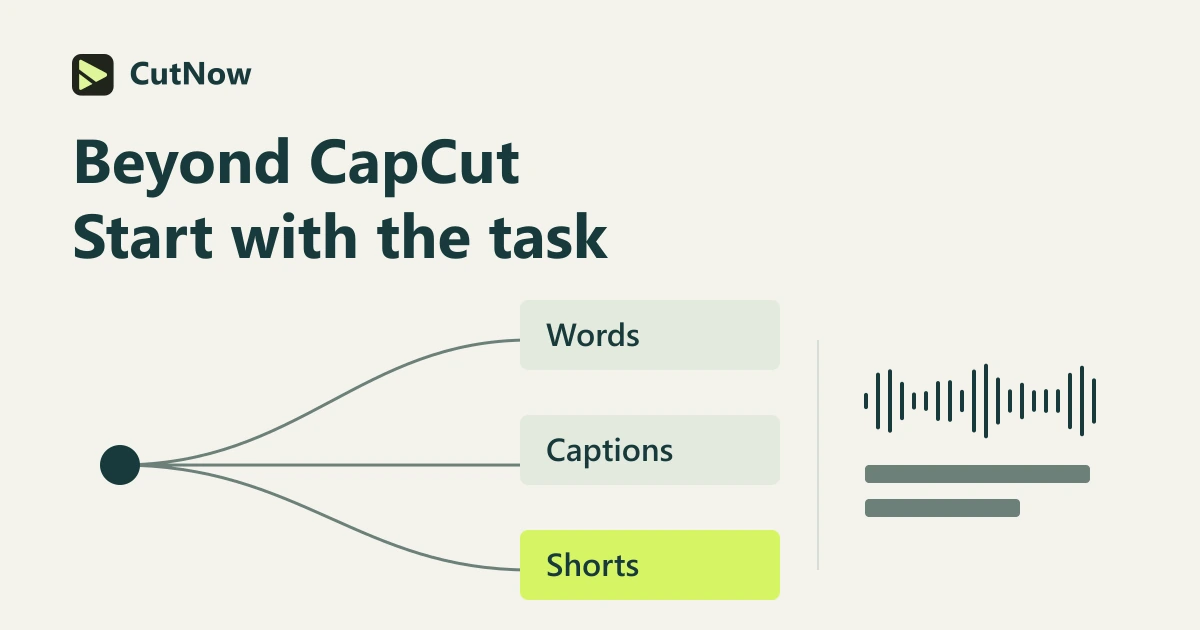
A useful CapCut alternative changes the part of editing you want help with. You might want to shape an interview through its transcript, prepare captions, finish colour and sound, or turn one long recording into several short videos. Start with that deliverable, then choose the workflow that fits it.
CutNow is an AI video editor for footage you already have. Its long-video-to-shorts workflow automatically finds passages, establishes cut points and produces multiple playable MP4 clips. That makes it relevant when the job is to build several short videos from a longer recording.
This guide compares documented workflows rather than ranking every editor against the same feature count. It is written by the CutNow team. The other products are described using their official documentation; we have not run a timed, same-footage comparison across these tools.
Start with the file you need to deliver
Write a brief that describes your actual footage and output. For example: “From this recorded interview, prepare several short videos, each focused on one answer, with files I can title and schedule separately.” That asks for a different first step from “keep this chosen answer and adjust its sound.”
| Your immediate task | A workflow to consider | What to check in your project |
|---|---|---|
| Make individual decisions on a familiar timeline | CapCut | Clip order, exact boundaries and visual styling |
| Shape a spoken edit by changing its transcript | Descript | The selected words and the corresponding video |
| Add and revise captions, including a separate subtitle file | Clipchamp | Caption wording, timing and the SRT handoff |
| Finish shot colour and a more involved audio mix | DaVinci Resolve | Shot matching, dialogue and the final mix |
| Automatically turn longer footage into several short-video files | CutNow | The separate clips, their topics and your publishing brief |

Several editors cover more than one row. Use the table to identify the work you want to put first, not to assume that a feature belongs to only one product.
Keep CapCut when the timeline is already your working space
If you know which passage or shot you want, CapCut's timeline can remain a practical place to arrange the edit. Its official guide describes importing footage, splitting clips, adding markers and using keyframes. Those controls matter when you want to decide exactly how a particular moment appears. See CapCut's editing guide.
A creator can keep this familiar finishing environment while changing an earlier step. The useful question is whether you want more help locating and assembling passages before you work on their presentation.
Consider Descript when the spoken words guide the edit
Descript's documented workflow starts with importing a recording and generating a transcript. You can cut and rearrange video by editing the corresponding text. That is a relevant way to work when your decisions are expressed as “keep this explanation” or “move this sentence.” See Descript's video editor overview.
For an interview, choose a passage you understand and see how the words map to the edited picture. It gives you a concrete selection question to assess in your own material, rather than a general claim about which editor is fastest.
Consider Clipchamp when captions are the next deliverable
Microsoft documents an autocaptions workflow in Clipchamp that generates a transcript, lets you correct its wording and downloads captions as an SRT file. If the edit is already organised and you need a captioned video plus timed text, that is a task worth evaluating directly. See Microsoft's autocaptions instructions.
Decide whether the recipient needs captions visible in the picture, a separate subtitle file, or both. Use our guide to adding subtitles to a video to plan that handoff around the final video version.
Consider DaVinci Resolve when finishing needs deeper attention
Blackmagic Design describes separate editing, colour and Fairlight audio workspaces in DaVinci Resolve. Its Edit page, Color page and Fairlight overview explain those parts of the workflow.
This is a relevant direction when the job includes matching the appearance of several shots and working through a more involved mix. Write down the actual changes you need: consistent exposure between angles, clear dialogue and the intended balance with music. Assess those requirements on the delivery you are making.
Where CutNow fits: one long recording, several short videos
For a creator repurposing an interview, the starting question is often “which parts can become separate posts?” CutNow's role is to connect automatic passage selection with the cuts and the resulting video files. You start the content plan from several videos that have already been assembled.
In an existing internal check using a longer Yu Hua interview, CutNow produced five MP4 clips of approximately 15–67 seconds. Those files demonstrate the delivery used here: one source recording becoming several independently playable pieces. The original interview is 影视飓风's conversation with Yu Hua; we link the source and do not redistribute that footage or the internal test clips on this page.
Titles, covers and release dates come next. Each clip can have a specific topic and a place in your account's publishing plan. You can also bring a chosen video file into a separate editing session for its presentation. Read how to turn long videos into shorts and the first-cut-to-finishing workflow for the two stages.
Choose a workflow you can assess on a real brief
Use your own footage and the same output brief when deciding whether to change tools. Separate selecting passages, arranging cuts, caption preparation and finishing in your notes. Confirm the exact file format, aspect ratio and required deliverables on the account and version you would use. Current plan terms belong on each vendor's official page.
If your next job is several posts from one longer recording, explore CutNow. The workflow is specific: existing long footage in, multiple short-video files out, followed by your own titles, covers and publishing decisions.
Written by the CutNow team with AI assistance. Official feature descriptions checked on November 18, 2026.