 CutNow
How to Use B-Roll to Make a Narrated Video Clear
Match existing B-roll to what your narration says. Use the object, action and visible state to shape a clear picture-and-commentary first cut with CutNow.
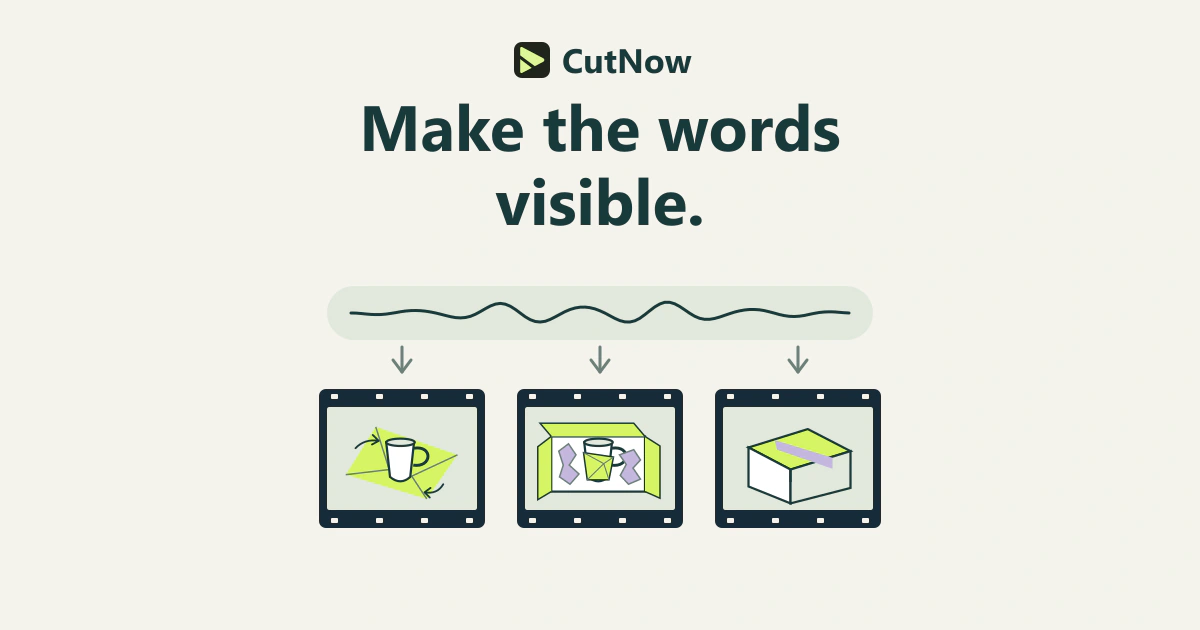
B-roll is supporting footage that adds visual information to the main story. Good B-roll makes a spoken explanation visible. If the narration says to fill the space around a cup, the useful shot shows that space being filled, rather than just a beautiful view of the cup. CutNow is an AI video editing product for footage you already have. Its video-narration workflow finds relevant pictures and organizes them with a commentary draft, giving the creator a sequence to shape rather than a blank timeline to populate shot by shot.
This guide focuses on one decision within that workflow: which existing picture should accompany each piece of information? An original packing example shows how to connect the words, the action and the state of the object without turning the edit into a collection of unrelated cutaways.
What B-roll does for a narrated video
Adobe’s B-roll guide describes uses such as establishing a scene, adding meaning and smoothing transitions. In an explanation led by voiceover, a useful supporting shot can show the place, reveal a detail or make a step understandable.
The label does not determine the shot’s value. A wide view of a packing table can establish where the work happens. A close view can explain what the hands are doing. Repeated views of the finished parcel cannot, on their own, demonstrate every action described in the narration.
Here the source is existing footage you own or may adapt. You are selecting from recorded pictures, rather than asking the edit to invent a missing event. For the broader beginning-to-end workflow, use the narrated-video guide.
Turn the explanation into visible information
Start with the audience’s question and the material, not an exhaustive manual shot list. For this original teaching example, imagine footage of packing one cup, including preparation, several attempts and the closed box. The viewer should understand what happens around the cup before the box closes.
A useful brief for the narrated edit is: “Explain how this cup is packed. Show the wrapping, the space around it and the final closure. Keep those actions clear and in their recorded order.” That gives CutNow an editorial target while leaving automatic shot selection and first-cut organization to the product.
When assessing the resulting picture-and-commentary sequence, break a sentence into information the viewer can actually see. “Wrap the cup, fill the remaining gap, then close the box” contains three actions. It does not require three sentences or three identical close-ups, but all three ideas need visual support.
Match the object, action and visible state
A picture can contain the right object and still describe the wrong moment. Match the item first, then the action, then its visible state. This is particularly useful when the source contains repeated takes or several similar objects.
| Narration in the teaching example | Picture that explains it | What another shot would leave unclear |
|---|---|---|
| “Wrap the cup” | Paper folding around that cup | A cup already sitting in the box omits the wrapping action |
| “Fill the remaining gap” | Padding placed into the visible space around it | An empty box shows space, but does not show it being filled |
| “Then close the box” | The flaps close after the packing is in place | An earlier closed-box shot can suggest the wrong order |
The table is a way to judge the sequence, not a requirement to find every source timecode yourself before using CutNow. Its automatic selection and draft organization handle the initial search-and-assembly work. Your editorial decision is whether the chosen pictures communicate the intended explanation.

Let a shot carry a complete piece of meaning
Place the revealing picture where the corresponding words need it. The gap should be visible when the narration discusses filling it; switching to the sealed parcel at that moment asks the audience to imagine the missing step.
There is no need to change shots on every word. A wider view can establish the box, followed by a closer view of the padding, while one phrase continues. PBS LearningMedia’s B-roll worksheet distinguishes establishing, contextual and detail shots. Use that variety when each view adds something the viewer needs.
Let the important action reach a readable state before cutting away. If the viewer cannot see where the paper goes, a faster succession of angles does not explain it. Set the rhythm from the spoken meaning and the visible action together, without imposing one fixed shot length on every subject.
Keep context and claims aligned
Supporting pictures can establish atmosphere without proving a specific fact. A shelf of parcels supplies context; it does not establish that this packing method prevents damage. Keep the narration within what the source and other evidence support.
Preserve the identity and order that matter to the explanation. In the example, show the same cup and box through the relevant stages. If another take supplies a useful detail, check that its state agrees with the surrounding shots before using it. A finished object inserted too early can change the apparent sequence.
Treat meaningful source sound as an editorial choice. Paper folding or tape being pulled may help the viewer follow an action. Decide where that sound belongs relative to the commentary, then check the actual mix; a visual match alone does not settle the audio arrangement.
Review the information, then finish the version
Watch the picture and narration together. Can you identify the object, understand the action and see the state the voice describes? Those three questions give specific notes: hold on the visible gap, show the closure after the padding, or use a wider view to establish the box.
These are normal editorial choices for shaping a clear explanation. Keep notes attached to the relevant moment and revision, as described in the first-cut handoff guide. If the wording changes, check the matching pictures and subtitle cues against the final spoken version.
Explore CutNow to connect automatic shot selection and a narrated first cut with the footage you already have.