 CutNow
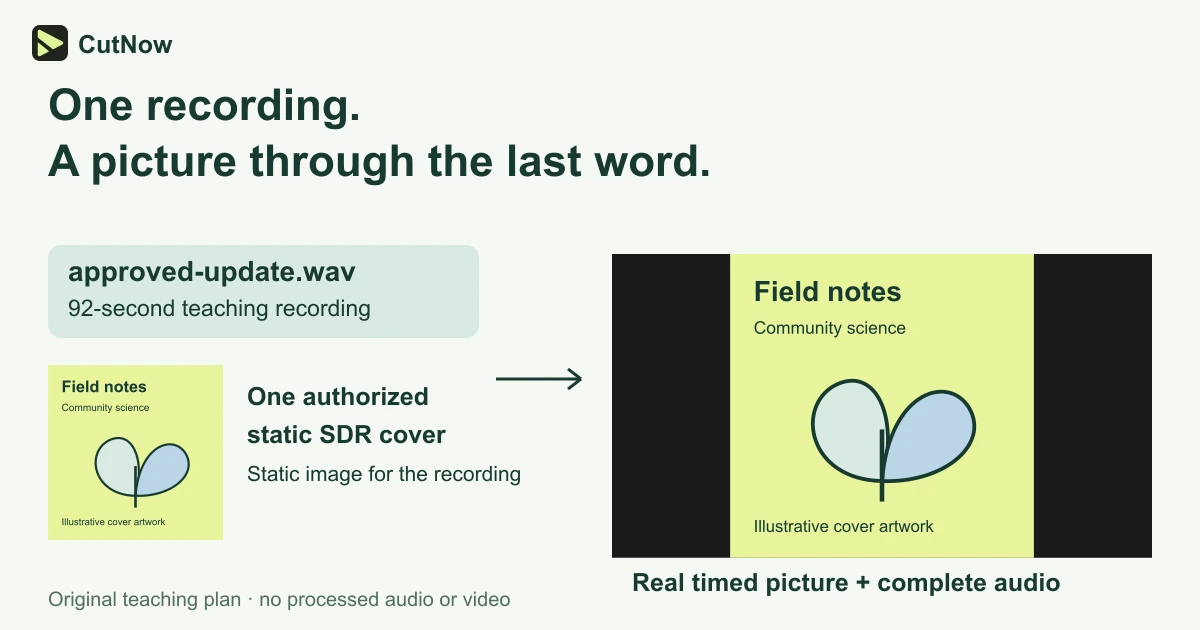
To turn a recording and a cover image into video, create an MP4 with a timed picture stream that lasts through the complete sound. Select the recording, add the image, choose full-audio duration, then download and reopen the finished video. Renaming a WAV to MP4 or adding album artwork does not create that deliverable.
The task here is deliberately simple: one finished recording and one still cover. You do not need generated scenes or an animated waveform to make a usable video file. If your next project needs real filmed passages, CutNow finds useful moments in existing footage and organizes a first cut. That video-editing role is separate from packaging an audio recording behind a static image.
Lock the sound, artwork and required canvas
Imagine a community science group has approved a 92-second spoken update, approved-update.wav, and a square cover, update-cover.png, measuring 1600 × 1600 pixels. The recipient requests a 1920 × 1080 MP4 containing the entire update. This is a teaching scenario, not a recording or export produced for this article.
Listen to the approved source from its intended opening through the final acknowledgment. Record its revision and the last words you expect to hear. Confirm that the recording is finite and that any silence at its end is intentional. Do this before building the video: shortening the picture to a convenient preset can cut off a closing sentence.
Use an image you are authorized to publish, with correct title and credit text already in place. For the method below, prepare one upright, opaque, square-pixel SDR PNG or JPEG. Animated images, transparent artwork and HDR sources need separate handling; do not assume this static SDR recipe resolves animation, transparency or color conversion.
Ask the recipient for its actual requirements. A 1920 × 1080 frame is our example, not a rule for every site. Check dimensions, audio and video formats, file limits and whether a still-cover video is acceptable for the destination.
Fit the whole image without stretching it
The 1600-pixel square can fit inside the example landscape frame as a 1080 × 1080 image. The remaining width is 1920 − 1080 = 840 pixels, so centered placement adds 420 pixels on each side. The title and credit remain in the picture; the side areas can be plain black.
Stretching the square to fill 1920 × 1080 makes its contents wider. Cropping to fill can remove the top or bottom of the artwork. Neither is equivalent to fitting the entire design. Inspect the fitted card at the expected viewing size: a title readable in the original image can become too small when the square occupies only part of a video frame.
Artwork stored as an audio-file tag is also different from a picture stream that advances through a video timeline. A music player may show embedded cover art while a video receiver still sees no suitable timed video. The finished file needs both picture and sound, not merely a recognizable thumbnail.

Use full-audio duration in the direct converter
The official OnlineConverter audio-to-video page documents these controls:
- Choose the approved file in Audio.
- Set Image to File, then select the prepared cover. Do not leave Image at None when the delivery needs a visible cover.
- Keep Duration at Default for the complete recording. The page describes separate fixed choices from 1 to 60 seconds; choosing 60 is not a full-length setting for our 92-second example.
- Avoid optional image effects when a static card is required.
- Press Convert, follow the conversion results page, and retrieve the resulting file onto your device.
- Save it under a new versioned name and open that saved MP4 in a video player. A results-page preview alone is not the handoff.
The documented output is MP4, but check the actual file, its image and its complete ending. The page does not establish a specific 1920 × 1080 canvas control in this route. If an exact canvas is mandatory and you cannot select or verify it, use the explicit local method below. Check current upload conditions before sending material to any service.
Make the canvas and sound selection explicit locally
For an installed FFmpeg build, first confirm the required source decoders and the libx264 and aac encoders are available:
ffmpeg -hide_banner -decoders
ffmpeg -hide_banner -encoders
The official codec documentation identifies libx264 as the H.264 encoder wrapper; its availability depends on the build. An unknown decoder or encoder is a reason to resolve that prerequisite, not to relabel an audio file as video.
Inspect the sound file before choosing a stream:
ffprobe -v error -select_streams a -show_streams -show_format -of json "approved-update.wav"Use the intended audio stream and confirm it by listening. A language/title tag is only a clue. This example uses the first audio stream of an ordinary mono or stereo, normally timestamped 44.1 or 48 kHz source; multiple streams or multichannel material require an explicit choice. A second audio stream is not the right channel of stereo.
With the two example files in your working folder, the following command creates an explicitly sized H.264/AAC MP4. It is a documented-method example, not a command run for this article:
ffmpeg -n -loop 1 -framerate 30 -pattern_type none -i "update-cover.png" -i "approved-update.wav" -map 0:v:0 -map 1:a:0 -vf "scale=1920:1080:force_original_aspect_ratio=decrease:force_divisible_by=2,pad=1920:1080:(ow-iw)/2:(oh-ih)/2:color=black,setsar=1,format=yuv420p" -c:v libx264 -c:a aac -b:a 192k -shortest -movflags +faststart "update-full-audio-v1.mp4"The important choices are:
- Repeat one still:
-loop 1,-framerate 30and-pattern_type noneapply to the image input. They create a repeating picture stream at the example frame rate, rather than reading an image sequence. See the image2 input documentation. - Select picture and sound:
-map 0:v:0takes the first video stream from input zero, the image;-map 1:a:0takes the first audio stream from input one, the recording. Replace the audio selection if inspection identifies another intended stream. Required audio is not optional. - Fit and center:
scaleretains the image proportions within the canvas,padfills the surrounding space, andsetsar=1specifies square pixels.format=yuv420pchooses a common pixel format. These scaling and padding primitives assume the SDR, opaque, square-pixel source described above; they do not tone-map HDR or restore missing detail. - Finish with the recording: the picture repeats indefinitely while the audio is finite.
-shortestis intended to stop when the audio ends, rather than imposing a 60-second limit. Frame boundaries, audio encoder delay and container timing still require checking; it is not an exact sample-duration guarantee. - Write a new delivery:
-nprotects an existing output.aacat192kis an example lossy audio encoding, not bit-for-bit retention of the recording.+faststartmoves MP4 playback metadata toward the start; it does not replace a completed export or improve the sound.
The FFmpeg stream and output options define mapping and the shortest-stream stop condition. Keep the source sound rather than repeatedly encoding earlier MP4 deliveries. A WAV input does not make the resulting AAC lossless.
Check that the result contains real video and complete sound
Inspect the file that was actually saved:
ffprobe -v error -show_streams -show_format -of json "update-full-audio-v1.mp4"The ffprobe documentation describes stream and container inspection. For the local recipe, look for H.264 video at 1920 × 1080 and an AAC audio stream, with a sensible finite duration. Check the video stream’s disposition: attached artwork alone is not proof of timed picture playback. Inspection supports the check, but a field or extension cannot replace watching the actual file.
Open the MP4 in the intended receiving player. Check the start, middle and near-end, then watch and listen through the complete short example. The square should retain its proportions and edges, the title should remain readable, and the correct voice or music should be present. At the final acknowledgment, the cover must still be visible through the last audible word.
Compare that ending with the approved source. A small difference between reported container and stream durations need not mean a missing word; a missing acknowledgment does. Also check for unintended long silence after the recording. The key is the complete intended content, not a rigid promise that every player reports exactly 92.000 seconds.
| Problem in the saved file | What to check before exporting again |
|---|---|
| It stops around a fixed short duration | Duration preset, an unwanted trim, or a finite picture clip |
| It has the wrong sound or no sound | Selected source revision and audio stream; whether the source itself plays |
| It shows a thumbnail but no sustained video | Whether a timed video stream was encoded instead of only embedded artwork |
| The cover is cropped, stretched or unreadable | Image preparation, chosen canvas, fit/pad behavior and actual player size |
| Local output already exists or encoding fails | Choose a new output name; read the error and resolve missing codecs, files or unsupported input |
Retain the approved recording and artwork, correct the relevant choice and export a new named version. Do not accept an incomplete file merely because a converter displayed a completion message.
Hand off one versioned video
Send the actual MP4 with its canvas, source-audio revision and artwork revision. Keep a short note confirming that the opening and closing words were checked and that the image remains visible to the end. The recipient should verify the file under its own current upload requirements; an MP4 extension does not guarantee platform approval.
If the sound later changes, rebuild this wrapper from the new approved recording. If you need captions, a moving visual story or an audio-reactive waveform, specify that additional work rather than assuming the static conversion supplied it. When the project instead calls for selecting real shots from existing video, CutNow’s useful-passage selection and first-cut workflow address that separate editing stage. For the reverse direction, see extracting audio from video.