 CutNow
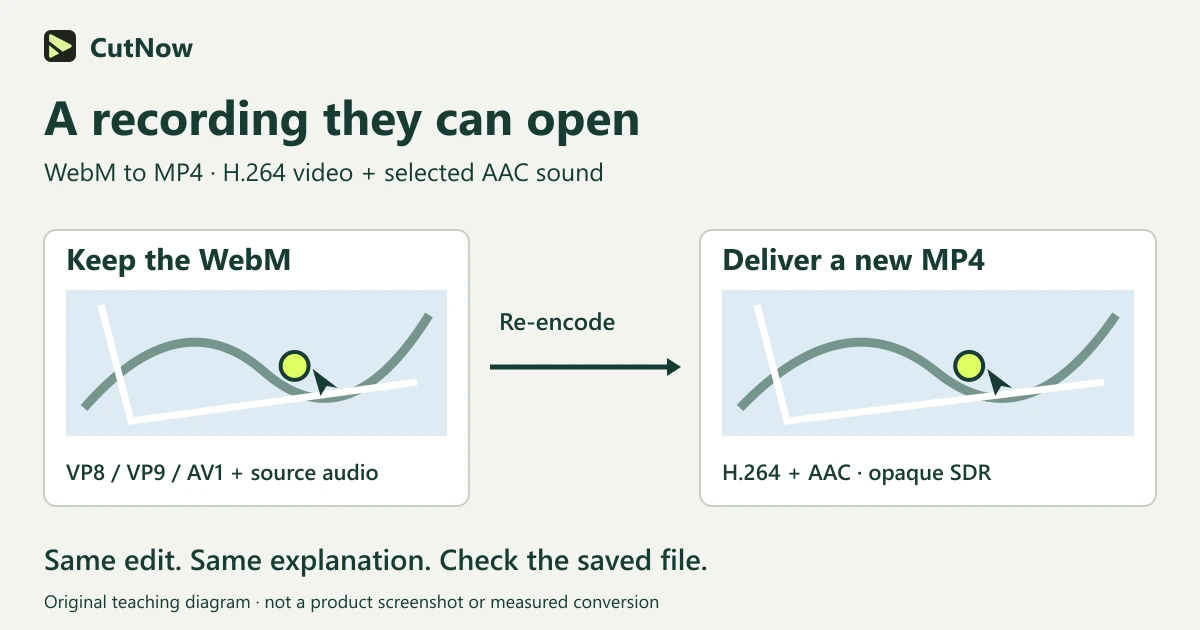
A browser recording opens on your computer, but the person editing the video asks for an MP4. The useful deliverable is a new file with the picture, intended sound and complete recording intact—not a WebM renamed with an .mp4 ending. For an ordinary opaque SDR recording, the method below decodes the WebM and creates H.264 video with AAC audio in an MP4 container.
CutNow is an AI video editor for existing footage: it helps find useful moments and organize a first cut when a recording contains more material than the finished story needs. Decide which recording or selected edit you are handing over, then solve format compatibility for that same version. Conversion changes its delivery format; it does not choose the best explanation or shorten the recording.
Name the recording and the recipient's requirement
Consider an original teaching example: a creator has a browser recording named map-walkthrough-v03.webm, showing how to correct a trail marker on a community map. The intended handoff includes the cursor movement, the completed correction and the speaker's explanation. These are hypothetical files and decisions, not a measured conversion result.
Ask whether the editor wants a normal H.264/AAC MP4, a particular frame rate, separate audio tracks or a transparency-preserving asset. This guide targets the first request. Keep the original WebM and use a new output name. If the recipient instead wants a smaller upload, use the video compression guide after deciding the actual size limit.
WebM and MP4 name containers; the streams inside have their own codecs. WebM can contain VP8, VP9 or AV1 video and commonly Opus or Vorbis audio. Renaming the file does not turn those streams into H.264/AAC. A stream-copy remux can suit specific accepted combinations, but it is not this compatibility conversion. MDN's container reference explains why both container and codec support matter.
Inspect the actual video and audio
Install FFmpeg and ffprobe from a distribution linked by the official download page. Open a terminal in the folder containing the recording; these commands use local filenames. Read the stream list before converting:
ffprobe -v error -show_streams -show_format -of json "map-walkthrough-v03.webm"Look for codec_type, codec_name, width, height, sample_aspect_ratio, color fields and audio streams. An AV1 source needs an available AV1 decoder; a VP9 recording is not automatically H.264 simply because a player opens it. Check the installed build rather than assuming every package contains the same components:
ffmpeg -decoders
ffmpeg -encoders
ffmpeg -filters
ffmpeg -h encoder=libx264
ffmpeg -h encoder=aac
The main path needs a decoder for the actual source, the libx264 and aac encoders, and the pad filter. It is for opaque, progressive, square-pixel SDR footage. A missing color tag alone does not prove SDR: check the recording/export settings and appearance too. HDR/PQ/HLG, transparency or unusual pixel geometry require the decisions in the next section before using it. ffprobe's documentation describes these stream and format reports.

Set the picture boundary before converting
Ordinary screen recordings are opaque. For a transparent WebM graphic, choose the final background in the original project or an alpha-aware editor, composite the graphic over it, and export a flattened SDR version before following this route. Keep the transparent master separately. An H.264 yuv420p MP4 does not preserve its alpha channel, and discarding alpha is not the same as compositing the intended background. Do not accept an accidental black rectangle around an overlay as a finished handoff.
For HDR, arrange a color-managed SDR export if the recipient needs SDR, or agree on a separate HDR specification. Merely selecting yuv420p, adding a BT.709 label or changing the suffix does not perform tone mapping. This guide supplies no universal HDR conversion recipe.
The command below adds a black row or column only when necessary to make the dimensions even. A hypothetical 1365×767 recording becomes 1366×768, with one added column on the right and one row at the bottom; its cursor and labels are not cropped. This is a geometry example, not a measurement. For non-square pixels or a rotated picture that displays incorrectly, resolve the intended display geometry first; the tiny padding adjustment cannot correct a stretched or sideways source.
Write a new H.264/AAC MP4
For the qualified opaque SDR recording, run this complete command:
ffmpeg -n -i "map-walkthrough-v03.webm" -map "0:v:0" -map "0:a:0?" -vf "pad=ceil(iw/2)*2:ceil(ih/2)*2:0:0:color=black" -c:v libx264 -preset medium -crf 20 -pix_fmt yuv420p -c:a aac -b:a 160k -movflags +faststart "map-walkthrough-v03-h264-v1.mp4"-n refuses to overwrite an existing output. 0:v:0 selects the first video stream. 0:a:0? selects the first audio stream if one exists; it neither adds missing narration nor combines separate microphone and system-audio tracks. If the intended sound is the second audio stream, change that mapping to 0:a:1 after listening to identify it. If the needed sound spans several separate tracks, prepare their mix explicitly before this single-track handoff.
H.264 and AAC are deliberately re-encoded here. CRF 20 is a starting quality choice, not a file-size ceiling or lossless setting. Inspect small map labels and cursor edges before choosing another value; the official encoder reference documents the preset and CRF controls. +faststart moves the MP4 index toward the beginning for progressive playback; it does not improve image quality or guarantee network speed. The FFmpeg MP4 muxer reference explains that operation.
No fixed frame rate is requested. Browser recordings can have variable timing; FFmpeg's default sync behavior and the muxer may still affect timestamps. If the editor explicitly needs constant frame rate, agree on the rate and inspect motion and sound after a separate intentional conversion. Do not silently force every recording to 30 fps. The FFmpeg stream-selection and timing reference documents the mapping and sync options.
Verify the saved file, not just a successful command
Wait for a successful exit and the output file to finish writing. Inspect the actual MP4:
ffprobe -v error -show_entries format=format_name,duration,size:stream=index,codec_type,codec_name,width,height,pix_fmt,sample_aspect_ratio -of json "map-walkthrough-v03-h264-v1.mp4"Expect an MP4-family format report, H.264 video and AAC for the selected audio when present. A source without audio legitimately produces a silent file. The command maps no separate subtitle stream; burned-in captions remain pixels, while a separate caption file needs its own handoff. Do not assume every track, chapter or metadata field has been preserved.
Reopen the new MP4 from its folder in the receiving editor or player. Check the first and last moments, seek through the middle, and play the complete recording with sound. In the map example, verify that the pointer still reaches the corrected marker and that the spoken explanation finishes. Compare text readability, orientation, background, color and sound alignment with the same source version. Container and codec labels alone cannot verify those details or promise every device will accept the file.
If conversion reports an unknown decoder or encoder, use a build that supports the inspected codec rather than changing the filename. If audio is absent, check whether it existed in the original and whether you selected the right stream. If the WebM was interrupted or never finalized, recover or export a valid original recording first; a format change cannot invent missing frames or speech.
Once this version opens correctly, keep the source, the checked MP4 and a clear version note together. For a long recording with several useful explanations, CutNow's selection and first-cut role addresses which moments belong in the edit; format verification then follows the selected version instead of multiplying unnecessary conversions. Explore CutNow.