 CutNow
How to convert MP4 to WebM for a website
Convert an MP4 to an opaque SDR WebM with VP9 and Opus. Choose audio, handle silent clips, check VP8 alternatives, alpha limits and actual browser playback.
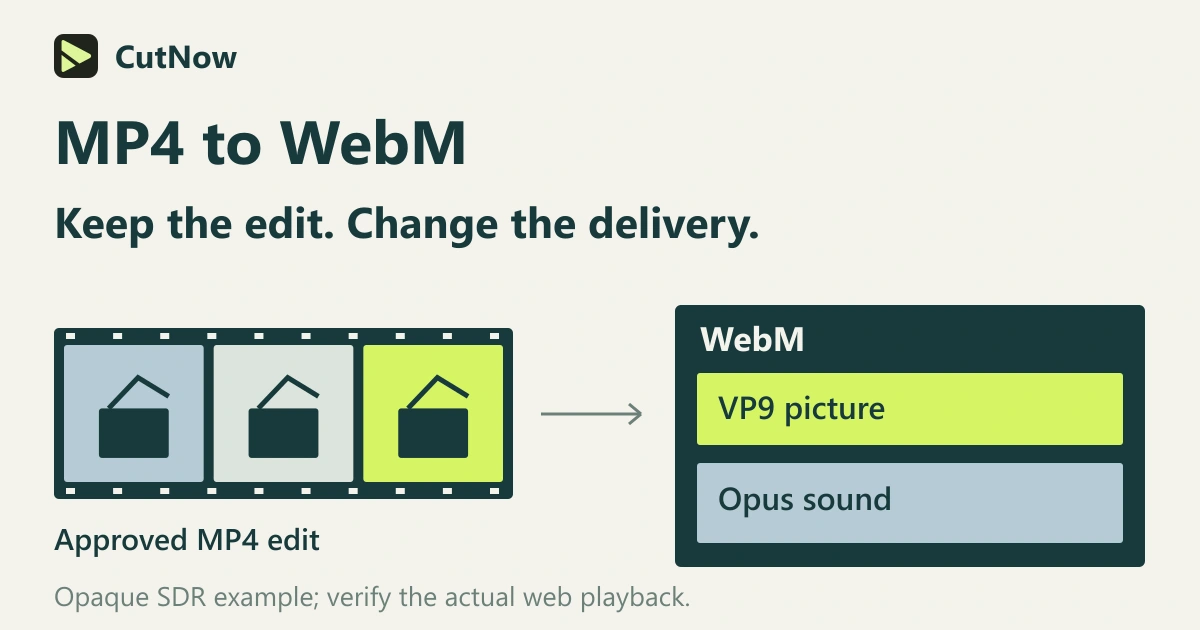
To turn an ordinary MP4 into a WebM for a website, encode its picture as VP9 and its chosen soundtrack as Opus, then check the saved file in the browsers that will play it. Keep the original MP4. A different extension alone does not change the codecs inside the file.
CutNow is an AI video editing product for footage you already have: it finds useful passages and organizes a first cut. Settle that edit before creating a web delivery copy, so the WebM contains the intended shots, words and ending. The conversion below uses FFmpeg on your computer; it does not select new highlights or change the story.
Choose the WebM delivery you actually need
The main recipe makes an opaque, 8-bit SDR WebM with VP9 video and a stereo Opus soundtrack. Use it for a finished clip whose picture has a background. A second recipe covers a recipient explicitly requesting VP8 and Vorbis. These codec pairs follow the WebM container guidelines; H.264 video and AAC sound cannot simply be copied into a WebM using the usual MP4 codecs.
Browser support depends on the codec, profile, operating system and player, as well as the container. Agree on the target browsers and retain an already-tested fallback when required. A WebM is a web delivery file; it is a different task from converting WebM to MP4 or making a MOV for an editing handoff.
Inspect the MP4 and the encoders first
Use your own or authorized video. Keep its master, and choose one numbered edit, such as the illustrative filename web-demo-v04.mp4. Obtain FFmpeg through its official download page, which links to compiled builds. With FFmpeg and ffprobe available in your terminal, inspect the source:
ffprobe -v error -show_entries stream=index,codec_type,codec_name,pix_fmt,width,height,sample_aspect_ratio,color_space,color_transfer,color_primaries,channels,sample_rate:stream_tags=language,title:stream_side_data=rotation:format=duration -of json "web-demo-v04.mp4"Find the intended video and audio tracks. The examples assume square pixels, ordinary SDR color, and a soundtrack you want in stereo. For non-square pixels, prepare a correctly proportioned square-pixel master first. If the picture is rotated, check its displayed orientation; FFmpeg normally applies autorotation during re-encoding, but the output still needs checking. For HDR or transparency, read the dedicated section before using the opaque recipe.
Check the installed build rather than assuming every encoder is present:
ffmpeg -hide_banner -encoders
ffmpeg -hide_banner -h encoder=libvpx-vp9
ffmpeg -hide_banner -h encoder=libopus
The libvpx and audio encoder documentation describes the optional libraries. An unknown-encoder error requires a build with the requested encoder; changing the output filename cannot fix it.
Encode VP9 video and the selected Opus soundtrack
For a source with a confirmed audio track, run this as one command:
ffmpeg -n -i "web-demo-v04.mp4" -map 0:V:0 -map 0:a:0 -vf "pad=ceil(iw/2)*2:ceil(ih/2)*2" -c:v libvpx-vp9 -crf 32 -b:v 0 -pix_fmt yuv420p -c:a libopus -b:a 96k -ar 48000 -ac 2 -sn -dn -f webm "web-demo-v04-vp9.webm"-n protects an existing output. 0:V:0 selects the first video stream excluding cover art; 0:a:0 selects the first audio stream. Change the audio position if that track contains commentary or another language. These stream-selection rules are documented in the FFmpeg manual. Subtitles, data streams and other audio tracks are not included in this delivery.
The padding expression adds a border of at most one pixel on the right or bottom when dimensions are odd, without stretching the picture. yuv420p selects opaque 8-bit video. The sound settings deliberately create 48 kHz stereo; choose -ac 1 instead if mono is the agreed delivery, and review any channel conversion.
The example uses quality-based VP9 encoding. Google's VP9 bitrate-mode guide explains -b:v 0 with -crf: bitrate varies with the material. The value 32 is a starting point, not a file-size limit or a measured quality result. A WebM can be larger than its MP4 source. Compare motion and small text; adjust the setting and save a new version if needed.

Make a silent WebM when there is no soundtrack
If the source has no audio, or the brief deliberately calls for a silent clip, omit the audio map and encoder:
ffmpeg -n -i "web-demo-v04.mp4" -map 0:V:0 -vf "pad=ceil(iw/2)*2:ceil(ih/2)*2" -c:v libvpx-vp9 -crf 32 -b:v 0 -pix_fmt yuv420p -an -sn -dn -f webm "web-demo-v04-silent.webm"An audio map reporting matches no streams is a prompt to inspect the input, not proof of damaged video. Use the silent recipe only when silence is intended; it cannot recover a missing recording. A muted website player and an exported file without audio are also different things.
Use VP8 and Vorbis when the receiver requires that pair
Check for libvpx and libvorbis in the encoder list. For the same ordinary SDR source and selected soundtrack:
ffmpeg -n -i "web-demo-v04.mp4" -map 0:V:0 -map 0:a:0 -vf "pad=ceil(iw/2)*2:ceil(ih/2)*2" -c:v libvpx -crf 10 -b:v 1M -pix_fmt yuv420p -c:a libvorbis -q:a 4 -ar 48000 -ac 2 -sn -dn -f webm "web-demo-v04-vp8.webm"This example combines a VP8 quality setting with a nominal video bitrate, and a separate Vorbis quality setting. It is not a hard size cap; the numbers are not interchangeable with VP9 or Opus. Use the pair requested by the receiver, then verify playback rather than assuming an older codec is universally compatible. The libvorbis reference also identifies its build requirement.
Treat alpha and HDR as separate delivery requirements
Converting an opaque MP4 does not remove its background. Real transparency requires meaningful alpha data in the source and a decoder, encoder and browser path that preserves it. The commands above use yuv420p and discard alpha; do not use them for a transparent asset. An alpha-related metadata flag alone does not create transparent pixels.
Chrome's alpha-video documentation describes an actual transparency pipeline. It is not a cross-browser guarantee: MDN's VP9 guide specifically notes Safari's alpha limitation. A transparent job needs its own acceptance check over contrasting backgrounds in the required browser versions.
Likewise, a 10-bit or HDR source needs an agreed color-managed delivery. Transfer tags such as smpte2084 or arib-std-b67 deserve review; merely forcing 8-bit pixels is not tone mapping. Prepare an approved SDR master for these recipes, or use a separately specified HDR workflow. Do not guess color settings from the .mp4 suffix.
Check the file, then test the actual web page
Inspect the saved VP9 file without encoding it again:
ffprobe -v error -show_entries stream=index,codec_type,codec_name,pix_fmt,width,height,sample_aspect_ratio,channels,sample_rate:format=format_name,duration,size -of json "web-demo-v04-vp9.webm"Expect VP9 and Opus for the main recipe; VP8 and Vorbis for the alternate. A silent output should have no audio stream. FFprobe may report the shared demuxer name matroska,webm, so also check the actual codecs. Open the file and watch its full edit, including orientation, the last action and the final spoken word. Compare audio alignment with the source; encoder delay and container reporting can produce small displayed-duration differences.
For a website you control, this teaching HTML offers the WebM and an MP4 fallback that you have separately tested:
<video controls preload="metadata" playsinline>
  <source src="web-demo-v04-vp9.webm" type='video/webm; codecs="vp9, opus"'>
  <source src="web-demo-v04.mp4" type="video/mp4">
  Your browser cannot play these video sources.
</video>
Serve the WebM as video/webm; the fallback's own codecs must also suit the audience. MDN's video-element documentation explains source selection. Test the served page, playback controls, sound and seeking on the required desktop and mobile browsers. A filename, capability hint or successful encode alone does not certify that whole path.
Keep the master and label the WebM with the same edit version. If you change the shots or dialogue after reviewing a CutNow first cut, regenerate the matching delivery copy. Explore CutNow for editing work that begins with existing footage.