 CutNow
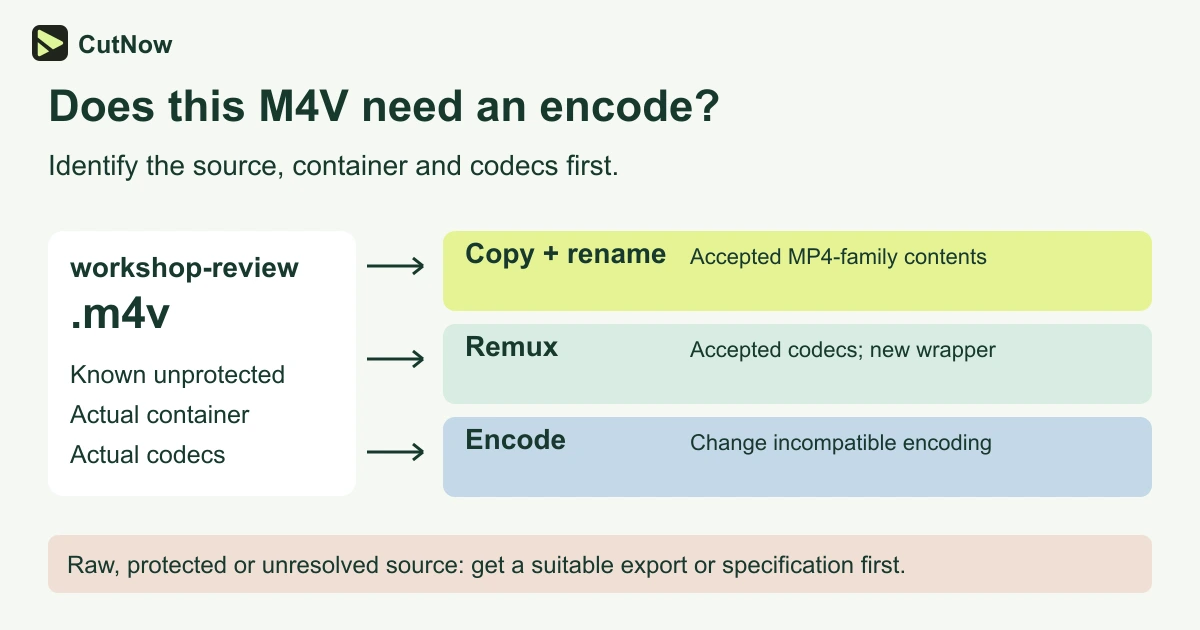
An M4V-to-MP4 request does not always need a new encode. If your own unprotected export is already an MP4-family file with accepted video, sound and features, a separate copy with an .mp4 name may be enough. If its packaging or codecs do not meet the receiving requirements, choose the appropriate remux or encode instead. Inspect the actual file before deciding.
CutNow is an AI video editing product for footage you already have: it finds useful passages and organizes a first cut. Format preparation belongs before that creative work. Making an accepted delivery copy can help you keep sources and editing handoffs clear, but this guide does not establish M4V input support in CutNow.
Identify the file, not just the suffix
Keep the original. Establish where it came from: for example, your own exported workshop-review.m4v, with the export settings still available. Ask the receiving person or application what “MP4” means for this job: only a filename suffix, or specific video/audio codecs, dimensions, channels, subtitles and chapters?
For this walkthrough, the workshop-review filename is an illustrative own-export example, not a converted sample or a test result. One delivery request might accept its existing H.264 video and AAC sound. Another might require a different encoding or a particular caption arrangement. Those requests need different actions even though both say MP4.
Open the file in MediaInfo’s GUI and choose a detailed Text or Tree view. Read the general/container information separately from the video and audio sections. Note the identified format, video codec, dimensions, display proportions, frame rate and duration. List the sound tracks and channels, plus any captions or chapters you must retain. Compare the report with the known source/export settings.
The official field reference distinguishes general format and duration information from stream details. “MPEG-4 Visual” in a video section identifies a video codec; it does not by itself prove the file is an MP4 container. A raw MPEG-4 elementary video can also have an .m4v extension. Do not infer a complete video-and-audio package from the name.
If useful, an installed ffprobe can provide another report:
ffprobe -v error -show_format -show_streams -of json "workshop-review.m4v"A parser report assists classification, not a universal diagnosis. If you cannot establish the expected container, streams or timing, use the source-resolution branch below rather than guessing a conversion command.
Choose the smallest operation that meets the request
| What you have established | Appropriate action | What must pass afterward |
|---|---|---|
| Known unprotected MP4-family file, already accepted by the recipient | Keep it; if only an .mp4 suffix is required, copy and rename the copy | Same contents and required features work in the actual receiving app |
| Known unprotected file with accepted codecs, but a new MP4 wrapper is needed | Qualified stream-copy remux | Selected codecs unchanged, correct tracks/timing/features, receiving-app acceptance |
| Known unprotected file whose encoding fails the agreed specification | Encode a compatibility copy | New codecs, dimensions, pacing and sound meet the request |
| Raw elementary video, unresolved timing/container, or unsuitable source provenance | Obtain a suitable source or missing specification first | Source is identified before any delivery claim |
This order avoids repeatedly encoding something that was already compatible. It also avoids treating every rejection as an extension problem. A receiver that cannot decode a codec will not learn to decode it because the filename changes.

When a copy with an MP4 name is enough
HandBrake’s file-naming documentation explains that its MP4 output may use an M4V extension. That describes the identified MP4-family export case; it is not a claim that every file named M4V has identical internals.
Once you have established that case and the recipient already accepts the encoded streams, use your file manager to copy the original into a delivery folder. Make filename extensions visible, then change only the copy’s suffix to .mp4, for example workshop-review-delivery.mp4. Check the complete name so you do not leave a hidden .m4v after it.
This operation changes the name, not the video codec, audio channels or protection. Keep the original untouched. If the original is already accepted and no suffix change is required, you can simply use it.
Open the copy in the receiving application, not only a familiar media player. Play the entire video and check the required audio, captions and chapters. These features may be interpreted differently by a particular application even when the underlying copy is unchanged. If the recipient rejects it, keep the specific error and compare the requirements again; do not jump straight to an encode without knowing what needs to change.
Remux only when the streams already fit
A remux writes selected encoded streams into a new container without decoding and encoding them again. It can be appropriate when the actual codecs are accepted by both the MP4 muxer and the recipient, and a newly written wrapper is genuinely needed. It does not repair every file that failed the renamed-copy check.
With an installed suitable FFmpeg build, this bounded example selects the first regular video stream and, when present, the first audio stream:
ffmpeg -n -i "workshop-review.m4v" -map "0:V:0" -map "0:a:0?" -c copy -movflags +faststart -f mp4 "workshop-review-remux.mp4"Uppercase V excludes attached cover pictures. The audio ? is suitable only when a silent source or audio-optional delivery has already been confirmed. If the source is supposed to contain the workshop explanation, use -map "0:a:0" without ?, so a missing audio stream fails rather than silently producing the wrong handoff. Choose another sound stream deliberately when it is the required one.
-n protects an existing output; -c copy copies the selected encoded streams; -f mp4 specifies the output wrapper. +faststart relocates MP4 playback metadata, not the content or codecs. The official stream-copy and selection documentation defines these mechanics.
Only the mapped video and possible first sound are selected here. Do not promise that this example preserves every language track, caption, chapter or metadata field. If those are required, qualify their handling separately. Retain the error if the muxer rejects a codec; renaming the failed output cannot solve incompatibility. The command is an instructional example and has not been run on a supplied file.
Encode an incompatible delivery with the GUI
Use this complete HandBrake example only for a known unprotected, properly timed, progressive, opaque SDR source within 1080p and 30 fps, where H.264 video and AAC stereo satisfy the recipient. HDR, higher frame rates, special display geometry or a multichannel/multitrack master need their own qualified settings. This is a compatibility encode, not a lossless rewrap.
- Open and inspect. Choose Open Source, select the original and wait for the scan. Confirm its name, the chosen Title and its duration. Stop at a scan error and retain the diagnostic rather than treating an incomplete title as the intended source. The opening-source guide describes the scan and title selection.
- Choose the delivery preset. For the bounded case above, select Fast 1080p30 and review its MP4/H.264/AAC-stereo settings against the specification. The official preset table identifies this combination. A 1080p/30 limit is not a request to enlarge a smaller image or manufacture frames for a lower-rate source.
- Review geometry. Inspect dimensions, aspect and crop values. Leave Allow upscaling disabled. When the full original raster must remain, use Custom cropping and zero each edge, then preview that the date label, text or edge detail remains visible. The resizing guide explains why automatic cropping needs review.
- Review sound and features. Confirm the wanted audio source and output arrangement. The example preset’s AAC stereo is not a promise to retain every source track or its original channels. Check any required subtitles and chapters too. If the job requires unaltered surround or several independent sound tracks, this simple stereo example is not the agreed master.
- Preview a meaningful passage. Open Preview, choose a representative position and duration, then use Live Preview. Check picture proportions and a passage with visible action and sound. Adjust settings if necessary. The preview guide distinguishes this small preview encode from the final file.
- Save a new delivery. Enter a new name such as
workshop-review-compat-v01.mp4in Save As. Use Browse to choose the location, then select Start. Retain the error and original if encoding fails. The encoding guide documents destination and start controls; the saved file still needs the receiving checks below.
An encode can change picture detail and sound; higher output dimensions do not recover missing detail. Preserve the best source so a later change does not start from another compressed delivery copy.
Resolve raw, protected or unknown sources briefly
If the report identifies elementary MPEG-4 or cannot establish the expected container and timeline, obtain a properly timed export or the original timing specification. FFmpeg’s raw M4V demuxer source confirms that this distinct raw-video case exists. Do not guess 25 or 30 fps, invent a missing sound track or present guessed duration as repaired timing.
Use an authorized source known to be unprotected before entering any copy/remux/encode branch. A blank Encryption field or a failed scan does not establish either protection status. For a known protected or unresolved source, obtain a suitable authorized unprotected export. HandBrake’s source-format guidance excludes DRM handling; this recipe includes no bypass method.
Accept the actual saved file and keep the source
Inspect the delivery in MediaInfo, or use the same full ffprobe report with the new output filename. On the renamed-copy path, content should remain unchanged. On the remux path, the selected codec streams should remain unchanged while the wrapper is rewritten. On the encode path, verify the newly requested codecs, geometry and sound instead of expecting an identical file.
Then open the exact delivery in the receiving application. Play it from beginning to end, and compare meaningful source checkpoints: the first instruction, a middle sound/action event and the final sentence. Check orientation, proportions, playback pacing, synchronization, the intended voice and all required caption/chapter features. A thumbnail or completion notification is not acceptance.
If one of those checks fails, return to its specific cause: the wrong sound selection, a crop, incompatible feature or unresolved source timing. Keep the original and identify the corrected output by a new version. Do not keep overwriting the only usable export.
Once the format handoff is clear, the next question may be editorial: which workshop passages tell the story, which takes repeat, and where should the first cut begin and end? That is where CutNow’s existing-footage selection and rough-cut workflow are relevant. Keep conversion decisions separate from those creative choices, and retain a source reference for each version you review.