 CutNow
Add text to a video: place a label at the right time
Add your own title or step label with UTF-8 text, a real font, a fixed position and a timed interval. Export a separate MP4 and check the saved file.
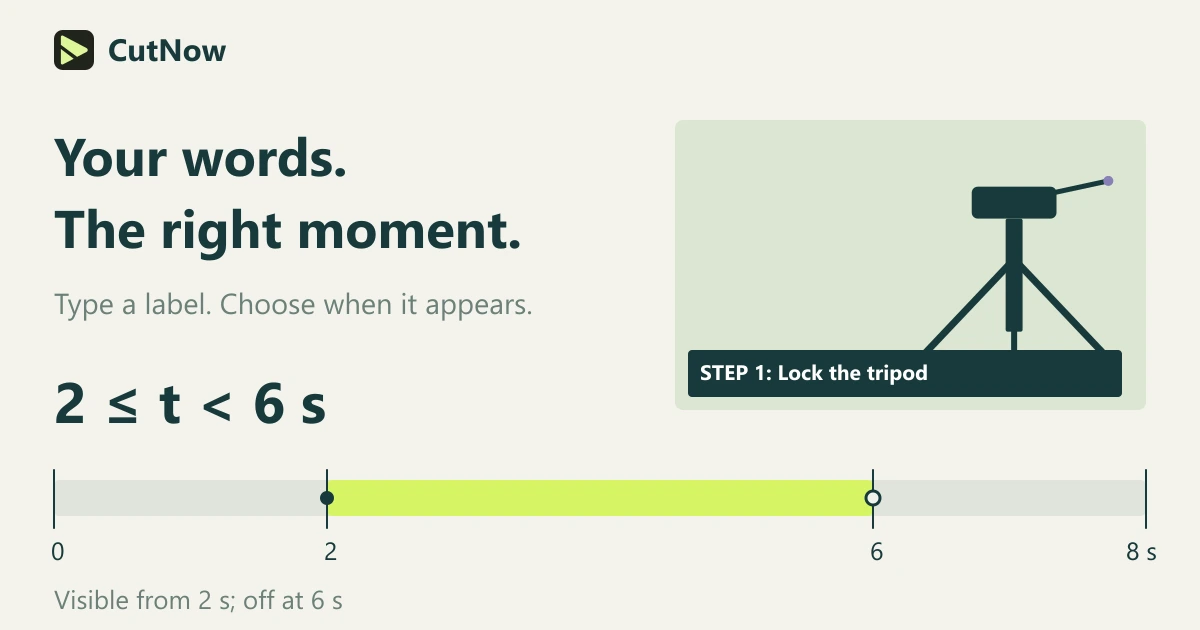
A step label should answer a question while the action is visible. If you already have a finished clip and want “STEP 1: Lock the tripod” to appear from second 2 until second 6, the task is to place your own words on a timed part of the picture. It does not require speech recognition.
CutNow is an AI editing product for existing footage: its role is to find useful material and organize a first cut. That helps when you still need to choose the action a label will explain. Once the edit is settled, the desktop method below adds a manually written label to a separate export.
1. Decide what the label explains
Write the words, start time, end time and position before styling anything. Our original teaching example is a tripod setup clip; the diagrams illustrate timing and layout rather than a processed video.
| Decision | Example |
|---|---|
| Text | STEP 1: Lock the tripod |
| Visibility | 2 seconds inclusive; 6 seconds exclusive |
| Position | Lower left, clear of the hands and mechanism |
| Delivery | A new MP4 with the text rendered into its picture |
Use a short action label instead of a paragraph. If the hands move across the bottom, choose another clear area. A label that looks good on one frame can obscure the action later. For spoken words that need transcription and timing, use the subtitle guide instead.

2. Prepare the video, text and font
Keep the clean master. This example assumes a correctly oriented, square-pixel, even-sized 1920 × 1080, 8-bit SDR video whose timeline starts at zero. HDR footage needs a suitable color-managed workflow; forcing it through this SDR example is not a tone-mapping method.
If you are finishing a CutNow first cut, reopen the selected video and confirm the action before setting these times. A label belongs to the time in that edited file, not the original take. Keep the first-cut file as the clean master rather than repeatedly encoding an already labelled copy.
Use an installed FFmpeg build with drawtext and the libx264 encoder. Check the filter help first:
ffmpeg -hide_banner -h filter=drawtext
ffmpeg -hide_banner -h encoder=libx264
An unknown-filter error means that build cannot follow this route. The official drawtext documentation lists its FreeType and HarfBuzz build dependencies; font fallback and complex text shaping have additional requirements.
Put the video and two supporting files in one working folder. Save the single line STEP 1: Lock the tripod as UTF-8 plain text named label.txt. Obtain a font you may use that contains your characters. One concrete source is the official Noto Sans SC font folder: download NotoSansSC[wght].ttf and name a working copy label-font.ttf.
Use those simple relative filenames in the command. They avoid an absolute Windows drive colon or spaces becoming filter syntax. A different font filename needs the corresponding fontfile value. Missing glyphs need a suitable font, not a larger font size.
3. Render the label into a separate MP4
The command below selects the first video and, if present, the first audio stream. It assumes that selected audio is AAC, suitable for copying into this MP4. Check your file’s audio streams if that is uncertain:
ffprobe -v error -select_streams a -show_entries stream=index,codec_name -of compact "source-v02.mp4"Run the following from the prepared folder, substituting your input filename:
ffmpeg -n -i "source-v02.mp4" -map 0:v:0 -map 0:a:0? -vf "drawtext=fontfile=label-font.ttf:textfile=label.txt:expansion=none:fontsize=48:fontcolor=white:box=1:boxcolor=black@0.65:boxborderw=16:x=48:y=h-text_h-60:enable='gte(t,2)*lt(t,6)'" -c:v libx264 -preset medium -crf 20 -pix_fmt yuv420p -c:a copy "source-v02-label-v1.mp4"textfile reads UTF-8; expansion=none treats its contents literally, including percent signs. Keeping the words outside the filter also avoids inline apostrophe and colon escaping. Do not add a simultaneous text= option. See FFmpeg’s quoting rules.
The video must be encoded again because its pixels change. CRF 20 is a starting setting, not a file-size or lossless guarantee. -n prevents overwriting an existing output. The optional audio mapping permits a silent input; it does not create sound. If the selected audio is not compatible AAC, a compatible encoding path is needed; with an AAC encoder available, replace -c:a copy with -c:a aac -b:a 192k. This re-encodes audio. Other audio tracks and embedded subtitles are not included by these maps. Keep the original and any subtitle sidecars. The stream-selection documentation explains explicit mapping.
4. Set timing and spacing deliberately
gte(t,2)*lt(t,6) enables the label on frames whose incoming timestamps are at least 2 and below 6 seconds. At 6 it is off. Times are evaluated on frames, not on an infinitely precise clock. An unusual source timestamp origin needs inspection rather than blindly reusing these numbers; do not reset only the video timestamps and leave audio on a different timeline. See the expression reference.
Here x=48 sets the text’s left offset. y=h-text_h-60 puts the text’s bottom 60 pixels above the image bottom. The box adds 16 pixels of padding, so its bottom clearance is 44 pixels. These are example pixel measurements, not platform safe-area rules.
Check the longest line at the destination size. This command does not automatically wrap or fit arbitrary text. Shorten it, reduce the font size or use deliberate line breaks when needed. For another step, use a separate text file and a separate timed drawtext filter in the same filter chain; keep intervals and labels individually reviewable.
5. Reopen the actual delivery
Open source-v02-label-v1.mp4, rather than judging an editor preview. Inspect just before 2 seconds, the first visible label, a middle frame and the transition at 6. Read punctuation and non-Latin characters, check the moving subject, and listen for sync throughout. View the result at the intended phone size as well as full size.
The rendered label remains part of the picture when player captions are off; it is not an editable SRT track. Keep the master, label.txt, font reference and timing notes for revisions. If the action itself still needs selecting, explore the CutNow first-cut workflow before locking label timing. Explore CutNow.